FixYourVPN

Most people connect their VPN, see "connected" in the app, and assume that's job done. Makes sense. But the app is only telling you it made a connection, not that everything behind it is working properly. It won't tell you whether your IP address actually changed, whether your DNS is quietly going through your real internet provider, or whether the kill switch would do anything if the VPN dropped. These four tests each take about 30 seconds, and together they give you the real picture.
If something is wrong, our free VPN troubleshooter will help you work out what to do next.
Check 1: has your IP address actually changed?
Open our IP address checker while the VPN is connected and take note of the country it shows. Then disconnect the VPN, refresh the page, and compare. Different country each time? Good, the VPN is working. Same country both times? Something isn't right.
If your IP isn't changing, try a different server and run the check again. Also give the VPN app a quick look, since some apps show a "connecting..." status that can easily be mistaken for "connected" at a glance. If it's still mid-connection, your IP won't have changed yet.
Check 2: is your DNS leaking?
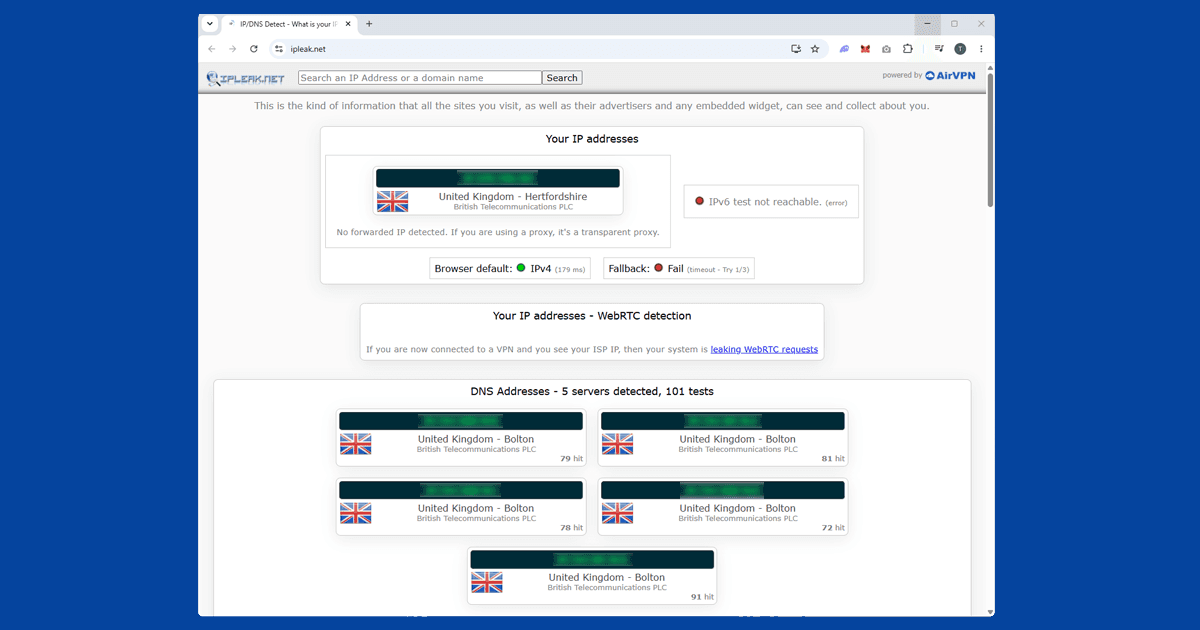
DNS is what your device uses to translate website names into actual addresses. Think of it like a phone book: you type "google.com" and DNS looks up the right number. The problem is that even when your VPN is fully connected and your IP has changed, DNS lookups can slip past the VPN tunnel and go through your regular internet provider instead. That's a DNS leak, and it can expose your real location even when your IP looks perfectly fine.
With your VPN connected, go to dnsleaktest.com and run the standard test. It'll show you which DNS servers your device is actually using. If you see your internet provider's servers in your home country rather than servers in the VPN's country, you've got a leak.
DNS leaks are probably the most common reason a VPN looks like it's working but still fails to unblock content. Most apps have DNS leak protection built in, but on some it needs to be switched on manually. Have a look in your app settings for a DNS or privacy section. Our DNS leak fix guide covers NordVPN and ExpressVPN specifically.
DNS leaks are the thing people miss most often. The IP address check is the obvious one so everyone does it, but a VPN can show the right country on an IP check and still be leaking your real location through DNS. If you're having trouble unblocking a streaming service even though your IP looks correct, a DNS leak test should be the very next thing you run.

Check 3: does your kill switch actually work?
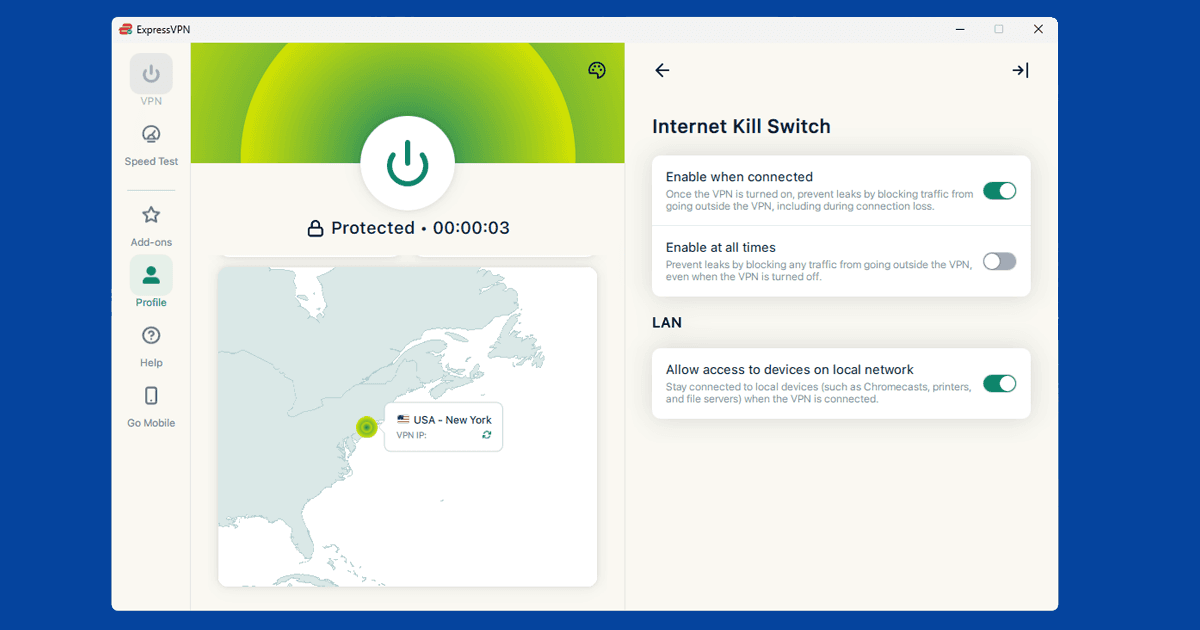
The kill switch cuts your internet completely if the VPN drops, so your real IP is never briefly exposed. The catch is that on most VPN apps it's off by default, so you have to go into settings and turn it on yourself before it'll do anything.
Once it's on, here's how to test it: with the VPN connected, manually disconnect it. Not pause, but fully disconnect. Your internet should go offline immediately. If you can still browse normally straight after disconnecting, the kill switch isn't doing its job.
In NordVPN, find it under Settings > Kill Switch. In ExpressVPN it's in the General section of your preferences or options (depending on your platform), listed as "Network Lock." Reconnect the VPN once you're done testing. Our full kill switch guide covers what to do if the test above shows it isn't working, plus the difference between the app-level and system-level versions most VPN apps offer.
Check 4: are you leaking through WebRTC?
WebRTC is a browser feature built for video calls, screen sharing, and live chat. Handy, but it can sometimes leak your real IP address even when your VPN is running. It mainly affects browser extension VPNs rather than full system apps, but worth a quick check regardless.
With your VPN on, visit browserleaks.com/webrtc and see whether your real IP appears alongside the VPN's IP. If it does, your browser is leaking it through WebRTC.
The simplest fix is to use a full system VPN app rather than a browser extension, since the app covers everything on your device rather than just one browser. If you'd prefer to keep using an extension, Firefox lets you disable WebRTC: type about:config in the address bar, find media.peerconnection.enabled, and set it to false. Just know that doing this will also stop video calls like Google Meet from working in Firefox, so it's worth deciding whether that trade-off is worth it for you. Our guide on using the app instead of the browser goes into more detail on why native apps sidestep this problem entirely.
Check 5: does your VPN reconnect automatically after a drop?
The four checks above tell you whether your VPN is working right now, but connections don't stay static. Wi-fi drops, your laptop sleeps, your phone switches to mobile data: all of these can interrupt the VPN tunnel, and what happens next matters as much as the initial connection.
To test it, connect your VPN, then deliberately break the connection: turn wi-fi off and back on, or put your laptop to sleep and wake it a minute later. Check your VPN app afterwards. Did it reconnect on its own, or is it sitting there disconnected without telling you? Some apps reconnect within a few seconds; others need you to open the app and hit connect again manually.
If your VPN doesn't reconnect automatically, look for an "auto-reconnect" or "always-on" setting in its preferences and turn it on. Pair it with a working kill switch so that even in the gap before it reconnects, nothing leaks out unprotected.
Check 6: does it actually unblock what you need?
An IP checker showing the right country is a good sign, but it's not quite the same as confirming your VPN does what you actually bought it for. If your main use case is streaming a geo-restricted service, or accessing a site that's blocked on your usual network, the most direct test is simply trying it: open the specific service you care about and see whether it loads normally.
This matters because some services check more than your IP address; DNS requests, browser fingerprinting, and account-level location settings can all affect the result independently of what a general-purpose IP checker shows you. If the IP and DNS checks above both look clean but a specific streaming service still won't play, our guide on switching VPN servers and our service-specific troubleshooting guides are the next place to look.
Testing on public wi-fi and other restricted networks
These checks are worth running every time you connect on an unfamiliar network, not just once when you first set up your VPN. Cafes, airports, and hotels sometimes filter VPN traffic in ways your home network doesn't, and a VPN that passed every test at home can behave differently somewhere else. Our guide to fixing VPNs on public wi-fi covers the specific issues that tend to show up on these networks, including sign-in pages that need completing before the VPN can connect at all.
Do these checks work the same way for free VPNs?
The tests themselves are identical, but it's worth going in with the right expectations. Free VPNs are more likely to fail one or more of these checks: DNS leak protection and a kill switch are exactly the kind of features that tend to get left out of free tiers or limited to paid plans. If you're relying on a free VPN and these checks turn up a leak, don't assume it's a one-off bug. It may simply be a feature the provider doesn't offer, in which case switching to a paid VPN with these protections built in is the more reliable fix.