FixYourVPN
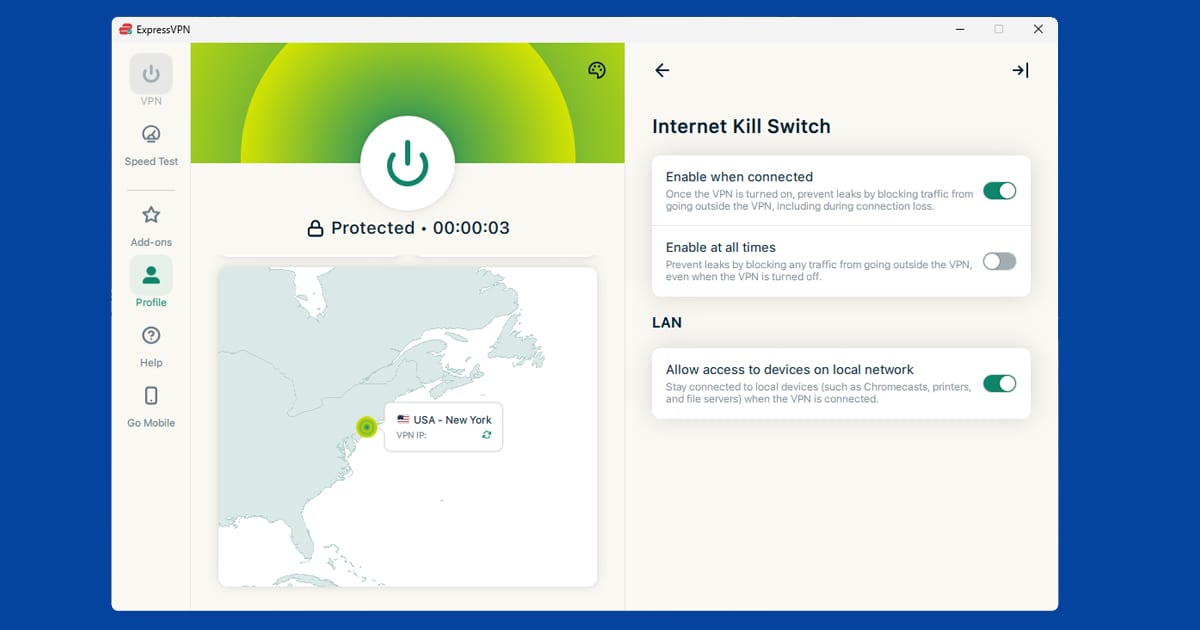
VPN connections don't drop often, but when they do, your real IP address is briefly exposed on your regular internet connection. A kill switch prevents this by cutting your internet the instant the VPN disconnects, then restoring it automatically once the VPN reconnects. For streaming it means no mid-session detection. For privacy it means no gaps. It's usually a single toggle in your VPN app's settings.
What a kill switch does
When your VPN drops, without a kill switch your device falls back to your regular unprotected connection. This happens silently, often for just a few seconds before the VPN reconnects. During that window, your real IP is visible. Some streaming services check IP addresses during a session, not just at the start, so even a brief slip can trigger a block. A kill switch closes that window entirely.
Why VPN connections drop
VPN connections aren't perfectly stable. They can drop for a number of reasons:
- Your device switches from wi-fi to mobile data (or between different wi-fi networks)
- Your router or modem briefly loses its internet connection
- The VPN server you're connected to becomes overloaded or restarts
- Your device wakes from sleep and the VPN connection hasn't re-established yet
- A firewall or network setting interrupts the VPN connection
Most of these drop-and-reconnect cycles happen in seconds and you'll never notice them, unless something like a streaming service logs your real IP in that window. With a kill switch enabled, there's no window for anything to see your real address.
Drops like this happen more often on public wi-fi than on a stable home connection, since cafe, airport, and hotel networks tend to be busier and less consistent. If you're regularly connecting on the move, a kill switch is doing more work for you than it would at home, which makes it worth double-checking it's actually switched on before you head out.
Two types of kill switch
Most VPN apps give you two options:
System-level kill switch: Blocks all internet traffic on the device when the VPN drops. Nothing gets out: no apps, no background processes, nothing. This is the thorough option and usually the right one.
App-level kill switch: Lets you choose specific apps that get cut off when the VPN drops, while everything else stays connected. Useful if you want certain apps (a download manager, for example) to only ever run through the VPN, while your browser can still work if the VPN drops. More flexible, but less complete.
If streaming is your main reason for using a VPN, go with the system-level option. You want the streaming service's connection to drop entirely if the VPN goes down, not carry on with your real IP.
How to enable the kill switch
NordVPN: Settings > Kill Switch. There are two toggles: one for the internet kill switch (system-level) and one for the app kill switch. Enable the internet kill switch for full protection. The app kill switch lets you specify which apps to block if the VPN drops.
ExpressVPN: Preferences > General > Network Lock. That's ExpressVPN's term for the kill switch. Toggle it on. ExpressVPN's version is system-level only, with no per-app option.
PureVPN: Look in Settings for an Internet Kill Switch or Internet Security section. Toggle it on. PureVPN also has split tunnelling in the same area if you want to control which apps use the VPN.
On mobile: Android has a built-in "Always-on VPN" option that works similarly to a kill switch. The path varies by device and Android version, but it's generally in Settings > Network & internet > VPN, then tap the settings icon beside your VPN app and enable both Always-on VPN and Block connections without VPN: the second checkbox is the part that actually behaves like a kill switch. On iOS, this option requires device management configuration and isn't available as a simple toggle. Most VPN apps on both platforms have their own kill switch setting that's simpler to use than the system option.
The kill switch is invisible when everything's working. You'll only notice it if the VPN drops, and even then it just means a brief pause until the connection comes back.
Does the kill switch affect streaming performance?
No. When the VPN is connected and stable, the kill switch does nothing. It sits quietly in the background and only fires if the VPN drops. With a reliable provider and a decent home connection, that rarely happens. You're unlikely to notice it at all under normal use.
If the kill switch is triggering frequently and cutting your internet, the problem isn't the kill switch; it's that your VPN connection is unstable. Try switching to a different server or protocol. A good VPN on a stable connection should hold its tunnel without dropping.
How to actually test your kill switch works
Turning the toggle on isn't quite the same as knowing it works. It's worth testing it once, so you're not relying on a setting you've never actually seen in action.
- Connect your VPN as normal and confirm it's showing as connected.
- Open a website or app you'd notice failing quickly, like a news homepage.
- Manually disconnect the VPN from within the app, not by turning off wi-fi. You want to simulate the VPN dropping while the rest of your network stays up.
- Try to load a new page or refresh. With the kill switch working, your internet should go dead immediately rather than falling back to your normal connection.
- Reconnect the VPN and confirm your internet comes back.
If your internet keeps working normally the moment the VPN drops, the kill switch isn't doing anything, even if the setting looks enabled. Double-check you toggled the system-level option rather than the app-level one, and that you're testing on the same device where you enabled it. This is essentially a simplified version of the checks in our full guide to confirming your VPN is working, which also covers IP and DNS leak testing if you want to go further than the kill switch alone.
Kill switches on a router-level VPN
If you've set your VPN up on your router rather than as an app on individual devices, most consumer router firmware doesn't offer a dedicated kill switch toggle the way an app does. Some routers can be configured to drop the internet connection entirely if the VPN tunnel fails, but this depends on the router and firmware you're running, and it's a more advanced setup than most people need. If a kill switch matters to you and you're running a VPN at the router level, it's worth running individual devices through the VPN app directly instead, where the setting is a straightforward toggle.
Do free VPNs have kill switches?
Some do, but it's inconsistent, and it's worth checking rather than assuming. A number of free VPN apps either leave the kill switch out entirely or bury it behind a paid tier. Given that free VPNs are also generally less stable, with connections dropping more often, that's a worse combination: more frequent drops paired with less protection when they happen. If a kill switch matters to you, and for streaming or general privacy it's a genuinely useful feature to have, check the specific app's feature list before relying on it, and treat "kill switch included" as one of the things worth comparing when choosing a provider in the first place.
Gaps a kill switch can't cover
A kill switch is a brilliant safety net, but it isn't perfect, and knowing where the holes are helps you plug them.
The first is restarting your device. Independent testing by RTINGS.com found that almost all the VPN kill switches it tested let traffic through during a system reboot. Most kill switches only work once the VPN app has loaded, so there's a short window after start-up when your connection is unprotected. To shrink it, set your VPN to launch at start-up and connect automatically. On Android, use Always-on VPN with Block connections without VPN, which the system enforces itself.
The second is browser-only VPNs, which are suddenly everywhere. Firefox added a free built-in VPN in March 2026, and it's handy for private browsing. But it only covers traffic inside Firefox. Your other apps go out over your normal connection, and there's no device-wide kill switch behind them. If you need everything protected, use a full VPN app with its kill switch switched on.
The third is split tunnelling. Any app you've told to bypass the VPN sits outside the kill switch too, so if that app leaks your location, the kill switch won't stop it.
- Turn on launch at start-up and auto-connect.
- Check your split tunnelling list every so often.
- Retest after big app or system updates.
If drops are happening often, our guide on why your VPN keeps disconnecting tackles the cause. There's more in our connection problems hub.