FixYourVPN

A VPN that keeps dropping is frustrating partly because the symptom doesn't tell you much on its own. The connection goes, comes back, goes again, and you're left wondering whether it's the router, the VPN app, the server, or the internet connection underneath. The good news is that the timing of the drops usually gives it away. Different causes tend to produce different patterns, so noticing when it happens gets you most of the way there.
If you'd rather work through it interactively, our free VPN troubleshooter covers connection and loading issues step by step.
How to diagnose a VPN that keeps dropping
This is the most useful question to ask yourself before trying anything else. Take a moment to notice the pattern:
- Only on wi-fi, but fine on ethernet: your wi-fi is the weak link, not the VPN. See the wi-fi section below.
- Only on mobile data: your phone is losing the tunnel when it moves between towers. WireGuard handles this much better than older protocols.
- Only when the screen locks or the device sleeps: your device is cutting the VPN to save power. The fix is in your power management settings.
- On every network, all the time: likely the protocol, an overloaded server, router settings, or the app itself. The sections below cover each of those.
Switch VPN protocol to fix connection drops
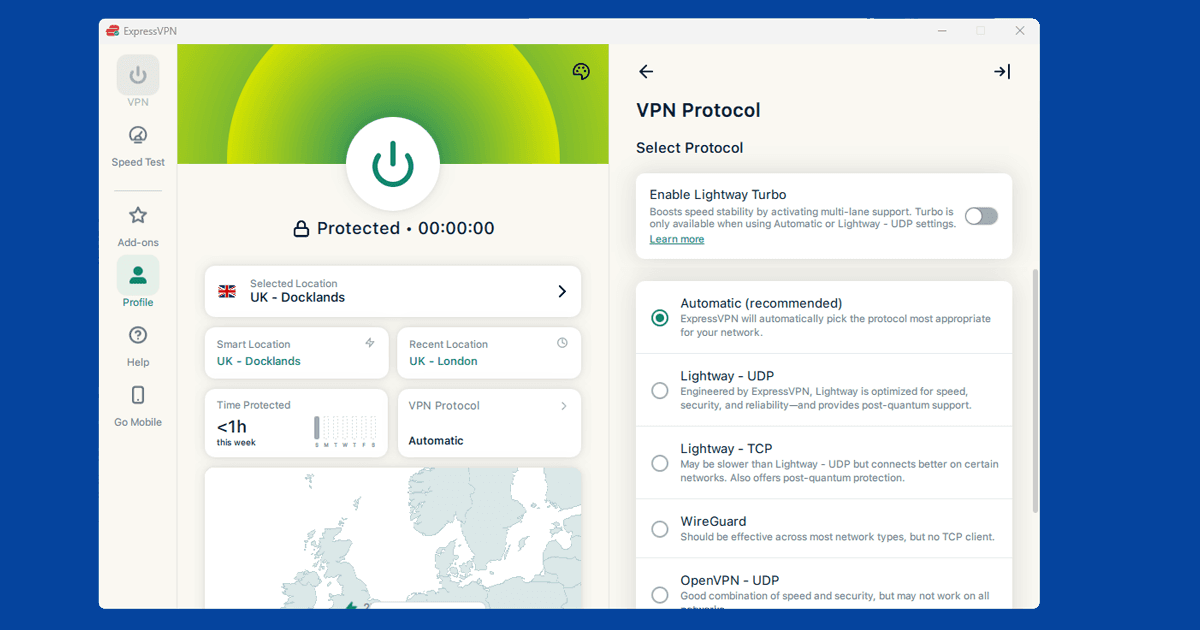
The protocol is the method your VPN uses to build and maintain the tunnel. OpenVPN and IKEv2 are common defaults but can struggle with network changes or packet loss. WireGuard is a newer option that tends to reconnect faster after a drop, uses less processing overhead, and handles switching between networks more gracefully.
NordVPN: go to Settings > Connection > VPN Protocol and select NordLynx. That's NordVPN's WireGuard build. Reconnect once you've changed it.
ExpressVPN: go to Preferences > Protocol and choose Lightway. It's ExpressVPN's own protocol, built along similar lines to WireGuard, and handles reconnections well. Our protocol switching guide has screenshots for every major app.
PureVPN: go to Settings > Protocol and choose WireGuard from the list. It's the same underlying protocol as NordLynx and Lightway, just under its original name.
Already on WireGuard and still dropping? Keep reading through the sections below.
How to fix a VPN that disconnects on wi-fi
A VPN can only be as stable as the connection underneath it. If your broadband drops briefly every few minutes, the VPN tunnel will break too. The quickest check: disconnect your VPN and see whether your regular internet stays solid. If pages stall or your ping spikes without the VPN, the problem is your underlying connection rather than the VPN itself.
Common wi-fi causes include interference, distance from the router, and congestion on a shared 2.4GHz band. Try moving closer to the router, or switch to the 5GHz band if your router supports it. Testing via ethernet cable is the cleanest way to isolate wi-fi as the culprit. If the VPN stays stable on a cable but drops on wi-fi, that's your answer.
If there are a lot of nearby wi-fi networks in your building, channel congestion might be causing brief drops. Many routers have an auto-channel setting, and switching to a less busy channel manually can help. You'll usually find this in your router's admin page.
Why does my VPN disconnect on mobile?
When you move around, your phone hands off between mobile towers, and each handoff can briefly interrupt the VPN tunnel. Fast protocols like NordLynx (NordVPN's WireGuard build) and Lightway (ExpressVPN's own protocol) reconnect almost instantly after these handoffs, so switching to one of them tends to sort this out on mobile.
VPN disconnects when screen turns off
Your operating system is suspending the network adapter to save power. On Windows, open Device Manager, find your network adapter, open Properties, go to the Power Management tab, and uncheck "Allow the computer to turn off this device to save power." On Mac, check System Settings > Battery for any sleep settings that cut the network. On Android, go into battery optimisation settings and exclude the VPN app from aggressive power-saving modes. On iOS, check Settings > your VPN app > and make sure Background App Refresh is switched on for it; iOS is more aggressive than Android about suspending apps it thinks are idle, and that includes the VPN's own background connection.
VPN keeps disconnecting on every network
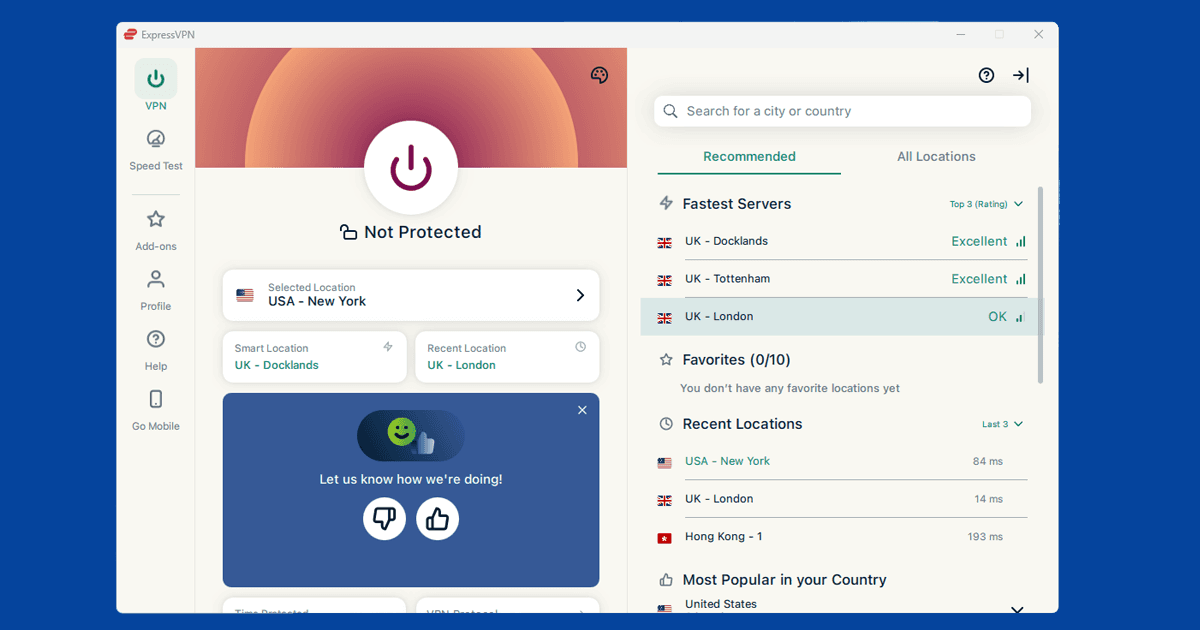
If the drops happen everywhere, try switching to a different VPN server first. Overloaded servers, particularly busy ones in major cities, drop connections more often. Switching to a different server in the same country is quick to try and often solves it. In NordVPN, open the server list and pick a different city. ExpressVPN works the same way. Our guide on switching servers covers the steps for each app.
If a server switch doesn't help, your router might be the issue. Some older routers have firewall or security settings that time out VPN connections after a while. Log into your router admin page (often at 192.168.0.1 or 192.168.1.1, though yours may be different) and look for a firewall or security section. Check whether VPN passthrough is enabled and whether any traffic filtering might be cutting off your connection.
Security software can sometimes interfere with VPN tunnels too. On Windows, if drops started after a software update, try temporarily disabling your firewall and testing the connection. If that fixes it, add your VPN app as an exception rather than leaving the firewall off permanently.

Use the kill switch while you sort it out
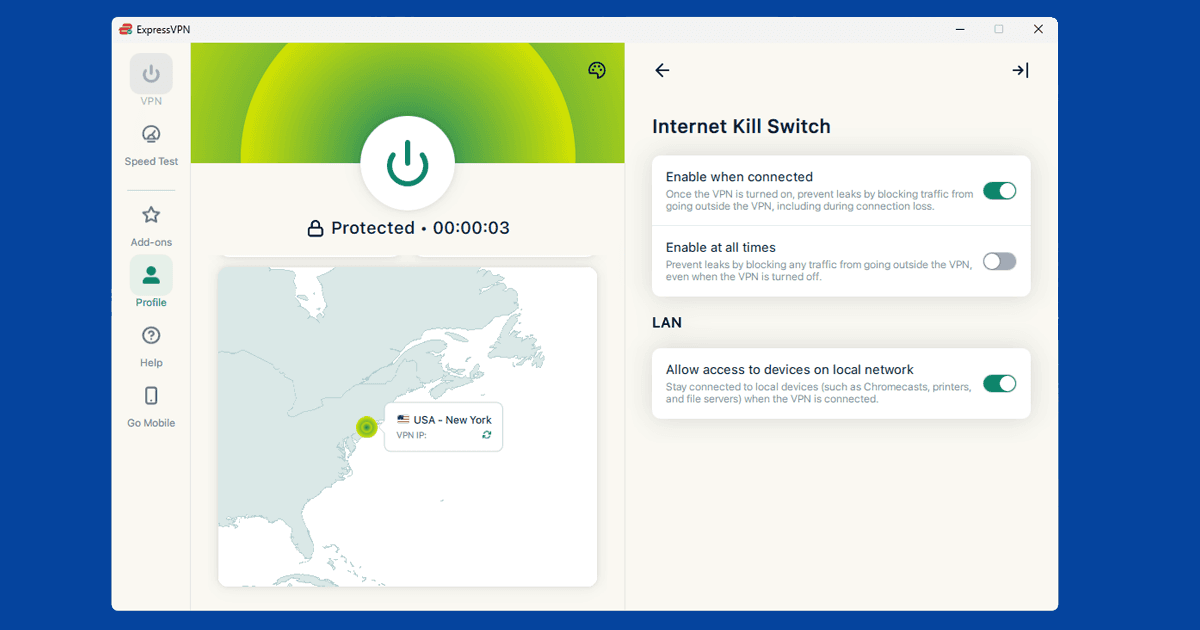
If you can't fully stop the drops right away, turning on your VPN's kill switch means your real IP stays protected whenever the tunnel breaks. The kill switch cuts all internet traffic the moment the VPN drops and restores it once the VPN reconnects, so nothing leaks out during those brief gaps.
In NordVPN: Settings > Kill Switch, then turn on the internet kill switch. In ExpressVPN: Preferences > General > Network Lock. Our full kill switch guide covers setup for every major app.
Last resort: uninstall and reinstall your VPN app
If none of that has helped and the connection is still unstable, a corrupted installation or an outdated app version is worth ruling out. Check for updates first. Most providers push stability improvements regularly, and running an old version can mean missing months of fixes.
If you're already on the latest, a clean reinstall is the next step: uninstall the app completely, download a fresh copy from the provider's website, and set it up again from scratch.
Could your internet provider be doing this on purpose?
Some internet providers use deep packet inspection to identify VPN traffic and either throttle it or interfere with the connection, particularly on older protocols like OpenVPN that have a more recognisable traffic pattern. This is more common on mobile networks and in some countries than on standard UK home broadband, but it's not unheard of.
If drops are frequent and nothing else on this page has fixed it, switching to WireGuard and enabling an obfuscation or "stealth" setting if your provider offers one (NordVPN calls this Obfuscated Servers) can help, since it disguises VPN traffic to look more like ordinary encrypted browsing. Our protocol switching guide covers where to find this setting in each app.
Firewalls on shared and work networks
Hotel, university, and workplace networks often run more aggressive firewalls that periodically re-scan active connections, and a VPN tunnel can get caught in that and dropped even after connecting successfully. If the disconnects only happen on one specific network, like your office or a hotel, and everything's fine elsewhere, this is the most likely explanation.
Our guides on VPNs on hotel wi-fi and VPNs on university networks go into more depth on getting around this kind of filtering.