FixYourVPN
When a streaming service stops working with your VPN, the server you're connected to is almost always the reason. Services block VPN access by building lists of known VPN IP addresses. When your server's IP is on that list, the stream won't play.
Switching to a different server gets you a fresh IP address that probably isn't flagged yet. It takes about ten seconds and often sorts the problem within a few tries.
Why server-switching works
Your VPN gives you a choice of many servers in each country. Each server has its own IP address, and streaming services can only block the ones they know about.
When a stream is blocked, it means that specific server's IP has been flagged. Switching to a different server in the same country gives you a different IP, and the new one may not be on the list.
This is why server-switching is the first thing to try. It's quick, it doesn't need any technical knowledge, and it fixes most streaming blocks within a couple of attempts.
How to switch servers in your VPN app
The steps are similar across most VPN apps, even if the layout looks a bit different:
- Close the streaming app or browser, then disconnect from your current server.
- Open the server list and find your target country.
- Pick any server that isn't the one you were just on.
- Connect to the new server.
- Open the streaming service in a fresh browser tab or reload the app.
If it still doesn't work, try another server. Give it two or three tries before moving on to the other fixes below.
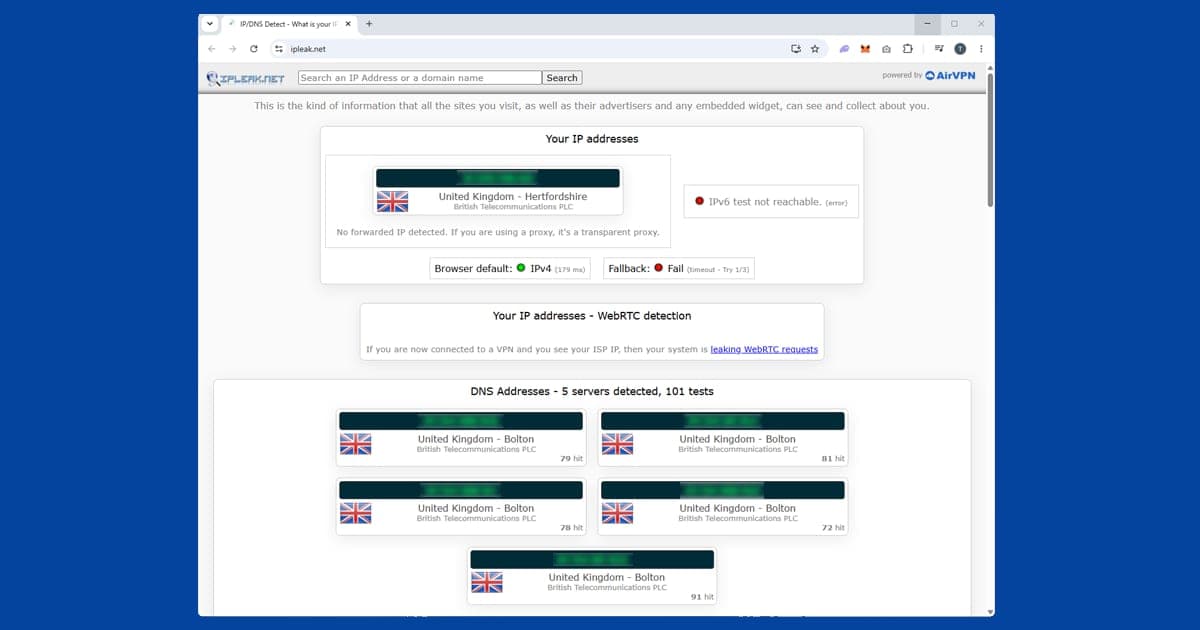
After switching, use our IP address checker to confirm the new server is showing a different IP in the right country. If the IP hasn't changed, the switch didn't take effect: disconnect fully, wait a couple of seconds, and reconnect.
In NordVPN
Tap a country on the map or use the search bar to find servers in your target country. NordVPN doesn't label servers for streaming, so any server in the right country is a fine start. Its SmartPlay feature, built into every NordVPN connection, helps with geo-restricted streaming in the background, so there's nothing to switch on. If a server is blocked, NordVPN's own advice is to close the streaming app or browser and connect to a different server in the same country.
In ExpressVPN
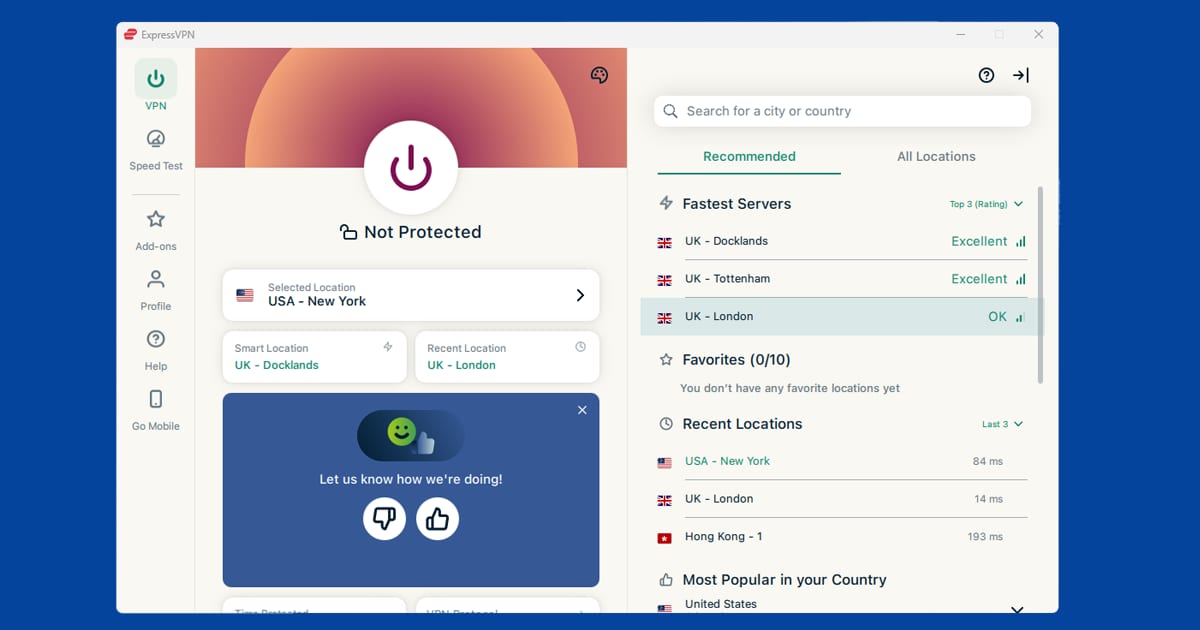
Tap Choose Location, select your target country, and pick a different city or server from the list. ExpressVPN doesn't label servers for streaming, and its Smart Location picks a server based on speed and distance rather than streaming, so if the suggested one isn't getting through, browse the full list and try another location in the same country.
In PureVPN
Open the app, go to Locations, then Shortcuts, and pick the streaming service you want. PureVPN connects you to a server for that service, so you're not guessing which one to try. If the shortcut doesn't get through, PureVPN suggests picking a different city in the same country and reconnecting.
Streaming-optimised servers
Some VPNs label servers for streaming, and if yours does, try those first. PureVPN has its streaming Shortcuts, CyberGhost groups its "For streaming" servers by service, and PIA marks some locations as "Streaming Optimized". On Proton VPN, streaming needs a paid Plus server. NordVPN, ExpressVPN and Surfshark don't label servers this way, so any server in the right country is a fine start.
A label improves your odds, nothing more. Labelled servers still get blocked, so if one doesn't work, close the streaming app or browser and try a different server or city in the same country. Very busy servers shared by lots of people do tend to get flagged sooner, which is one reason to pick a specific server rather than letting the app choose.
Save a favourite server for next time
Once you've found a server that reliably gets you into a specific streaming service, most VPN apps let you save it as a favourite or add it to a shortlist. NordVPN and ExpressVPN both support this: look for a star icon next to the server name in the list.
This saves you from working through the same trial and error every time you want to watch something. If a saved favourite eventually stops working, because it inevitably will once its IP gets flagged, just repeat the process and save a new one.
Auto-connect versus picking manually
Many VPN apps default to an auto-connect button that picks the fastest or nearest server rather than a specific one you choose. That's great for everyday browsing, but it's not what you want when you're trying to unblock a specific streaming service, since the app has no way of knowing which country's library you're actually after. Always pick the country and server manually from the list when streaming is the goal, rather than relying on the one-tap auto-connect option.
When to try more than the server
If you've tried three or four servers and none of them work, the server probably isn't the issue. A few other things can cause a streaming service to detect your real location even when your IP address looks right:
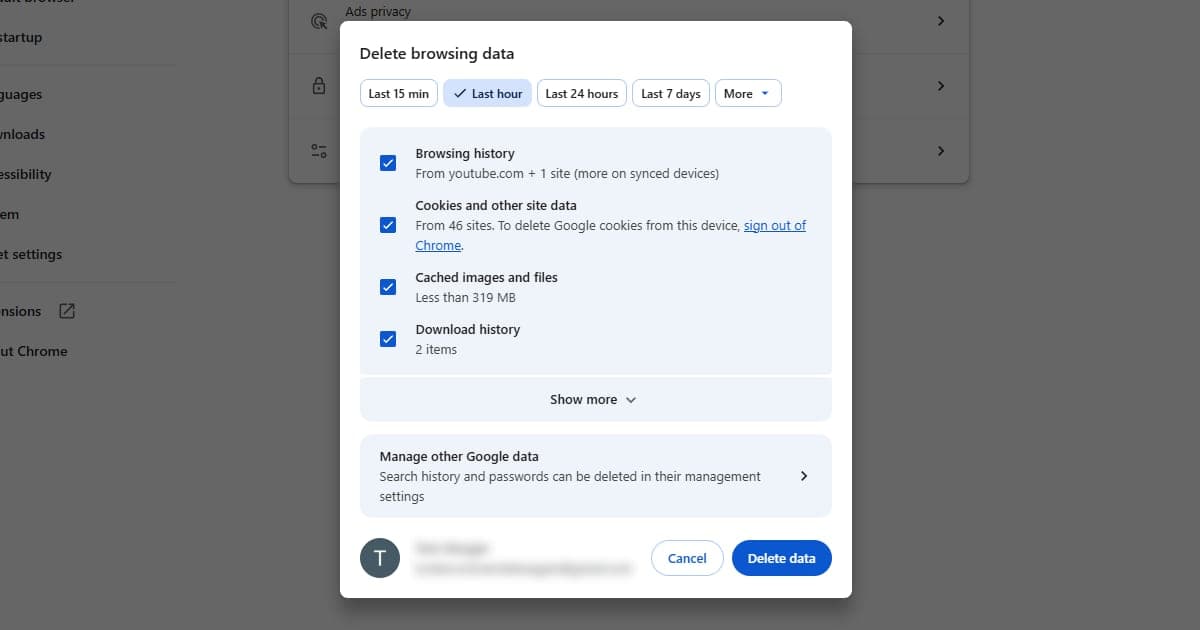
- Cached cookies in your browser. Your browser may have stored location data from a previous visit. Opening a private or incognito window clears this. Our guide to clearing cache and cookies walks through the full process.
- A DNS leak. Your device may be sending location-revealing requests outside the VPN, even though your IP address looks fine. Run our IP and DNS checker with your VPN connected: if your real internet provider shows up in the results, you have a DNS leak. Our DNS leak guide covers the fix for all major VPN apps.
- WebRTC in your browser. WebRTC is a browser feature that can reveal your real location even with a VPN running. In Chrome, turn on the WebRTC blocking option in your VPN's browser extension (NordVPN's and ExpressVPN's both have one). In Firefox, go to about:config and set
media.peerconnection.enabledto false. Safari has stricter controls on WebRTC and is less likely to leak your location through this route.
How many servers should you try?
Two or three is usually enough to tell whether the server is the issue. If four and five don't work either, move on to checking for DNS leaks or cookies rather than working through the whole server list. The problem is likely something else at that point.
Your VPN provider's support team is the quickest route to an answer if you're stuck. Good providers track which servers are currently working with which services and can point you straight to one.
If you've tried everything and nothing works
Not all VPN providers put the same effort into maintaining working streaming servers. If your VPN can't reliably unblock the services you care about, it may not be up to the task. Free VPNs are frequently blocked by major streaming services: their IP address pools are small and widely known.
NordVPN and ExpressVPN both have strong track records for streaming. If you're on a different provider and hitting persistent blocks, switching to one of these may be worth it.
Switching servers on a TV box
Most server-switching advice assumes you're on a phone or laptop. But plenty of people watch on a TV box, where scrolling through hundreds of locations with a remote control is nobody's idea of fun. VPN apps are starting to catch up. In June 2026, ExpressVPN updated its Apple TV app so you can save favourite locations as tiles on the home screen. It also added WireGuard and OpenVPN alongside its own Lightway protocol, plus a built-in speed test.
That makes the habits in this guide much easier on a TV. Here's a simple routine that works with any app that supports favourites:
- Find two or three servers that work with the services you watch, and save them as favourites.
- If one gets blocked, jump to the next with a single click instead of searching.
- Use a speed test, where your app has one, to pick the fastest of your saved servers.
Doing this on a quiet weekday saves a lot of frustration on a busy Saturday night, when popular servers are under the most pressure.
Not every TV device can run a VPN app, though. Roku can't, so switching servers there means changing the server on whatever is providing the VPN, usually your router. Our Roku VPN guide explains the options. For more fixes, see our connection problems hub.