FixYourVPN

Netflix is more aggressive about detecting VPNs than almost any other streaming service. It keeps a running list of IP addresses linked to VPN servers and updates it regularly, which is why a server that worked last week can get flagged today. The problem is almost always about which server you're connected to. Work through the fixes below in order and you should be back up and running quickly.
If you're not sure which fix applies, our free VPN troubleshooter can help diagnose the problem.
The error you're probably seeing
When Netflix catches a VPN, it usually shows something like: "You seem to be using an unblocker or proxy. Please turn off any of these services and try again." Sometimes it refuses to load anything at all, just a spinning wheel that goes nowhere. Either way, it's fixable, and in most cases you won't need to do anything complicated.
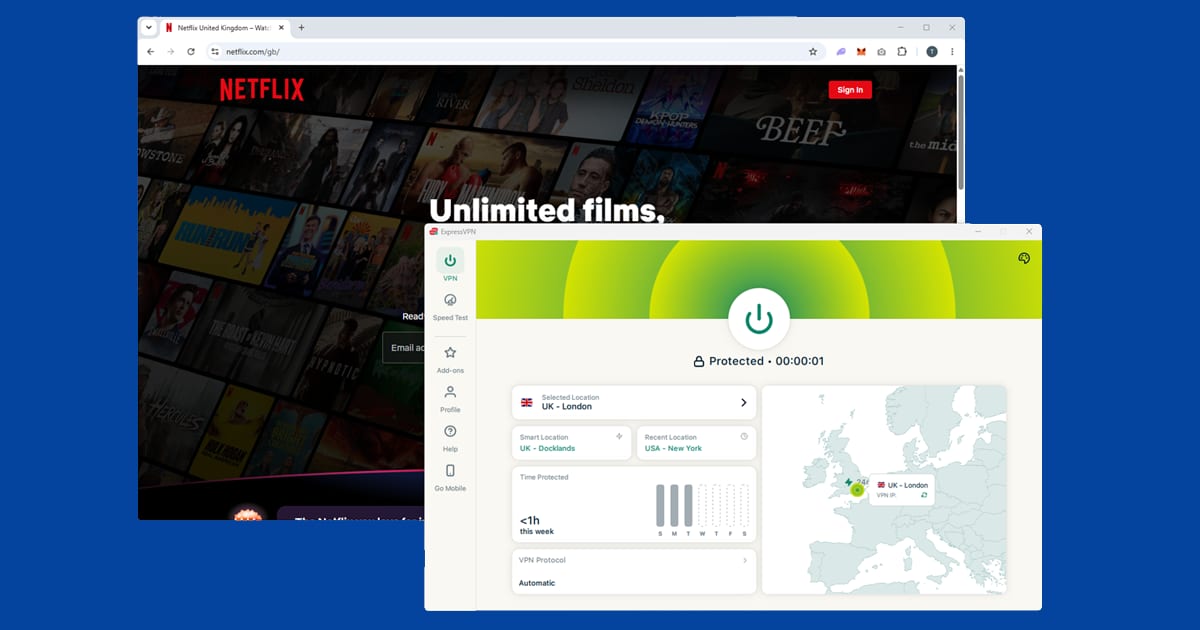
Why Netflix blocks VPNs
Netflix doesn't have anything against VPNs in principle. The issue is licensing. When Netflix buys the rights to stream a film or TV series, those rights are often country-specific. The studio that owns the content decides where it can be shown, and Netflix has to play by their rules or risk losing the rights altogether. So it has to actively enforce those restrictions.
The way Netflix catches VPNs is fairly simple: it checks whether your IP address looks like a home broadband connection or a data centre. VPN servers run in data centres, and Netflix uses various databases that track which IP addresses belong to those data centres. If your IP is on the list, you get the proxy error.
It's a bit of a cat-and-mouse game: Netflix blocks a batch of IP addresses, VPN providers add new servers, Netflix blocks those, and so on. This works in your favour. It means switching to a fresh server is almost always enough to get you back in.
When a VPN stops working with Netflix, the same thing comes up again and again. The VPN is fine. It's one specific server that Netflix has flagged. Switch to a different server in the same country and you're in. With a decent VPN, that usually takes one or two tries.

Fix 1: Switch to a different server
This is the fix that works most often, so try it before anything else. Open your VPN app, find the list of servers in your target country, and pick a different one. If you're on a London server, try Manchester or Edinburgh instead. It can take a couple of attempts, but a fresh server will usually get you through.
In NordVPN: open the app, tap the search bar, and type a city or country. Tap any server in the list to connect. NordVPN doesn't label servers for streaming, but its SmartPlay feature is built into every connection, so there's nothing to switch on. If the first server doesn't work, close the streaming app or browser, then tap a different server in the same country.
Other providers work the same way: find the country, pick a different server, and reconnect. If your VPN has a "streaming" or "optimised" label on certain servers, try those first. See our full guide to switching VPN servers for step-by-step instructions across all major apps.
Fix 2: Clear your cookies and use a private window
Netflix stores location data in your browser from before you connected your VPN. Even if your IP address now looks correct, an old cookie can give the game away. Here's what to do:
- Connect your VPN and choose a server in your target country.
- Clear your cookies and cache. In most browsers, look in Settings under Privacy or History and choose to clear cookies and cached data. Set the time range to "All time" if you're given the option.
- Chrome: three-dot menu > Settings > Privacy and security > Delete browsing data
- Edge: three-dot menu > Settings > Privacy, search, and services > Clear browsing data
- Firefox: hamburger menu > Settings > Privacy & Security > Clear Data
- Safari (Mac): Safari > Settings > Privacy > Manage Website Data > Remove All
- Safari (iPhone): iPhone Settings app > Apps > Safari > Clear History and Website Data
- Close the browser completely and reopen it.
- Open Netflix in a private or incognito window. This starts completely fresh with no stored location data.
Fix 3: Try the Netflix app instead of a browser
The Netflix website and the native Netflix app handle VPN connections differently. Browser-based Netflix can pick up your real location through features like WebRTC (a browser technology that can leak your real IP address even while your VPN is running) that the native app doesn't use, so the app is worth trying if the browser keeps getting blocked. Download it from the Microsoft Store (Windows), the App Store (macOS or iOS), or Google Play (Android), and make sure your VPN is connected before you open it.
If you're on your phone, use the Netflix app rather than loading Netflix in your mobile browser. The same logic applies. If you're already using the Netflix app and it's still blocked, try this: disconnect your VPN, close Netflix completely, reconnect the VPN, then reopen the app. The VPN needs to be active before Netflix loads; if the app opens first it may record your real location before your connection is secured.
Watching on a smart TV: Smart TVs can't run a VPN app directly. To get a VPN working on a TV, set it up on your router (which covers all devices on your home network) or share a VPN connection from a laptop as a wi-fi hotspot. NordVPN, ExpressVPN, and PureVPN all publish step-by-step router setup guides in their help centres.
Fix 4: Check what Netflix can actually see
Before trying more complicated fixes, confirm your VPN is actually working. Visit our IP address checker with your VPN connected. It shows the location Netflix sees when you open a page. If it shows the right country, your VPN is working fine and the issue is a specific blocked server. Go back to Fix 1 and try a different one. If it shows your real location, your VPN connection isn't active: disconnect, reconnect, and try again. If multiple servers are all showing the wrong location, your VPN provider may not have reliable Netflix coverage for that region. Our recommended VPNs are the options that consistently work.
Fix 5: Change your VPN protocol
VPN apps can use different methods to create a secure connection, and some work better with streaming services than others. If switching servers alone hasn't fixed the block, changing the protocol is worth trying. WireGuard is a good option if you're currently on OpenVPN or IKEv2. In NordVPN, this is typically under Settings > Connection > VPN Protocol, where you'd select NordLynx (NordVPN's version of WireGuard). In ExpressVPN, look under Settings > Protocol for Lightway. Menu names and locations shift a little with app updates, so if it's not exactly where we've described, search your app's settings for "protocol." Our guide on changing your VPN protocol covers the steps for all major apps.
Fix 6: Rule out a DNS leak
If our IP checker in Fix 4 showed the right country but Netflix is still blocking you, or the block only shows up partway through loading a title, a DNS leak could be why. DNS is what translates netflix.com into the actual server address your device connects to, and it's supposed to route through your VPN like everything else. On some networks it doesn't, and a small amount of that traffic slips out to your regular internet provider instead, which can reveal your real country even while your IP address looks fine. Run our IP and DNS checker again and check whether the DNS server it reports matches your VPN's location. If it doesn't, turn on DNS leak protection in your VPN's settings, usually a single toggle, and try again. Our DNS leak guide has the fix for every major provider.
Fix 7: Try a VPN that keeps up with Netflix
Not all VPN providers put the same effort into maintaining Netflix-compatible servers. If you've switched servers multiple times and still can't get through, ask your VPN's support team which servers are currently working with Netflix. Good providers will know. If they can't tell you, that's a sign they're not keeping up with Netflix's blocks.
NordVPN and ExpressVPN have the strongest track records for Netflix, with PureVPN a solid budget alternative: all three actively monitor which servers work and bring in replacements when they get blocked. Free VPNs are almost universally blocked by Netflix, so if that's what you're currently using, switching to a paid provider is likely the only reliable fix. If you've worked through every step and still can't get through, the contact form is open.
Which Netflix library is actually worth switching to
Netflix doesn't run one global catalogue. Every country gets its own mix of titles based on whatever licensing deals are in place there, and some libraries are genuinely much bigger or better stocked in specific genres than others. The US library is usually the one people go for first, since it tends to be the biggest overall and gets new releases earliest. But it's not automatically the best pick for everyone. Japan's library is stronger for anime, with titles that don't always show up elsewhere. South Korea's is a good option if you're into K-dramas beyond the handful that get a wider international push. If you're chasing something specific rather than just "more stuff," it's worth checking a couple of libraries rather than defaulting to the US every time.
One thing worth knowing: your existing subscription and payment method work across every library. You don't need a separate account for each country, just a VPN server there and a fresh look at what's on offer.
Netflix buffering or picture quality dropping with a VPN
Getting past the proxy error is only useful if what follows actually plays smoothly. A few things to check if Netflix loads but keeps buffering or won't go above a soft, low-resolution picture:
- Try a server that's actually close to you, not just one in the right country. A New York server will generally load faster for someone on the US East Coast than one in Los Angeles, even though both give you the same library.
- Switch to WireGuard if you're on an older protocol. It's covered in Fix 5 above and tends to handle sustained video streams noticeably better than OpenVPN or IKEv2.
- Test your speed with the VPN off. If your underlying broadband is already struggling, no VPN change is going to fix the picture quality.
- Check for a dropping connection. If the VPN disconnects and silently reconnects mid-episode, Netflix has to re-check your location and the stream stutters while it does. Our guide on a VPN that keeps cutting out covers the common causes.
Our fuller guide on why a VPN slows your connection down is worth a look if buffering carries on after trying the above.
Signing up or changing your billing country
Logging into an existing account with a VPN is straightforward. Creating a new one, or changing your plan, adds a payment step that can trip things up. Netflix checks your card's billing country alongside your IP address, so if you're connected to a US server but paying with a UK-issued card, the payment can get flagged or declined. If that happens, either switch your VPN back to a server in the country your card was actually issued in for the payment step, or use a payment method registered in the country you're trying to sign up from. This is a bank fraud check catching a mismatch, not Netflix itself blocking you.
Is it against Netflix's terms to use a VPN?
Netflix's terms of service ask you to access the version of Netflix available in your own country, and using a VPN to reach a different region's library technically goes against that. In practice, Netflix's response has always been technical rather than punitive: it tries to detect and block VPN connections rather than banning accounts that get caught. We've never seen credible, widespread reports of accounts being suspended purely for using a VPN to change region. Using a VPN itself is legal almost everywhere, including the UK and the US.
Netflix's 2026 price rise and travelling
Netflix put its UK prices up again on 3 September 2026, its first rise since February 2025. Standard with Ads went from £5.99 to £7.99 a month, Standard from £12.99 to £13.99, and Premium from £18.99 to £20.99. When you're paying more, it's fair to expect the service to work when you're away from home.
A common question is whether you need to buy an Extra Member slot to watch abroad. You don't. Extra Member (now £6.99 a month without ads, or £5.99 with ads) is for someone who lives outside your household. You, on your own phone, tablet or laptop while you're on holiday, are still you. Netflix's household rules are built around the TV at your main home, so the easiest setup abroad is your own device, using the Netflix app rather than a browser. Our guide to using the streaming app instead of a browser explains why the app causes fewer VPN problems.
One more thing before you change plan to "fix" a VPN problem: the proxy error has nothing to do with which tier you're on. No plan gets around it, and downgrading won't cause it either. Sort the VPN side first with the fixes above, then decide whether your plan still feels like good value. If you're comparing other services too, our US and global streaming hub covers the big ones in one place.