FixYourVPN

If BBC iPlayer isn't working with your VPN, it's almost always because iPlayer has spotted something that doesn't look British. Usually it's one of four things: the server's IP address is on its blocklist, your DNS requests are leaking out to your normal provider, your browser is quietly revealing your real address through WebRTC, or an old cookie still remembers where you really are. Fix each of those in turn and iPlayer usually starts playing within a few minutes. The step-by-step checklist below works through them in the order that solves the most problems fastest.
This page is the full fix guide for people using a VPN. If you're not using a VPN at all and iPlayer still says you're not in the UK, that's a different problem with different causes, and our explainer on why BBC iPlayer says you're not in the UK covers it properly, from iCloud Private Relay to mobile networks and office wi-fi. If you'd rather be guided one question at a time, our free VPN troubleshooter has iPlayer as one of its first options.
What the iPlayer VPN block looks like
When iPlayer detects a VPN, it rarely says so in plain words. Instead, you'll usually see one of these:
- "BBC iPlayer only works in the UK. Sorry, it's due to rights issues." This is the classic one, and the message most people search for.
- "This content is not available in your location." Common on smart TVs and in the mobile apps.
- A generic playback error, or a programme page that loads but refuses to play.
- A spinning wheel that never turns into a picture, with no error at all.
They all mean the same thing: iPlayer doesn't believe your connection is coming from inside the UK. The service doesn't have a separate "VPN detected" message. It simply treats a connection it doesn't trust the same way it treats one from abroad.
Why iPlayer detects and blocks VPNs
The BBC takes geo-blocking (restricting content by country) more seriously than most streaming services. iPlayer is paid for by UK licence fee payers and the BBC's rights deals for many programmes only cover the UK, so it has strong reasons to keep the service inside the country. That means it puts real effort into spotting VPN traffic.
A VPN works by sending your internet traffic through a server somewhere else, so websites see that server's address instead of yours. If you're new to the idea, our plain-English explainer on what a VPN is is a gentle place to start. The weak spot is that thousands of people share each VPN server. When iPlayer sees hundreds of different viewers all arriving from the same address, it's a fairly safe bet that address belongs to a VPN, and it gets added to a blocklist.
On top of that, iPlayer looks at more than one signal at a time:
- Your IP address. The number that identifies your connection. iPlayer checks whether it's in the UK and whether it's already known to belong to a VPN.
- Your DNS requests. DNS is the internet's phone book: it turns "bbc.co.uk" into a numeric address. If those look-ups go to your normal internet provider abroad instead of through the VPN, they give away your real country.
- WebRTC. A browser feature used for video calls. As a side effect it can tell a website your real IP address, even when a VPN is running.
- Cookies and stored data. Small files your browser keeps from earlier visits. If you opened iPlayer before connecting the VPN, it may already have noted your real location.
- Your BBC account. You need a signed-in BBC account with a UK postcode. That's an account check rather than a location check, but it stops people at the first hurdle.
So when people say "iPlayer is detecting my VPN", what's usually happening is that one of these five signals is out of line. Switching server only fixes the first one.
When iPlayer blocks you, it's rarely just one thing. It looks at your IP address, your DNS, your browser and your account all at once, so fixing one and ignoring the rest is why so many people give up halfway. Work through them in order and you'll usually find the one giving you away.

Before you start: two honest checks
You need a TV licence. To watch or download anything on BBC iPlayer, live or on demand, you need to be covered by a UK TV licence. That's been the rule since September 2016, and it applies on every device, including phones and laptops. From 1 April 2026 a colour TV licence costs £180 a year. iPlayer asks you to confirm you have one when you sign in, and TV Licensing does follow up with people who've told it they don't need a licence but are seen using iPlayer. A VPN doesn't change any of that.
Know where you stand. Using a VPN is legal in the UK. The BBC's terms say iPlayer is for use in the UK, though, so using a VPN to watch while you're abroad sits outside what the BBC intends. In practice its response is technical: it blocks VPN servers rather than chasing individual viewers. We cover this in more detail in the FAQ at the end.
Step-by-step: fix iPlayer when your VPN is blocked
Work through these in order. Each step takes a minute or two, and after each one, try playing a programme again.
Step 1: Check what iPlayer can actually see
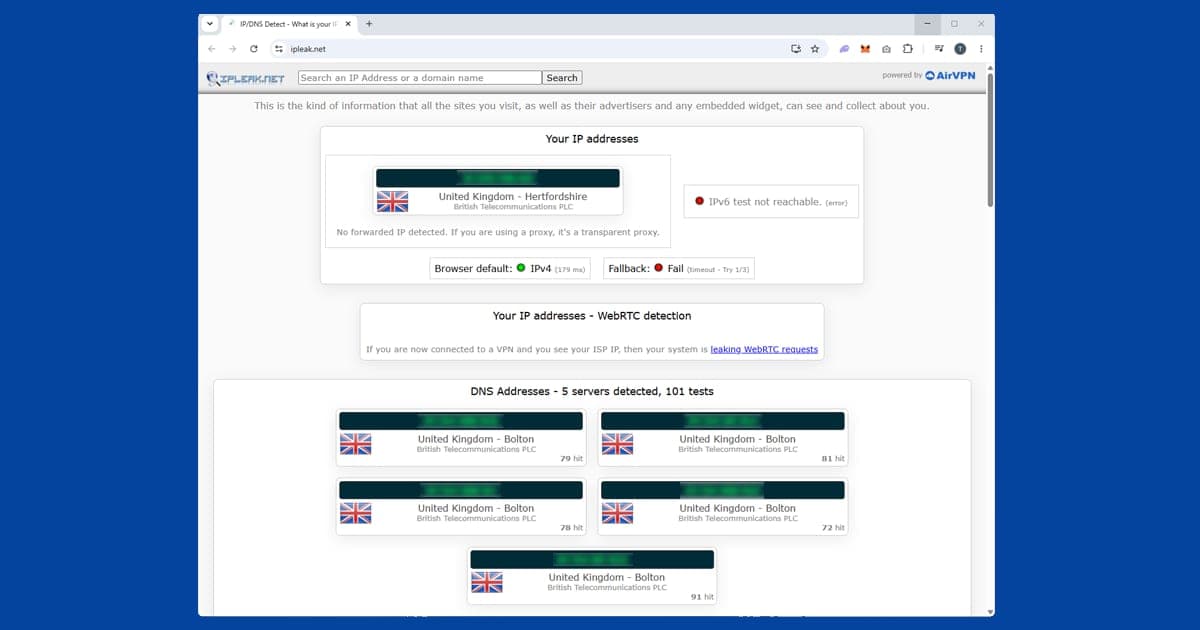
Connect your VPN to a UK server, then open our IP address and DNS checker. This shows you the same information iPlayer sees. If the location says somewhere other than the UK, your VPN isn't connected properly, so reconnect or pick another UK server before going any further. If it says UK but the DNS servers listed belong to your normal provider or a foreign company, jump to Step 6. If both look British, carry on with Step 2.
Step 2: Make sure your BBC account has a UK postcode
iPlayer won't play anything until you're signed in to a free BBC account, and that account needs a valid UK postcode. If you set yours up years ago with an address abroad, or the postcode has gone missing, iPlayer can turn you away before your VPN even gets a look-in. Sign in at bbc.co.uk/iplayer, open your account settings and check the postcode. If the account was created somewhere else entirely, it's often quicker to sign out and register a new one using your UK address.
Step 3: Connect the VPN first, then open iPlayer
The order matters more with iPlayer than with most services. If you open iPlayer and then switch the VPN on, the site may already have checked your real connection and remembered it for that session. Close your browser or the iPlayer app completely. Connect the VPN, wait until the app confirms you're connected, and only then open iPlayer again. If you change server mid-session, repeat this: close everything, reconnect, reopen.
Step 4: Switch to a different UK server
If iPlayer still says it only works in the UK, the server you're on has probably been blocklisted. London servers are the most popular, which makes them the most likely to be flagged. Try Manchester, Edinburgh, Glasgow or another UK city your VPN offers. Try two or three before deciding the problem is somewhere else. Our guide to switching VPN servers shows exactly where the option sits in the main VPN apps.
Some VPNs mark certain servers as suited to streaming; PureVPN, for example, has streaming Shortcuts in its apps. If your VPN has anything like that, start there. It improves your odds, but it isn't a guarantee, so be ready to try another UK city.
Step 5: Block WebRTC in your browser
WebRTC lets a website ask your browser for your IP address directly, and that answer can bypass the VPN. Here's how to stop it:
- Chrome and Edge: turn on the WebRTC blocking option in your VPN's browser extension; NordVPN's and ExpressVPN's both have one. The full uBlock Origin extension used to be the standard fix, but current versions of Chrome no longer run it.
- Firefox: type
about:configin the address bar, accept the warning, search formedia.peerconnection.enabledand set it to false. - Safari: Safari is much stricter about WebRTC by default, so it's rarely the culprit here.
- The iPlayer app: apps don't use WebRTC the way browsers do, so this step doesn't apply. Just make sure the full VPN app is running, not only a browser extension.
Step 6: Fix any DNS leak
If Step 1 showed a UK IP address but foreign or non-VPN DNS servers, you have a DNS leak. Your device is still asking your normal provider to look up web addresses, which tells iPlayer where you really are. Open your VPN app's settings and turn on DNS leak protection (sometimes called "use VPN DNS" or "custom DNS off"). If you've set a custom DNS such as Google or Cloudflare on your device or router, switch it back to automatic while you're using the VPN. Then run the checker again. Our step-by-step guide to fixing a VPN DNS leak covers Windows, Mac, phones and routers if the simple toggle doesn't do it.
Step 7: Clear cookies or use a private window
Your browser might be holding on to a cookie from a time you visited iPlayer without the VPN. The quickest test is a private or incognito window, which starts with no cookies at all. If iPlayer plays there, clear your bbc.co.uk cookies in your normal window and it should work there too. Our guide to clearing cache and cookies to fix VPN problems has the exact clicks for Chrome, Firefox, Safari and Edge, on desktop and mobile.
Step 8: Change your VPN protocol
The protocol is the method your VPN uses to build its encrypted tunnel. It doesn't change your location, but some protocols reconnect more cleanly and leak less on awkward networks. If you're on an older default such as OpenVPN TCP or IKEv2 and you're getting odd results, try WireGuard, or the provider's own version of it (NordLynx on NordVPN, Lightway on ExpressVPN). Our guide to changing VPN protocol explains each option in plain English.
Step 9: Try the app instead of the browser, or the other way round
The iPlayer app and the website don't behave identically. The app avoids WebRTC and browser cookies entirely, so if the website keeps failing, the app on your phone, tablet or streaming stick may work straight away. If the app is the one failing, the website in a private window with WebRTC blocked is worth a go. Switching between the two is also a useful test: if one works and the other doesn't, you know the server is fine and the problem is specific to that app or browser. Our guide on using a streaming app instead of a browser explains why this helps.
Step 10: Check the network you're on
Some networks block VPNs before iPlayer ever gets involved. Hotel wi-fi, university networks and some public hotspots stop VPN connections or let them through only partly, which can leave you with a half-working connection that iPlayer rejects. If your VPN struggles to stay connected, our guides to VPNs on hotel wi-fi and VPNs on public wi-fi cover the workarounds, such as switching to a different port or protocol.
Step 11: Ask your VPN's support team
If you've been through every step and iPlayer still won't play, your VPN's UK servers may all be flagged at the moment. Good providers know this happens and keep track of which servers currently work. Open a live chat and ask which UK server they recommend for BBC iPlayer today. It's a two-minute conversation and often the quickest fix of all. If they can't help, that's a strong sign it's time to change provider.
Device-specific fixes
The steps above apply everywhere, but each type of device has its own quirks.
Laptop or desktop browser
Browsers give iPlayer the most ways to spot you, because of WebRTC and cookies. Use the full VPN app rather than a browser extension where you can, block WebRTC, and use a private window for a quick test. If you have several browsers installed, try a different one: a fresh browser has no iPlayer cookies at all.
iPhone, iPad and Android phones
Use the iPlayer app with the VPN app connected first. On an iPhone, make sure iCloud Private Relay is switched off while you use a VPN, because the two can clash. Phones are also good at switching between wi-fi and mobile data without telling you, and a VPN can briefly drop during that switch. If iPlayer stops mid-programme, check the VPN is still connected. If it isn't, turning on your VPN's kill switch stops any traffic leaving without protection.
Amazon Fire TV Stick and Android TV
These are the easiest streaming devices to get working, because the iPlayer app and the main VPN apps are both available from the app store. Install your VPN, sign in, connect to a UK server, then open iPlayer. If iPlayer opened before the VPN connected, force-stop the iPlayer app in the settings menu and reopen it. Our Fire Stick VPN guide covers installation problems and the most common Fire TV errors.
Smart TVs (Samsung, LG and others)
Samsung and LG TVs can't run a VPN app at all, and neither can a standard Chromecast. To get iPlayer on those, the VPN has to live somewhere else. The most reliable way is a router-level VPN: set the VPN up on a compatible router and every device connected to it uses a UK address automatically. The other option is to share a laptop's VPN connection as a wi-fi hotspot and connect the TV to that. Some VPNs also include Smart DNS, which changes only your DNS look-ups, but iPlayer is often wise to that, so a full VPN is the safer bet.
Roku, PlayStation and Xbox
These sit in the same position as smart TVs: no VPN app, so a router-level VPN or a hotspot is the answer. Our Roku VPN guide walks through both methods step by step, and the same approach works for games consoles.
iPlayer buffering or blurry with a VPN
Sometimes you get past the block and the picture stutters, freezes, or stays stuck in low quality. That's a speed problem rather than a detection problem. A VPN adds a little extra distance and encryption to every bit of data, and on a busy server that adds up.
- Pick the UK server closest to where you are physically. If you're in Spain, a London server is usually quicker than one in Glasgow.
- Switch to WireGuard or your provider's fast protocol if you haven't already.
- Test your normal internet speed with the VPN off. If that's slow, the VPN can't make it faster.
- Restart your router if speeds have dropped gradually through the evening.
If the VPN keeps disconnecting, iPlayer will pause or throw an error each time while it re-checks your location. Our guides to a slow VPN and a VPN that keeps disconnecting cover the deeper fixes.
VPNs that work reliably with BBC iPlayer
If you've worked through every step and nothing sticks, some VPNs just don't keep up with iPlayer. The BBC blocks servers constantly, so what matters is how quickly a provider replaces them and how many UK addresses it has to rotate through. Free VPNs almost never manage it, as we explain in are free VPNs safe?
- NordVPN is our first choice for iPlayer. It has a large spread of UK servers, fast NordLynx connections that handle HD streams well, a dedicated Fire TV app, and built-in DNS leak protection.
- ExpressVPN is a close second. Its apps are very simple to use, it works on a wide range of devices including routers, and its support team is good at pointing you to a working UK server.
- PureVPN is the cheaper option that still holds up. It labels some servers for streaming in its apps and runs on most of the same devices.
No VPN is immune. Even the best ones occasionally have a server that iPlayer has caught. The difference is that with a good provider, switching to another UK server fixes it in seconds.
What to watch once it's working
Once iPlayer is playing, most people head straight for the big shows. If you're abroad and want specific programmes, we have guides for watching EastEnders abroad, watching Doctor Who abroad and watching Strictly Come Dancing abroad, including when new episodes land and what to do if a live show won't start. For the other British channels, such as Channel 4 and ITVX, our UK streaming hub brings all the guides together in one place, and the fixes on this page carry over to most of them.