 FixYourVPN
Fix Your VPN
70+ step-by-step guides for VPNs blocked by BBC iPlayer, Netflix and other services, plus VPNs that drop out, crawl along or won't connect
- Expert tips
- Step-by-step fixes
- Beginner-friendly
Browse Guides by Service
Choose a streaming service below. Each guide walks you through the fixes that work for that service, starting with the ones most likely to sort it quickly.




The Most Common VPN Problems
FixYourVPN is a free, independent help site for everyday people whose VPN has stopped doing its job. No jargon, no sales pitch first: just the fix. These are the problems people bring to us most, each linked to a guide that walks you through it step by step.
- BBC iPlayer says it only works in the UKWhy iPlayer spots your VPN and the 11 fixes that get it playing
- iPlayer thinks I'm abroad, but I'm in the UKMobile networks, Private Relay and other hidden causes
- Netflix shows a proxy or unblocker errorClear the proxy error and get the right library back
- My VPN keeps disconnectingFind the pattern and stop the dropouts on any device
- My VPN is really slowMeasure the slowdown fairly and get your speed back
- My VPN won't connect on public Wi-FiSign-in pages, blocked ports and how to get round them
- ITVX says I'm outside the UKFix error ITV-101 and location blocks on ITVX
- Channel 4 is blocked with my VPN onStep-by-step fixes for the Channel 4 app and website
- Sky Go shows error 1414 abroadWhat the error means and how to clear it
- Is it actually safe to use a VPN?How to check any VPN before you trust it
- Are free VPNs safe?The real incidents, and the rare free options worth using
- Is my VPN leaking my location?Spot and fix a DNS leak in a couple of minutes
Browse by Problem
Every guide sits in one of 7 topics. Pick the one that matches what's going wrong and you'll see every fix we've written for it.
- UK streamingiPlayer, ITVX, Channel 4, My5, Sky Go, NOW and more10 guides
- US and global streamingNetflix, Prime Video, Disney+, Hulu, Max, Peacock and more14 guides
- International streamingAustralia, NZ, Canada, India, East Asia and Europe7 guides
- Live sportDAZN, TNT Sports, beIN, ESPN+, F1 TV and Kayo7 guides
- Apps, social and gamingChatGPT, Discord, WhatsApp, TikTok, Roblox, Spotify and more16 guides
- Connection problemsSlow speeds, dropouts, leaks, WiFi blocks and devices15 guides
- VPN basicsWhat a VPN is, safety, free VPNs and jargon explained6 guides
Try These Common VPN Fixes
Most VPN issues with streaming services come down to a handful of common causes. Work through these steps before anything else; they sort out most problems in under five minutes, and you won't need any technical knowledge to follow them.
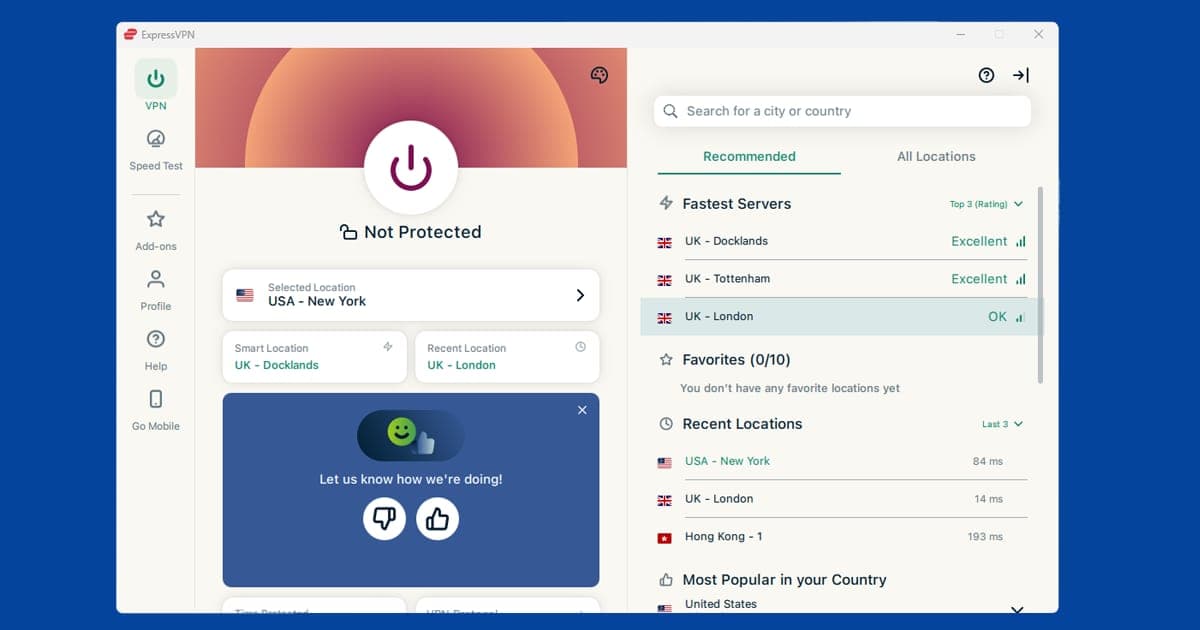
Try a Different Server
The server you're connected to may have been blocked by the streaming service. Open your VPN app and pick a different server in the same country. It usually fixes things straight away.
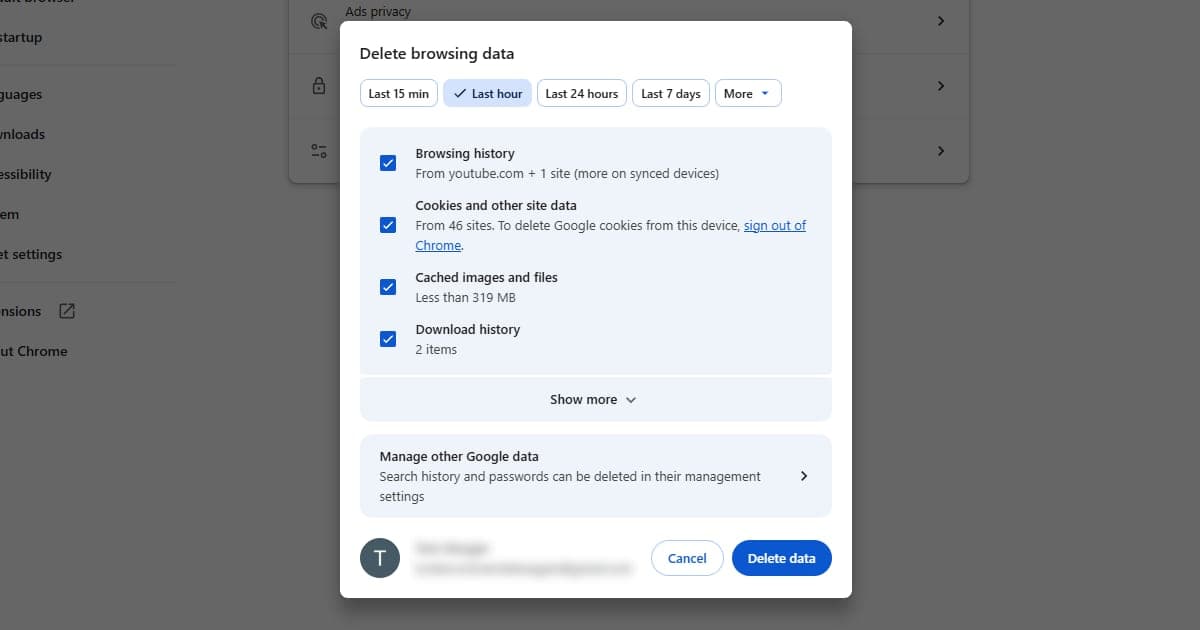
Read more about:Clear Your Cache and Cookies
Your browser holds on to info from your last visit, including location data. Clearing your cache and cookies wipes that stored info so the service sees you fresh. Do this before reconnecting your VPN.
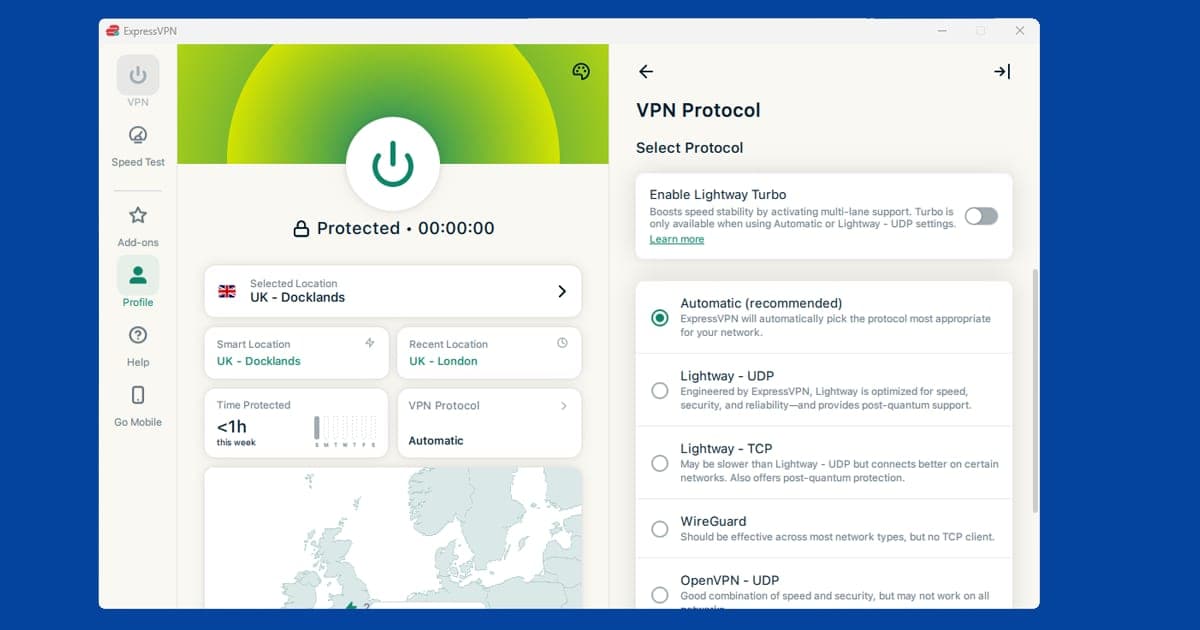
Read more about:Change How Your VPN Connects
Your VPN has a few different ways of connecting to the internet. Some are more easily blocked than others. Open your VPN app's settings, find the Protocol option, and try switching to a different one.
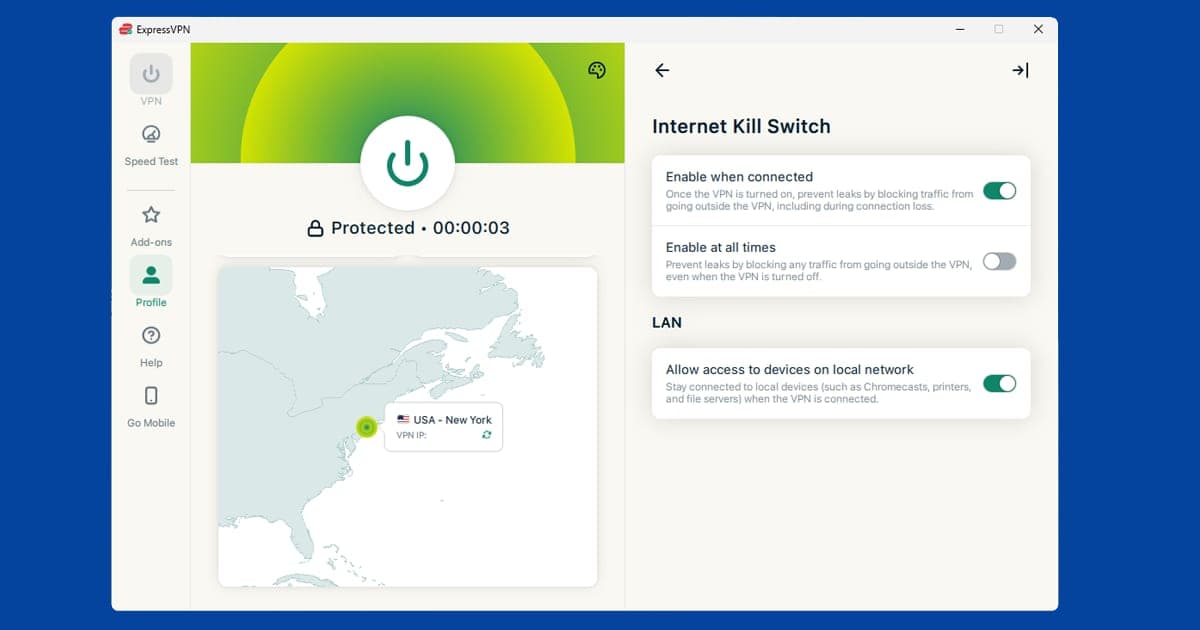
Read more about:Turn On Your Kill Switch
If your VPN briefly disconnects, your real location can show through for a split second. That's enough for some services to detect you. A kill switch pauses your internet the moment the VPN drops, so nothing gets out. Look for it in your VPN app's settings.
Read more about:Use the App, Not a Browser
Streaming services are better at detecting VPNs in a web browser than in their own apps. If it's not working in Chrome or Safari, try the streaming service's own app instead.
Read more about:Check for Hidden Location Leaks
Sometimes your device quietly sends your location outside your VPN without you realising. This is called a DNS leak. Most VPN apps have a one-click fix for it under their Privacy or Advanced settings.
Read more about:
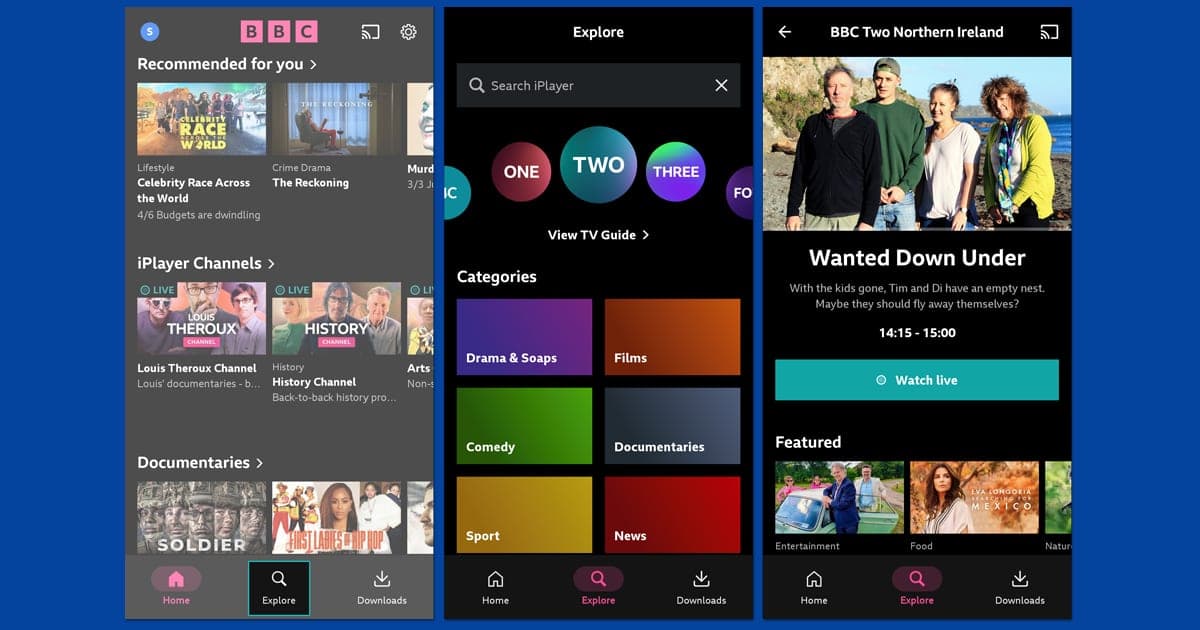
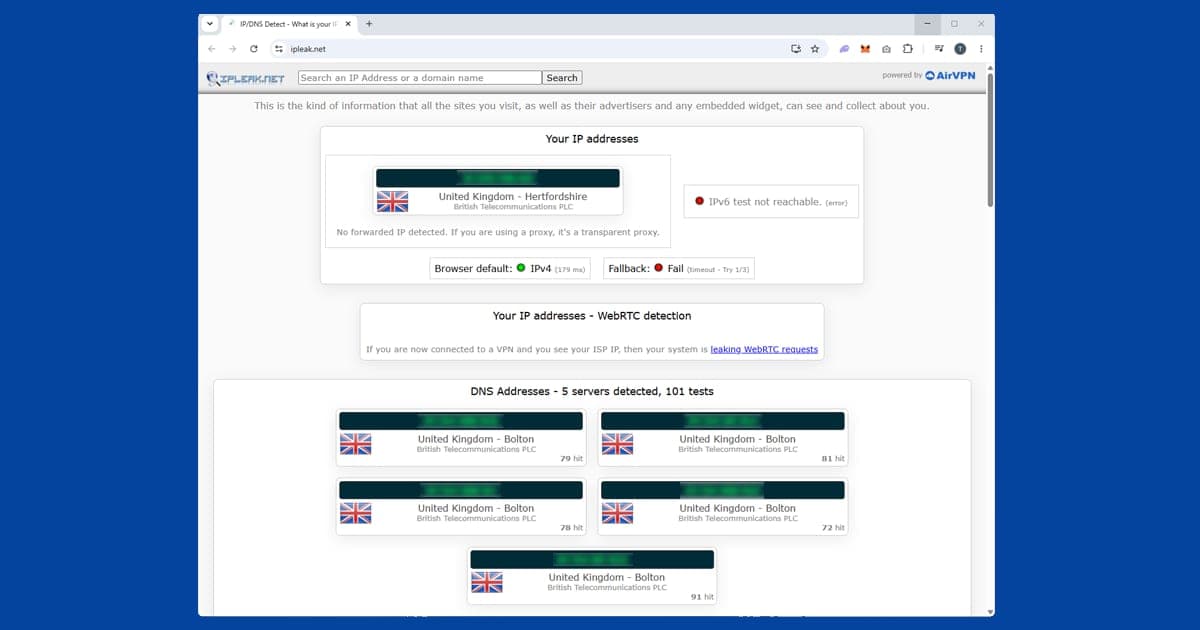
If you've tried all of these and your VPN is still being blocked, the problem is most likely the VPN itself. Some providers, particularly free ones, can't disguise that your traffic is coming from a VPN server, and streaming services have got good at spotting them.
Our favourite VPNs for streaming
Not all VPNs are equal for streaming. These are the providers we recommend, ranked on their streaming track record, independent reviews, features and value.
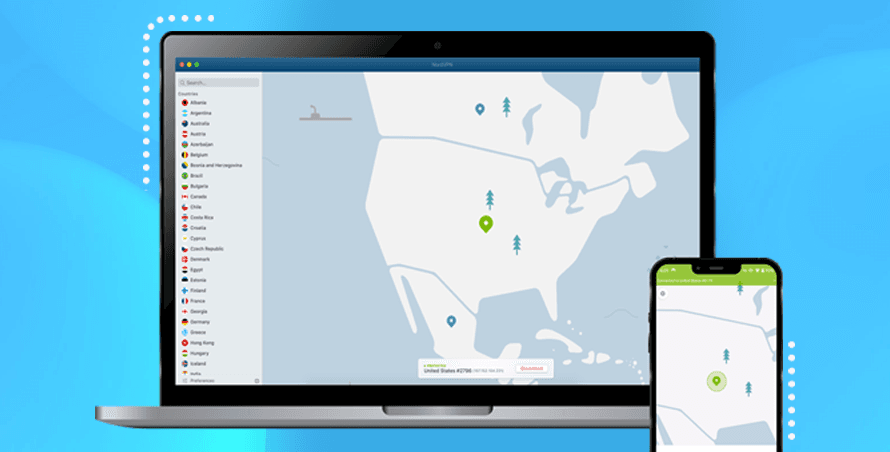
 NordVPN (Our Top Pick)
Excellent for streaming
Starting from £2.59/mo
Widely rated among the most consistent VPNs for BBC iPlayer, Netflix, Disney+, and the harder UK services. Reliable, fast, and works on up to ten devices at once.
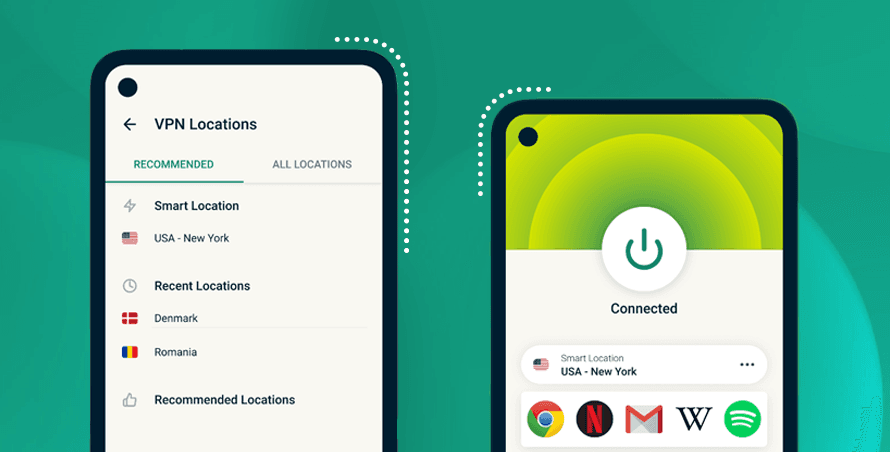
 ExpressVPN
Known for fast speeds
Starting from £2.19/mo
Consistently among the fastest in independent speed tests, and competitively priced. A strong choice if speed, picture quality, or smart TV streaming matters to you.
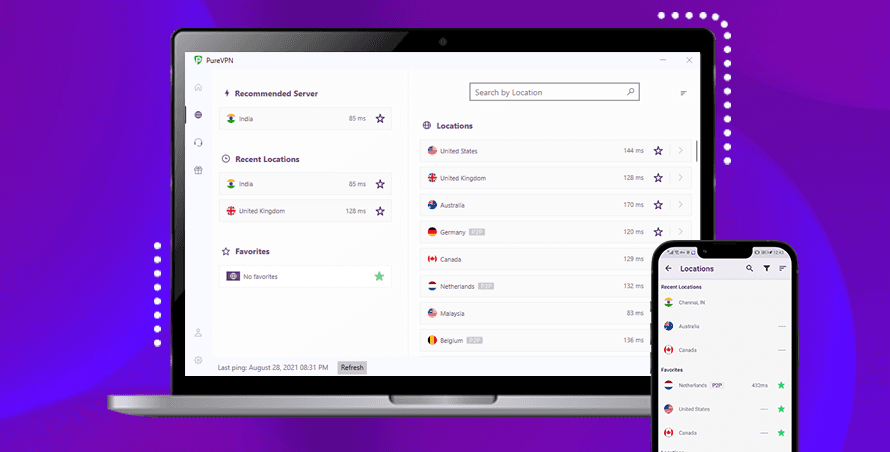
 PureVPN
Best value for money
Starting from $2.15/mo
The most affordable of our three picks. Still unblocks all the major streaming services, and the price makes it a sensible starting point if you're new to VPNs.
Wondering how we choose our recommendations? Read how we choose the VPNs we recommend
This section may contain affiliate links. See our disclosure.
Popular Guides

BBC iPlayer VPN Not Working? 11 Fixes That Work
iPlayer keeps saying it only works in the UK even with your VPN on, so here's how to find what's giving you away and fix it step by step
Streaming
Netflix VPN Not Working? 7 Fixes for the Proxy Error
Stuck on Netflix's proxy error or a library full of Originals with your VPN on, here are seven fixes that get the right catalogue back
Explainer
Are VPNs Safe? How to Tell a Trustworthy One (2026)
VPN technology is safe but the company behind it decides your privacy, so here's how to check any VPN before you trust it with your data
Guide
Why Does My VPN Keep Disconnecting? How to Fix It
Power saving, shaky wi-fi, an older protocol or a busy server cause most VPN drops, and the timing of the drops tells you which one you're dealing with
Streaming
ITVX VPN Not Working? 10 Fixes for Watching Abroad
If ITVX says you're outside the UK or shows error ITV-101 with your VPN on, here's why it happens and the fixes that get it playing again
Streaming
Disney+ VPN Not Working? Fix the Block or Region Mismatch
Disney+ refusing to play with your VPN on usually comes down to one of two problems, and this guide shows you how to spot yours and fix it fast
Why People Trust FixYourVPN
- 75free troubleshooting guides
- 7problem topics covered
- 8 October 2026most recent guide update
- 3VPNs we recommend

Frequently Asked Questions
Netflix actively blocks known VPN IP addresses. The most common fix is to switch to a different server in the same country; VPN providers rotate servers regularly, so another location may still work. Clearing your browser cache and cookies can also help, as stale session data may be exposing your real location. See our full Netflix fix guide.
A small amount of speed reduction is normal, as your traffic is being encrypted and routed through an extra server. With a quality VPN like NordVPN or ExpressVPN, the slowdown is usually small enough that streaming still works fine. Connecting to a server closer to your physical location typically gives the best speeds.
A DNS leak happens when your device sends location requests outside your VPN tunnel, revealing where you really are even though your IP address looks masked. You can check for one using our free IP address checker. Fixing it usually means enabling DNS leak protection in your VPN app settings. Our DNS leak guide walks you through every step.
iPlayer uses some of the most aggressive VPN detection of any streaming service. It checks not just your IP address but also DNS requests and WebRTC data. Make sure you're connected to a UK server, disable WebRTC in your browser, and clear your iPlayer cookies before reconnecting. Many providers offer dedicated iPlayer-optimised servers; ask your provider's support team which ones currently work. Full iPlayer troubleshooting guide.
Yes, using a reputable VPN from a trusted provider is safe and widely used for privacy and security. Look for providers with independently audited no-logs policies. Avoid free VPNs, as many have been found to collect and profit from your browsing data, which is the opposite of what a VPN should do. Read our full guide to VPN safety.
Intermittent disconnections are usually caused by an unstable server, a firewall blocking VPN traffic, or a power-saving setting putting your network adapter to sleep. Try switching to a different server or changing your VPN protocol (WireGuard tends to be the most stable). Enabling your VPN's kill switch will prevent any traffic from leaking if a drop does occur.
You only need a VPN on the device you're streaming from. If you want whole-home coverage, some routers support VPN connections directly, which means every device on your network is covered automatically, including smart TVs that don't have their own VPN app. Read more about when and where to use a VPN.