FixYourVPN

Discord problems with a VPN usually come down to one of three things: it's being blocked by your school or work network, it's restricted in your country, or your voice calls are choppy because the VPN is adding too much delay. Each one has a different cause and a different fix, so the first job is working out which one you're actually dealing with, rather than trying every fix in a random order.
Why Discord might not work with your VPN
Discord works fine with a VPN in most situations. When it doesn't, it's usually one of these:
- Discord blocked on your network (school, university, or office wi-fi): a VPN usually bypasses it, but the VPN itself may need a protocol switch too.
- Discord blocked in your country (China, Russia, UAE): you need a VPN server in a country where Discord operates normally.
- Choppy or dropped voice and video calls: the VPN is adding too much delay. Switch protocol or pick a closer server.
- Discord won't connect at all with the VPN on: usually the kill switch is blocking the connection while it gets established.
Quick diagnostic: if Discord works on mobile data but not on your current wi-fi, it's a network block (Fix 1). If it's blocked everywhere, including on mobile data, it's a country-level block or a flagged server IP (Fix 2). If Discord loads fine but calls are poor, skip ahead to Fix 3.
What Discord's error messages actually mean
Discord doesn't say "you're being blocked" outright, so it helps to know what each message is really telling you before you start troubleshooting.
- "RTC Connecting" stuck on screen: the app itself has loaded, but it can't establish the real-time voice connection. This is almost always Fix 3 territory: a distant server or an older protocol adding too much delay to the connection handshake.
- "Discord didn't load in time": the main app couldn't reach Discord's servers at all within its timeout window. On a restricted network this points to Fix 1. Elsewhere, try a different VPN server first.
- "Unable to connect" or a blank white screen on load: most common when the kill switch is holding traffic back while the tunnel forms. Head to Fix 5.
- "Something went wrong! Try again in a few minutes": a generic error Discord shows for a range of connection issues. If it only appears with the VPN on, treat it as a flagged server IP and switch server.
- A blank grey box where the voice channel should be, with no error text: usually a WebRTC problem in the browser version. WebRTC is a browser feature that can leak your real IP address even while your VPN is running. Try the desktop app instead.
- Login or CAPTCHA prompts you don't normally see: not a block. A CAPTCHA is the "I am not a robot" puzzle websites use to weed out automated traffic, and Discord's fraud checks flag VPN IPs that a lot of accounts have recently used. Complete the prompt and carry on as normal.
None of these messages name the actual cause, which is exactly why so many people bounce between fixes that don't apply to their situation. Match your error to the list above before you start.
Fix 1: Discord blocked on your school or work network
Schools, universities, and offices commonly block Discord at the network level, and the way they do it varies enough that it's worth treating "school" and "workplace" slightly differently.
School and college networks often run content filtering that blocks Discord by category rather than by name, which is why it can vanish alongside gaming sites and other chat apps in one go. On a school-managed Chromebook, the filtering may also be baked into the device itself through a management profile, in which case a VPN app can't be installed at all and a browser-based VPN extension is your only route in, with all the same limits that come with using Discord in a browser rather than the app.
Workplace networks more often block Discord through a corporate firewall or proxy rather than a content filter, and some of those setups inspect traffic closely enough to detect and block VPN connections too, not just Discord itself. If your work laptop is IT-managed, there may also be a policy against installing VPN software in the first place, which is worth checking before you spend time troubleshooting a block that's actually a permissions issue.
In both cases, start the same way: connect your VPN to any server, then open Discord. In most cases that's all it takes, since the VPN encrypts your traffic before it ever reaches the network's filter.
If the block is still there, the network is likely filtering VPN traffic too. Try switching protocol in your VPN app's settings:
- In NordVPN: go to Settings > VPN protocol and switch to NordLynx (NordVPN's WireGuard implementation).
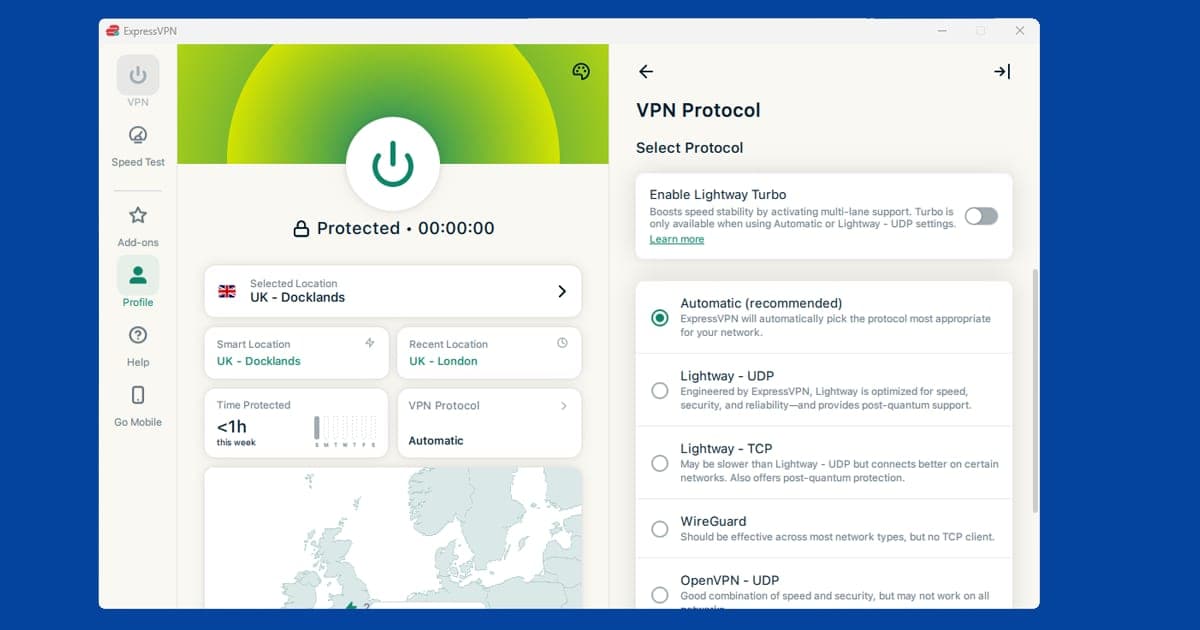
- In ExpressVPN: go to Settings > Protocol > select Lightway.
WireGuard-based protocols give most network firewalls the hardest time. If WireGuard is also blocked, try OpenVPN TCP on port 443, which piggybacks on the same port as regular HTTPS traffic and is rarely blocked outright. See our guide to changing your VPN protocol for full steps across all major apps.
If you're at university, our guide to using a VPN at university covers campus network blocks, including eduroam quirks, in more detail. And if none of your usual servers connect at all, check our guide on a VPN that keeps disconnecting, since some campus and office networks actively interrupt VPN connections rather than simply refusing them.
Fix 2: Discord blocked in your country
Discord is blocked at the national level in a small number of countries. Confirmed or persistent blocks include:
- China: blocked by the Great Firewall, which also disrupts many standard VPN connections
- Russia: blocked since 2024 following a government order
- North Korea: general internet restrictions mean most foreign services are inaccessible
- UAE: Discord has been intermittently restricted; availability varies
To access Discord from a blocked country, connect your VPN to a server in the UK, US, or anywhere in the EU before opening Discord. The server just needs to be in a country where Discord operates normally.
In China and other countries with deep packet inspection, standard VPN protocols are often blocked alongside Discord itself. NordVPN's Obfuscated Servers or ExpressVPN's Lightway protocol (set to Automatic) tend to hold up better in those environments because they disguise VPN traffic as regular web browsing. See our protocol switching guide for per-app steps.
In most cases, Discord "not working" with a VPN is a single-server problem: that IP has been flagged or rate-limited. Switch to a different server in the same region and Discord usually comes back straight away.
Fix 3: Choppy or laggy voice and video calls
Voice and video calls going choppy, delayed, or dropping entirely is actually the most common Discord and VPN problem, more common than a straight-up block. Discord routes voice through regional servers, and when your VPN adds a long detour between you and the nearest voice server, the delay climbs enough to break audio quality.
Two things make the most difference here. First, make sure your VPN server is geographically close to you. A UK VPN server adds minimal delay for a UK user. Connecting to a US server from the UK and then joining a UK Discord voice channel creates two long-distance hops, and that's where quality falls apart.
Second, switch to WireGuard if you're currently on OpenVPN. WireGuard has much lower overhead, which means less added delay on voice calls. In NordVPN, go to Settings > VPN protocol > NordLynx. In ExpressVPN, choose Lightway (UDP). If you're on mobile and often switching between wi-fi and mobile data, IKEv2 is designed to reconnect quickly when your connection changes, which can help prevent mid-call drops.
Discord-specific tip: if you manage or own a Discord server, you can change the voice server region inside Discord itself. Right-click a voice channel > Edit Channel > Region Override. Setting this to match your VPN server's location reduces the second leg of the routing path and often makes a noticeable difference to call quality. You'll need Manage Channel permission to do this.
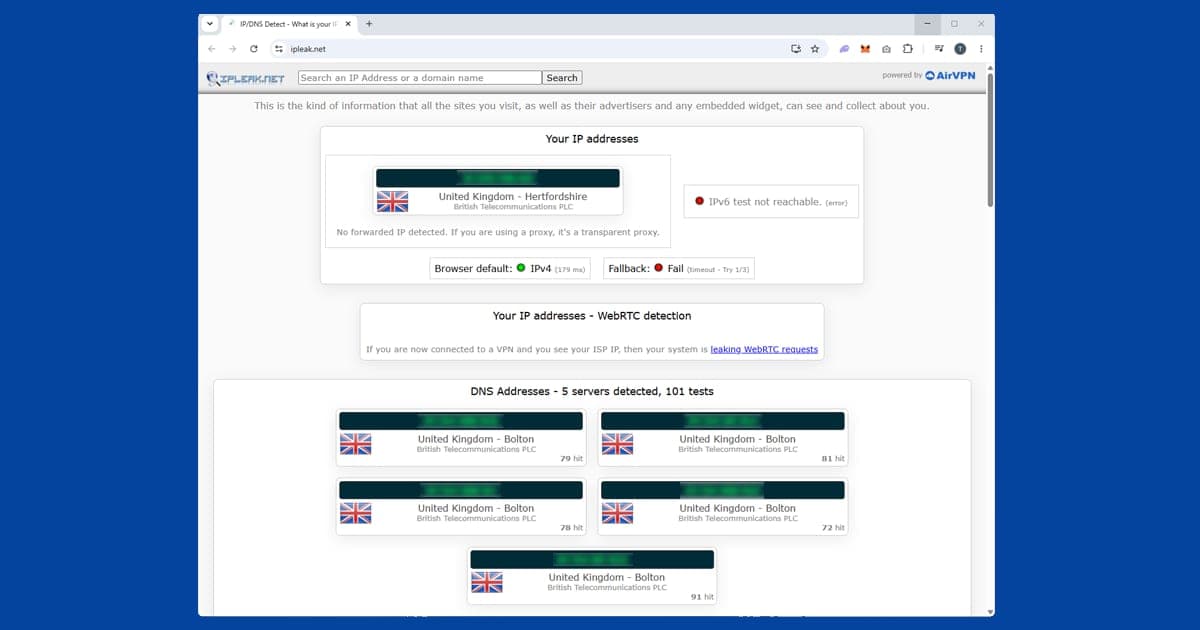
WebRTC and privacy: Discord uses WebRTC for voice and video. If you use Discord in a browser, a WebRTC leak can expose your real IP address even with the VPN running. This isn't something other users in a voice channel can see directly, but it does mean your location may not be as private as you'd expect. To check, run a WebRTC leak test with your VPN connected (search "WebRTC leak test" for free tools). If your real IP shows up, switch to the Discord desktop app instead, since it's much less prone to WebRTC leaks.
Gaming vs voice chat: why they need different fixes
If you're gaming with Discord open in the background, you're actually running two separate connections that both go through your VPN, and it helps to treat them as two different problems rather than one.
Your game's connection talks to a game server and cares almost entirely about ping. A VPN nearly always adds a small amount of ping because it's an extra hop between you and wherever you're connecting to. For most games this is barely noticeable, a few extra milliseconds, but for anything twitch-based and competitive it can be enough to feel worse.
Discord's voice connection talks to a completely different set of Discord voice servers and cares about consistency more than raw speed. A slightly slower but stable connection sounds fine. A connection that occasionally spikes sounds like someone talking through a fan.
The trap a lot of people fall into is assuming one bad connection means the VPN itself is broken, when actually it's fine for one purpose and adding just enough delay to hurt the other. If your game feels fine but Discord voice keeps crackling, that's a voice-server routing issue, not a general VPN problem, and it's worth checking whether your Discord voice region matches your VPN server's country as covered in Fix 3. If it's the reverse, smooth Discord but laggy gameplay, split tunneling below is the more direct fix, since it takes the VPN out of your game's path entirely while leaving Discord protected.
If you play games that need a VPN of their own for region or connection reasons, our guides for Roblox and Steam cover the platform-specific side of that, and the same split-tunneling approach below applies to keeping voice chat smooth alongside either one.
Fix 4: Split tunneling for gaming and Discord together
If you're using a VPN for general privacy but Discord calls are suffering, or your game's ping has climbed since you turned the VPN on, split tunneling is the cleanest solution. It lets you choose which apps use the VPN and which connect directly, so your browser and other traffic stay protected while Discord, your game, or both connect natively for full performance.
How to set it up:
- In NordVPN (Windows/Android): go to Settings > Split Tunneling, enable it, then add Discord (and your game launcher, if needed) to the excluded apps list.
- In ExpressVPN: open Options > General > Split tunneling. Select "Do not allow selected apps to use the VPN" and add Discord.
You can exclude Discord and your game at the same time, or just one of the two, depending on which connection is actually causing the problem. If it's only voice quality that's suffering, exclude Discord alone and leave your game routed through the VPN.
Split tunneling isn't available on iOS for most VPN providers. Apple's network architecture doesn't allow VPN apps to selectively route individual apps' traffic on iPhone or iPad. On iOS, your best options are using WireGuard protocol to keep added delay as low as possible, or turning the VPN off during Discord calls and gaming sessions specifically.
Fix 5: Discord won't connect at all
If Discord refuses to load with your VPN running and you've already tried a few different servers, the kill switch is usually the culprit. Kill switches block all internet traffic when the VPN connection is interrupted or being established. Some fire briefly while the tunnel is forming, which is long enough to stop Discord completing its initial connection.
To test this, temporarily disable the kill switch and try connecting to Discord again:
- NordVPN: Settings > Kill Switch > toggle off.
- ExpressVPN: Options > General > uncheck Stop all internet traffic if the VPN disconnects.
If Discord connects once the kill switch is off, the fix is to find a faster-connecting server rather than leaving the kill switch disabled permanently. Some servers take longer to establish the tunnel, which stretches the kill switch window. Try different servers in the same region until you find one that connects quickly. Once the tunnel forms fast, the window is too short to affect Discord.
Some VPN providers let you exclude specific apps from the kill switch, so Discord stays connected even when the VPN reconnects. Check your VPN app's kill switch settings for an "allowed apps" or "bypass" option. In NordVPN, adding Discord to the Split Tunneling excluded list achieves the same thing. Our full kill switch guide covers how each major provider handles this.
If Discord still won't connect after disabling the kill switch, open Discord's Settings > Voice & Video > scroll to Audio Subsystem and try switching between Standard and Legacy. The two modes use different connection methods, and occasionally one works where the other doesn't on a restricted network. Note that this option isn't available in all versions of Discord.
Mobile vs desktop: what's different
The Discord app behaves differently enough between phone and computer that a fix that sorts your desktop problem sometimes does nothing at all on mobile, and the other way round.
Android: the Discord app and your VPN app both run as background processes, and aggressive battery-saving settings on some phones (Samsung and Xiaomi in particular have a reputation for this) can suspend one or both, which shows up as Discord randomly dropping voice calls or failing to reconnect after your phone locks. Check your phone's battery settings and make sure both Discord and your VPN app are excluded from battery optimisation. Split tunneling is available in most VPN apps on Android, same as on Windows.
iOS: Apple's VPN architecture is more locked down, so split tunneling isn't available through most VPN apps, and background activity is more tightly restricted generally. If Discord voice calls cut out shortly after you switch to another app or lock your phone, that's usually iOS suspending the connection in the background rather than anything the VPN is doing. Keeping Discord in the foreground during calls, or checking that background app refresh is enabled for it, helps more than switching VPN settings.
Desktop (Windows, Mac): the desktop app is generally the most stable option and the least prone to the WebRTC leaks that can affect the browser version. If you're troubleshooting a tricky voice quality issue and have the option, testing on desktop first helps rule out whether the problem is Discord's connection itself or something specific to a phone's background process handling.
Switching between wi-fi and mobile data: if Discord drops calls specifically when your phone switches networks, for example walking out of your house and off wi-fi onto mobile data, that's a protocol issue rather than a VPN block. IKEv2 is built to handle network changes smoothly and reconnect fast, so switching to it in your VPN app's protocol settings is worth trying before anything else on mobile.
Which VPN works best with Discord
NordVPN and ExpressVPN are the most reliable choices for Discord. Both run fast modern protocols (NordLynx, a WireGuard build, for NordVPN; Lightway, ExpressVPN's own protocol, for ExpressVPN), have good server coverage close to most users, and support split tunneling on Windows and Android, which matters most if you're trying to keep voice chat smooth while gaming. For heavily restricted networks and countries, both offer obfuscation options that hold up well against network-level filtering.
Discord's new age checks and VPNs
Discord has started sorting every account into an age group, and you might notice it when you're using a VPN. After announcing "teen-by-default" settings in February 2026, then delaying them to add more verification options, Discord began its global rollout on 22 September 2026. Every account is now treated as adult, teen (13 to 17) or unconfirmed, and anything not confirmed as adult gets the teen safety settings, such as content filters and limits on age-restricted spaces.
Most people won't be asked to do anything. Discord says it works out most ages from signals it already has about your account. If it can't, you'll be offered a way to verify, such as a face scan or an ID check.
Here's why it matters for this guide: the age setting is tied to your account, not your connection. Switching VPN servers won't change your age group, and it won't lift a teen restriction. If a server or channel suddenly says it's age-restricted, that's something to sort out in Discord, not a VPN block to fix with the steps above. In the UK, similar checks have applied since the Online Safety Act rules came in during 2025.
If you stream your games too, our Twitch VPN guide covers the fixes there, and our apps and games hub has the rest.