FixYourVPN

If Channel 4 won't play with your VPN switched on, the usual reason is that the UK server you're connected to has already been flagged as a VPN, so Channel 4 treats you as being outside the UK. Switching to a different UK server fixes it for most people, and clearing old cookies or app data sorts out most of the rest. Below you'll find what each error means, why it happens, and a step-by-step checklist that gets you back to Gogglebox, Bake Off or Taskmaster as quickly as possible.
Channel 4 is one of the more forgiving UK services. It's stricter than My5, roughly in line with ITVX, and a lot less fussy than BBC iPlayer. So if it's not working for you right now, the odds are good that a couple of small changes will do it.
The Channel 4 error messages explained
Channel 4's wording has changed over the years and can differ between the website, the phone apps and TV apps. These are the messages people most often report when a VPN or location check fails:
- A message saying Channel 4 is only available in the UK. Channel 4 has looked at your connection and decided you're abroad.
- "This programme is not available in your current location" or "not available in your area". Usually shown when you press play on a specific programme.
- "Proxy detected" or a message saying you appear to be using a VPN or proxy. Channel 4 has recognised the server's address as belonging to a VPN.
- A playback or DRM error in your browser. This one often isn't about location at all; it's your browser blocking the protected video player. We cover the fix in step 7.
The first three all have the same root cause: something about your connection doesn't look like an ordinary UK household. The fourth looks similar but has a different fix, which is why it's worth reading the exact wording on your screen before you start changing settings.
Why Channel 4 blocks VPNs
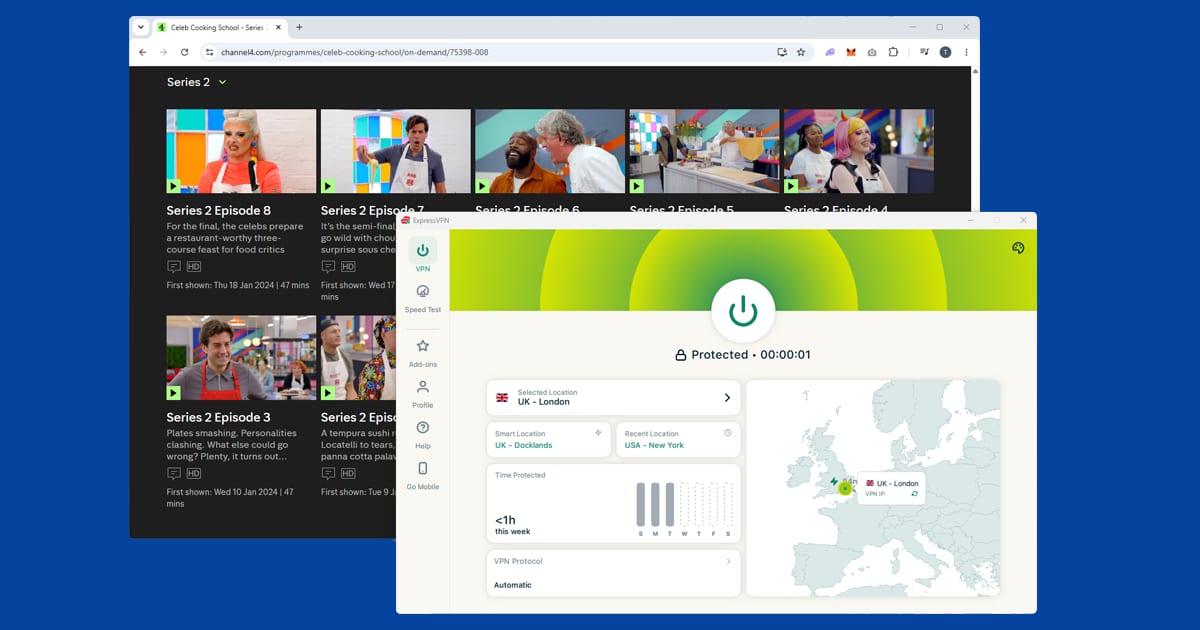
Channel 4 is a commercial broadcaster paid for by advertising, and much of what it shows is licensed for the UK only. Rights holders expect it to keep viewers outside the UK out, so it runs a location check whenever you start watching. That check covers everything on the platform: Channel 4 itself, E4, More4, Film4, and the shows from UKTV's U service that have appeared in the Channel 4 app since January 2026.
The main thing it looks at is your IP address. Think of it as the return address on every request your device sends: it tells websites roughly where you are. A VPN swaps your address for one belonging to its server in the UK. The trouble is that VPN servers sit in data centres, and lots of people share each address. When Channel 4 sees one address streaming to far more people than any real home could, it adds that address to its block list. Your VPN is still doing its job, but that particular server has been spotted.
A few other things can give your real location away:
- DNS leaks. DNS is like the internet's phone book: your device looks up every website's address before it connects. If those lookups go through your normal internet provider rather than the VPN, Channel 4 can tell you're really somewhere else.
- Old cookies or app data. If you've opened Channel 4 before without the VPN on, your browser or the app may still remember where you were.
- Browser extensions instead of a full VPN app. An extension only protects traffic inside your browser. The Channel 4 app on the same phone isn't covered at all.
- Your VPN briefly dropping out. Even a second or two without the VPN is enough for Channel 4 to see your real address and stop the stream.
Channel 4 relies mostly on the IP address check, which is why switching servers is so often all you need. The other causes are less common, but they're the reason some people switch servers five times and still get nowhere.
What you need before you start
A VPN only sorts out the location part. Channel 4 also needs:
- A free Channel 4 account. You need to sign in to watch most programmes. Registration asks for an email address, a password, your date of birth (you need to be 16 or over) and a UK postcode. There's no payment needed.
- A UK postcode in the right format. Channel 4 asks for it when you register. It needs to look like a real UK postcode, such as SW1A 1AA or M1 1AE: a short area code, a space, then a number and two letters. If you used to live in the UK, use your old postcode.
- A VPN that runs on the whole device. Install the full VPN app on your phone, tablet, computer or streaming stick, not just a browser add-on.
Step-by-step: how to fix Channel 4 not working with a VPN
Go through these in order and stop as soon as Channel 4 starts playing. The quickest and most common fixes come first.
1. Close Channel 4, connect your VPN, then reopen it
The order you do things in matters. If Channel 4 is already open when you switch the VPN on, it may have already noted your real location. Close the app fully (on a phone, swipe it away from your recent apps) or close the browser tab. Connect your VPN to a UK server, wait until the app says you're connected, then open Channel 4 again.
2. Switch to a different UK server
This fixes more Channel 4 problems than anything else. Disconnect, choose another UK location by hand, and try again. Start with London, which usually has the most servers, then try Manchester or any other UK cities your VPN offers. Give it at least three servers before you move on. Our guide on how to switch VPN server shows where to find the option in each major app.
One useful habit: avoid the "quick connect" or "fastest server" button for streaming. It tends to drop you onto the same popular server every time, and popular servers are the ones Channel 4 blocks first.
3. Sign in to your Channel 4 account
Channel 4 can show errors to people who aren't signed in, even when the connection looks fine. Check you're logged in before pressing play. If you're registering from abroad, connect the VPN to the UK first, then sign up, and take care with the postcode format since that's where most sign-ups trip up.
4. Clear Channel 4's cookies or use a private window
Your browser stores little files called cookies from every site you visit, and Channel 4's can include where you were last time. If you've watched without the VPN before, those cookies can trip you up now. The quickest test is a private or incognito window, opened after the VPN is connected. If Channel 4 works there but not in your normal window, cookies were to blame.
To clear just Channel 4's data without logging out of everything else:
- Chrome: Settings > Privacy and security > Third-party cookies > See all site data and permissions, search for channel4.com and remove.
- Firefox: hamburger menu > Settings > Privacy & Security > Manage Data, search for channel4.com and remove.
- Safari: Safari > Settings > Privacy > Manage Website Data, search for channel4.com and remove.
- Edge: three-dot menu > Settings > Cookies and site permissions > Manage and delete cookies and site data, search for channel4.com and remove.
Our guide to clearing cache and cookies to fix VPN problems goes into more detail if you get stuck.
5. Clear the Channel 4 app's cache
Apps keep old data too. On Android phones, tablets and Android TV, go to Settings > Apps > Channel 4 > Storage > Clear Cache, and if that doesn't help, Clear Data too (which signs you out). On Fire TV it's Settings > Applications > Manage Installed Applications > Channel 4. On iPhone and iPad there isn't a cache button, so delete the app and reinstall it, making sure the VPN is connected before you sign back in.
6. Check your IP address and test for DNS leaks
With your VPN on, open our IP address and DNS leak checker. If it shows somewhere other than the UK, the VPN isn't connected the way you think, so reconnect and check again.
If the IP shows the UK but the DNS results show your real internet provider or country, you've got a DNS leak. Turn on DNS leak protection in your VPN's settings, reconnect, and try Channel 4 again. Our guide to fixing a VPN DNS leak walks through it app by app, and our guide on how to check your VPN is working covers the wider health check.
7. Fix browser playback (DRM) errors
Channel 4 protects its videos with DRM, which stands for digital rights management: a lock that stops programmes being copied. Your browser needs to allow it, or the player won't start. In Firefox, go to Settings > General and make sure Play DRM-controlled content is ticked. Chrome, Edge and Safari allow it by default, but privacy extensions and ad blockers can still interfere with the player. Try turning them off for channel4.com, or test in a private window with extensions disabled.
8. Switch to the app (or the website)
The Channel 4 website and app don't behave identically. Browsers carry cookies, extensions and features like WebRTC that can expose your real location, and apps avoid most of that. If the website keeps failing, try the app on your phone, tablet or streaming stick. If the app's playing up, try the website. Our guide to using a streaming app instead of a browser explains why this works so often.
9. Change your VPN protocol and turn on the kill switch
A protocol is the method your VPN uses to build its secure tunnel. If you're on an older one like OpenVPN, switch to WireGuard (called NordLynx on NordVPN), or Lightway on ExpressVPN. Both are faster and tend to hold a steady connection for long programmes. Our guide to changing your VPN protocol shows where the setting lives.
While you're in the settings, turn on the kill switch. It cuts your internet for a moment if the VPN drops, so Channel 4 never sees your real address mid-episode.
10. Try a VPN with more UK servers
If you've tried several UK servers, cleared everything and still get blocked, your VPN provider probably doesn't have enough fresh UK addresses. That's a provider problem, not something you can fix in the settings. Our recommendations are below.
Channel 4 on smart TVs, Fire Stick and consoles
The Channel 4 app is on most big-screen devices, including Fire TV, Android TV, Apple TV, Roku, PlayStation, Xbox and many smart TVs. The trick is getting a VPN onto the same device, because Channel 4 checks the connection of whatever is actually playing the programme.
Fire TV Stick and Android TV
These are the simplest. NordVPN, ExpressVPN and PureVPN all have apps for them. Install the VPN, connect to a UK server, then open Channel 4. If it still shows a location error, clear the Channel 4 app's cache as in step 5. Our Fire Stick VPN guide covers what to do if the VPN app itself misbehaves.
Roku, Samsung, LG and other smart TVs
These usually can't run VPN apps. You can install the VPN on your router so every device at home goes through the UK, share a VPN connection from a laptop as a wi-fi hotspot and connect the TV to that, or cast Channel 4 from a phone or laptop that's running the VPN. Roku owners will find more detail in our guide to Roku and VPNs.
PlayStation and Xbox
Consoles can't run VPN apps either, so the router method is the cleanest. Once the router is connected to a UK server, the console gets a UK address automatically.
Signing in on a TV
Channel 4 gives you three ways to sign in on a TV: scan the QR code on screen with your phone's camera, go to channel4.com/code on another device and type in the code shown on the TV, or choose "Sign in with my TV" and enter your details with the remote. The code method links your account, but it doesn't change the TV's location. If your phone is on the VPN and the TV isn't, you'll sign in happily and then get blocked the moment you press play.
Channel 4+, downloads and UKTV shows
Channel 4's standard service is free with adverts. Channel 4+ is the optional paid upgrade. According to Channel 4's own page, it costs £3.99 a month or £39.99 a year after a 7-day free trial, and it removes adverts from on-demand programmes and gives early access to some shows. A few points matter if you're abroad:
- Channel 4+ doesn't change the location check. Paying for it won't make Channel 4 any more relaxed about VPNs. A blocked server is blocked whichever tier you're on.
- Live TV isn't ad-free. Channel 4 says live streams aren't covered by Channel 4+, and some programmes still carry adverts or trails for contractual reasons. If you see adverts on a live channel, your subscription hasn't failed.
- Downloads are the official way to watch abroad. In the Channel 4 phone and tablet apps, you can download available programmes while you're in the UK and watch them offline overseas. Channel 4 says you have up to 30 days to finish a download before it expires, and you can't start new downloads from outside the UK. For a short holiday, downloading before you fly is the simplest option.
- UKTV shows sit behind the same check. Since January 2026, programmes from UKTV's U service (think QI XL, Would I Lie To You? and Red Dwarf) appear inside the Channel 4 app. They follow Channel 4's UK-only rules, so the fixes here apply to them too. If you use U's own app instead, our UKTV Play VPN guide covers it.
What you can watch on Channel 4
Channel 4's streaming service covers Channel 4, E4, More4 and Film4, with live channels and a large on-demand library. That means Gogglebox, The Great British Bake Off, Hollyoaks, a big Film4 film collection, and comedy panel shows including Taskmaster, which has its own guide on watching Taskmaster abroad. Channel 4 also shows sport it holds rights to, such as the Paralympics, so our live sport hub is worth a look if that's what you're after.
For other programmes from home, our guide to watching UK TV shows abroad collects every show guide in one place, and our UK streaming hub covers the other UK services, including BBC iPlayer.
A VPN that reliably works with Channel 4
With Channel 4, success depends mostly on how many clean UK addresses your VPN has and how quickly it replaces blocked ones. These are the three we recommend:
- NordVPN is our top pick: plenty of UK servers you can choose by hand, the fast NordLynx protocol, and apps for Fire TV, Android TV, phones and computers.
- ExpressVPN is a close second. It's very easy to use if you're not technical, and its Lightway protocol connects quickly and holds steady for long viewing sessions.
- PureVPN is our third pick, with UK servers to choose from and apps for the main devices.
We'd steer clear of free VPNs for Channel 4. Their small pools of shared UK addresses are among the first to be blocked, they're often too slow for HD, and some make money from your data instead. Our guide to whether free VPNs are safe explains the risks.
If your VPN won't connect at all
Everything above assumes your VPN connects and Channel 4 is doing the blocking. If the VPN itself won't connect, the network is usually the problem: hotel, airport and café wi-fi, workplace networks and some countries block VPN traffic outright. Switch your VPN to OpenVPN TCP, which looks more like normal secure web traffic, or try ExpressVPN's Lightway. Our guide to VPNs not working on public wi-fi covers the usual culprits, and our interactive VPN troubleshooter can walk you through it.