FixYourVPN

If your VPN won't connect on public wi-fi, the most likely reason is that you haven't finished the network's sign-in page yet, so the network isn't letting any traffic through apart from that page. The fix is to switch your VPN off, open your browser, accept the terms or log in, and only then turn the VPN back on. If it still won't connect after that, the network is probably blocking VPN traffic, and switching to a different protocol (usually OpenVPN over TCP on port 443) gets you through on most networks.
This guide covers both problems in plain English, plus the less obvious ones: sessions that time out on trains, library filters, airport networks that behave differently from one terminal to the next, and phone settings that quietly stop the sign-in page from ever appearing. There's a step-by-step checklist in the middle if you just want to get connected.
Why VPNs fail on public wi-fi
At home, your router hands you a straight connection to the internet and your VPN rides along without any trouble. Public networks in coffee shops, trains, airports, libraries and shopping centres are different. They're run by a business that wants to control who gets online, for how long, and sometimes for what. That control is what gets in the way.
There are four main causes, roughly in order of how often they crop up.
1. The sign-in page hasn't been completed
Most public networks use what's called a captive portal. That's the page that pops up asking you to accept the terms, enter an email address, or type in a room number or voucher code. Until you've done that, the network holds you in a sort of waiting room: your phone says it's connected to wi-fi, but nothing except the sign-in page can get out to the internet.
A VPN needs to reach its own server to connect. In the waiting room, it can't. So it either spins forever, shows a "connection failed" message, or connects and then loads nothing. Worse, if your VPN is set to switch on automatically, it can stop the sign-in page from appearing at all, because it grabs the connection before the page has a chance to load.
2. The network blocks VPN ports or protocols
Every type of internet traffic travels through a numbered "port", a bit like separate doors into a building. Web pages use port 443. Many VPN protocols use other doors. Some networks lock every door except the ones needed for ordinary browsing, either to stop people using lots of bandwidth or simply because a cautious IT setup blocks anything unfamiliar. Your VPN knocks on a locked door and gets no answer.
Some networks go further and use a technique called deep packet inspection, which looks at the shape of your traffic to spot VPNs even when they're using an open door. This is less common in UK cafes and more common on corporate guest networks, some airports and in certain countries.
3. Your session has quietly expired
Lots of free networks limit you to a set time, or ask you to sign in again after a while. Train wi-fi is a classic example: you sign in at the start of the journey, and an hour later the network wants you to accept the terms again. Your VPN suddenly can't reach the internet, and it looks like the VPN has broken when actually the network has put you back in the waiting room.
4. A weak or overloaded signal
A busy airport gate or a packed carriage means dozens of people sharing one connection. The signal drops, the VPN loses contact with its server, reconnects, drops again. That's not a block, it's just a poor connection, but it's easy to confuse the two. Our guide to why your VPN keeps disconnecting goes deeper into this pattern.
Why you should still use a VPN on public wi-fi
When the VPN is being awkward, it's tempting to give up and browse without it. Before you do, it helps to know what you'd be giving up, and what a VPN does and doesn't do.
The good news is that most websites now use HTTPS, which encrypts what you send to that particular site. Someone snooping on cafe wi-fi can't read your online banking password the way they once could.
A VPN still adds real protection on top of that, though:
- It hides which sites you visit. Even with HTTPS, the network can usually see the names of the websites you're connecting to. A VPN hides all of that from the network owner and anyone else on it.
- It covers apps, not just websites. Not every app on your phone encrypts everything it sends. A VPN wraps the lot.
- It protects you from fake hotspots. Anyone can set up a network called "Free Airport WiFi". These fake networks, sometimes called evil twins, are designed to catch people who connect without checking. With a VPN on, the person running it sees scrambled data going to a VPN server and nothing else.
- It stops the network logging what you do. Free wi-fi is often paid for with your data. A VPN means there's very little for the network to record.
What a VPN won't do is protect you from a dodgy download or a phishing email. It's one layer of protection, not all of it. If you're unsure whether you need one at all, our guide to whether VPNs are safe explains what they protect against in everyday terms.
Step-by-step: get your VPN working on public wi-fi
Work through these in order. Steps 1 to 4 fix most problems in a cafe or library. Steps 5 to 8 are for networks that are actively blocking VPNs.
- Turn your VPN off. If it's set to connect automatically, pause it or switch off auto-connect for now. You need a clear path to the sign-in page.
- Join the wi-fi and find the sign-in page. On most phones a notification pops up saying something like "Sign in to network". Tap it. If nothing appears, open your browser and go to a plain, unencrypted website such as neverssl.com, which exists for exactly this job. Sign-in pages can only redirect unencrypted pages, which is why going to a big secure site like Google often shows an error instead.
- Complete the sign-in. Accept the terms, enter your details or type in your voucher code. Wait until a normal website loads properly in your browser.
- Turn your VPN back on. Give it a few seconds to connect. If it connects and websites load, you're done. Turn auto-connect back on if you use it.
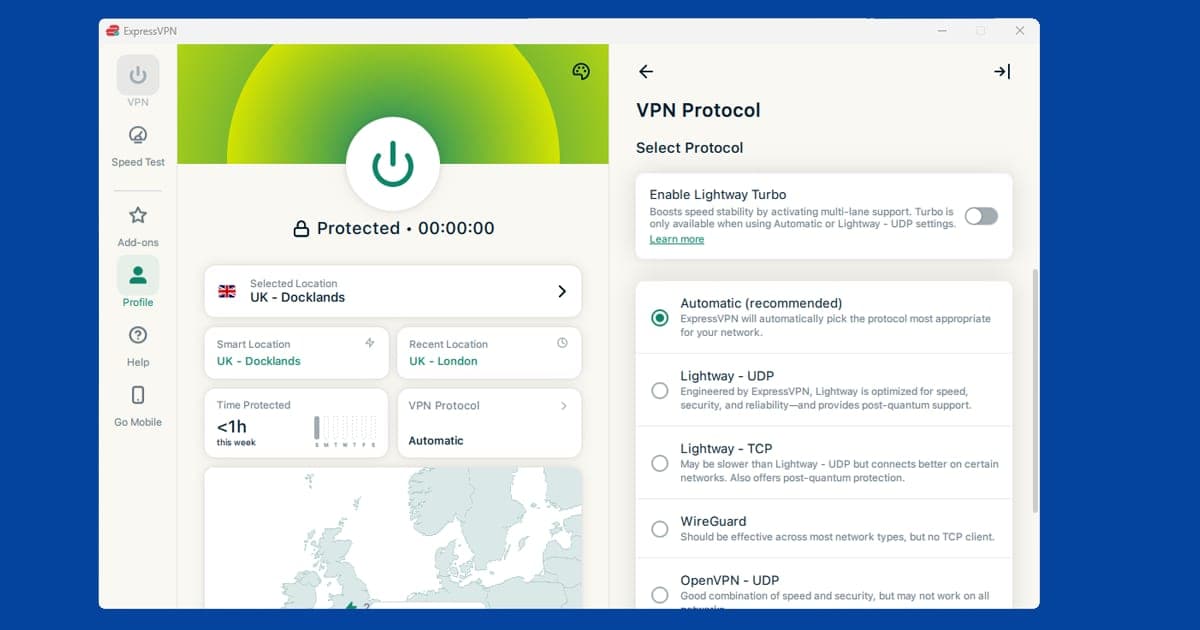
- Change your VPN protocol to OpenVPN TCP. If the VPN still won't connect, open its settings and find the Protocol or Connection option. Pick OpenVPN (TCP). In ExpressVPN, Lightway TCP does a similar job. Our guide to changing your VPN protocol shows exactly where this lives in each app.
- Turn on obfuscation if your VPN offers it. This disguises VPN traffic as ordinary web traffic, which is what gets you past networks that inspect your data. There's a plain-English explanation in the next section.
- Try a different server. Occasionally a network blocks specific server addresses rather than VPNs in general. Switching to a server in another city or country can get around that. Our guide on switching VPN servers covers it.
- Use your phone's mobile hotspot. If the public network simply won't let a VPN through, connect your laptop or tablet to your phone's hotspot instead. Mobile data networks very rarely block VPNs.
- Check it's really working. Once connected, run our IP and DNS checker. It should show your VPN server's location, not the network you're sitting on. Our guide to checking your VPN is working explains what to look for.
Protocols and obfuscation, explained simply
You don't need to understand the technology to fix this, but knowing what the settings do makes it much less of a guessing game.
A protocol is the set of rules your VPN uses to package and send your data. Different protocols use different ports and look different to the network. Here's how the common ones behave on public wi-fi:
- WireGuard and the apps' own fast protocols (NordLynx in NordVPN, Lightway in ExpressVPN). These are quick and great on open networks. They usually travel over UDP, a faster method of sending data that skips the double-checking, and some restricted networks block UDP traffic altogether. That's why a fast protocol can fail on cafe wi-fi when it works perfectly at home.
- OpenVPN TCP on port 443. TCP is the slower, careful way of sending data, where every piece is checked. Port 443 is the same door ordinary secure websites use. A network can't close it without breaking almost every website, so this combination gets through most blocks. It's a bit slower, but slower and working beats fast and blocked.
- IKEv2. Good on phones because it reconnects quickly when you move between networks. It uses its own ports that some networks block, so treat it as a backup rather than the first thing to try.
Obfuscation goes one step further. Even on port 443, a clever network can sometimes tell VPN traffic apart from normal browsing by its shape. Obfuscation changes that shape so the VPN looks like any other secure website visit. Each provider handles it slightly differently. ExpressVPN applies it automatically. NordVPN offers obfuscated servers and NordWhisper, a protocol built for restricted networks. PureVPN includes an obfuscation option with its OpenVPN connections. You only need it on strict networks; on a normal cafe connection it just slows you down slightly.
Coffee shops, trains, airports and libraries
Each type of public network has its own habits. Knowing them saves a lot of trial and error.
Coffee shops and restaurants
Chain cafes and restaurants usually have a simple sign-in page and then leave you alone. If your VPN fails here, steps 1 to 4 of the checklist almost always fix it. Smaller independent cafes often have a basic home-style router with a password and no sign-in page, so the VPN should just work. If it doesn't, the router may be overloaded at busy times rather than blocking anything.
Trains and coaches
Onboard wi-fi comes through a mobile signal on the train, so it drops in tunnels and cuttings. Many services also time out your session or limit how much data you can use. Expect your VPN to reconnect several times on a long journey. Turning on your VPN's kill switch means nothing leaks out unprotected during those gaps. For anything that needs a steady connection, like a video call, your own phone's 4G or 5G is often better than the train's wi-fi.
Airports
Airport networks are more likely to filter traffic than cafes, and many limit free sessions or ask you to sign in again after a while. Some large airports also run separate networks in different terminals, so moving to a new gate can mean a new sign-in page. If your VPN won't connect even after you've signed in, go straight to OpenVPN TCP or obfuscation. Airports are also prime spots for fake hotspots, so check the official network name on signs or the airport's website before connecting.
Libraries and council buildings
Public libraries often run content filters to block certain types of website, and some of those filters block VPN connections too. The protocol switch usually helps, but if a library's policy is to block VPNs, respect that and use your mobile data for anything private instead.
Hotels and universities
These are public-ish networks with their own quirks: room-number logins, device limits and tighter firewalls on campus. We've written separate guides for VPNs not working on hotel wi-fi and VPNs not working at university, which go into those in detail.
Device-specific notes
iPhone and iPad
iOS shows the sign-in page in a small pop-up window as soon as you join a network that needs it. If your VPN uses "Connect On Demand" or auto-connect, it can jump in before that window appears. Switch the VPN off in its app, forget the network in Settings, Wi-Fi, rejoin and the sign-in window should appear. iPhones also use a private wi-fi address that can change, which sometimes makes a network forget you've already signed in. That's normal; just sign in again.
Android
Android shows a "Sign in to Wi-Fi network" notification. Two settings commonly stop it appearing. The first is your VPN's always-on mode with "Block connections without VPN" switched on, which stops the sign-in page loading because the VPN can't connect until you've signed in. Switch that off temporarily in Settings, Network & internet, VPN. The second is Private DNS: if it's set to a specific provider, set it to Automatic while you sign in. The exact menu names vary a little between phone makers.
Windows
Windows usually opens your browser to the sign-in page automatically. If it doesn't, open a browser yourself and visit neverssl.com. If your VPN's kill switch is set to block all internet whenever the VPN is off, it can block the sign-in page too. Most VPN apps have a setting that allows local network access or that pauses the kill switch briefly; use that while you sign in.
Mac
Macs open a small sign-in window like iPhones do. The same advice applies: let that finish before you start the VPN. If your Mac rejoins a familiar network name automatically (many venues use generic names like "Guest WiFi"), it might be trying to reuse an old session. Forget the network in System Settings, Wi-Fi and join it again.
Using your phone's hotspot instead
If a network simply won't play ball, your phone is often the quickest answer. Turn on its personal hotspot, connect your laptop or tablet to it, and start the VPN as normal. Mobile networks don't have sign-in pages and rarely block VPN protocols, so the VPN will normally connect first time.
Two things to keep in mind. Hotspot use eats into your mobile data allowance, so it's fine for emails, documents and browsing, but a long video call or streaming can use a lot. And some mobile plans limit or exclude hotspot use, so check yours before you rely on it. If you're abroad, roaming charges can apply too.
A VPN that copes well with public wi-fi
On public networks, the most useful thing a VPN can do is switch tactics when one approach is blocked. That means a choice of protocols, a working obfuscation option, a kill switch and an auto-connect setting for unfamiliar networks.
- NordVPN is our first pick. It offers its fast NordLynx protocol for everyday use, OpenVPN TCP for blocked networks, obfuscated servers for strict ones, and auto-connect for untrusted wi-fi. Switching between them is quick once you know where the settings are.
- ExpressVPN is excellent if you'd rather not touch settings at all. Its automatic protocol choice often picks something that works, Lightway has a TCP mode for restricted networks, and obfuscation is applied without you needing to turn it on.
- PureVPN is a solid lower-cost option, with a choice of protocols and an obfuscation setting for networks that block VPNs.
Free VPNs tend to struggle here, as they usually offer fewer protocols and no obfuscation, which leaves you stuck when a network blocks the default. Our guide to whether free VPNs are safe explains the other trade-offs. If speed is the problem once you're connected, our slow VPN guide will help, and our connection problems hub collects every guide on getting a VPN to connect in the first place.