FixYourVPN
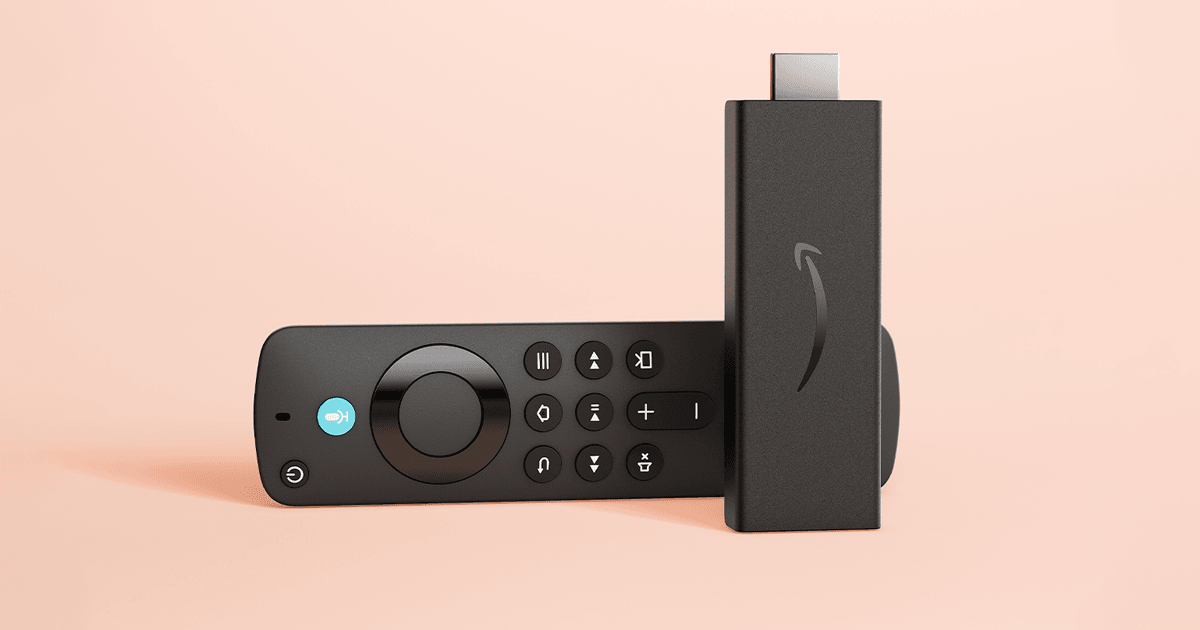
Fire Stick is one of the few streaming devices where installing a VPN is actually meant to work, which puts it in a different position to something like a Roku or a basic smart TV. Most of Fire OS is built on Android, and the major VPN providers publish real, working apps for it in the Amazon Appstore. When something goes wrong, it's rarely because Fire Stick "doesn't support VPNs." It's almost always one of a handful of specific, fixable causes, and this guide works through each one.
If you'd rather be walked through it, our free VPN troubleshooter can help narrow down what's actually going wrong.
Does Fire Stick actually support VPN apps?
Yes, for most models, and this is worth knowing up front because so many generic streaming-device guides assume otherwise. Fire OS is a modified version of Android, and NordVPN, ExpressVPN, and PureVPN all publish native Fire TV apps directly in the Amazon Appstore. You install it the same way you'd install any other app on the device: search for it, download it, sign in, and connect.
There's a wrinkle worth knowing about. Some Fire Stick models, starting with the Fire TV Stick 4K Select, run on a different operating system called Vega OS, which is Linux-based rather than Android-based, and Amazon has said future Fire TV Sticks will move to it too.
VPN support on Vega OS is thinner: only a handful of providers, NordVPN among them, have published apps for it, and Vega OS doesn't support sideloading the way classic Fire OS does. If your VPN app is missing from the Appstore on one of these sticks, this is often why. Check your device's settings to see which OS it's running before assuming the app itself is broken.
Why bother with a VPN on a Fire Stick at all?
The most common reason is unblocking content: getting BBC iPlayer working while you're travelling abroad, pulling up the US Netflix catalogue from the UK, or keeping access to your usual streaming apps in a country where they're normally unavailable.
The second reason is privacy. Without a VPN, your internet provider (or ISP, short for internet service provider) can see which streaming services you use and roughly when, and a VPN hides that from them by encrypting the connection between your Fire Stick and the VPN server. A Fire Stick is almost entirely used for one thing, unlike a laptop, so the privacy angle mostly comes down to whether you want your ISP building a picture of your viewing habits.
Setting up a VPN on Fire Stick
- From the Fire Stick home screen, search for your VPN provider's name. If it's published for Fire TV, it'll show up directly in the search results, the same as any other app.
- Download and open the app, then sign in with your VPN account details.
- Connect to a server in the country whose content you want to access before opening anything else.
- Open your streaming app (BBC iPlayer, Netflix, or whatever you're trying to watch) only after the VPN shows as connected.
That last step trips people up more than anything else on this list. If you open the streaming app first and connect the VPN afterwards, some services will have already registered your real location for that session. Always connect the VPN, wait for it to confirm it's connected, then open the streaming app.
Use our IP address checker on the Fire Stick's browser (or on your phone while connected to the same VPN account) to confirm your VPN is actually showing the location you expect before you start troubleshooting anything else.
The VPN app won't install or keeps crashing
This almost always comes down to one of two things: the device is too old, or it's too new.
Too old: the original first-generation Fire TV Stick, discontinued back in 2016, doesn't have the processing power to run modern VPN apps properly. Some VPN apps will technically install and even open on it, but they won't hold a stable connection, and providers generally don't support it any more. If you're on genuinely old hardware like this, a router-level VPN (covered further down) is the more reliable route. Every Fire TV Stick from the second generation onward, along with the Fire TV Cube and the non-stick Fire TV models, supports VPN apps properly.
Too new: if you're on one of the newest sticks running Vega OS, as mentioned above, VPN app availability is still catching up. If your provider hasn't published a Vega OS app yet, a router-level VPN is currently your best option on that specific device, since sideloading isn't available on Vega OS the way it is on classic Fire OS.
Sideloading a VPN app that isn't in the Appstore
If your VPN provider doesn't have an app in the Amazon Appstore for your Fire Stick, but your device runs classic Fire OS (not Vega OS), you can usually sideload it instead. This means installing the Android app file directly rather than through the Appstore.
- Turn on the required settings. Go to Settings > My Fire TV > Developer Options, and turn on both Apps from Unknown Sources and ADB Debugging.
- Install the Downloader app from the Amazon Appstore. It's a free, well-known app made specifically for this kind of sideloading and is safe to use.
- Get the direct download link for your VPN's Android app from your VPN provider's own website. Only ever use a link from the provider's official site, never a third-party APK mirror or a "modded" version: a VPN app has full access to your internet traffic, so a tampered one is a genuinely bad thing to install.
- Open Downloader, enter that URL, and follow the prompts to install it, exactly like installing an app on an Android phone.
Sideloading is specific to classic, Android-based Fire OS. It isn't available on the newer Vega OS devices, so if you're on one of those and your VPN doesn't have a native app yet, a router-level VPN is the alternative in the meantime.
Router-level VPN as an alternative
Setting the VPN up on your home router instead of the Fire Stick itself is worth considering in a few situations: if you're on very old hardware that can't run a VPN app properly, if you're on the newest Vega OS sticks and your provider hasn't caught up yet, or if you'd simply rather cover every device on your network at once rather than configuring the Fire Stick individually.
If your router supports VPN connections, every device connected to it, Fire Stick included, automatically uses the VPN's location with no app or setup needed on the Fire Stick itself. Check your router's settings and your VPN provider's own setup guide for the specific steps, since these vary quite a bit by router make and model. If your router doesn't support this directly, sharing a VPN connection from a laptop as a wi-fi hotspot and connecting the Fire Stick to that is a workable, if slightly more fiddly, fallback.
Common Fire Stick VPN error messages
- "This app isn't compatible with your Fire TV Stick": almost always a sign the device is too old (first-generation hardware) to run the app, rather than a bug in the VPN itself.
- App installs but won't open, or closes immediately: try restarting the Fire Stick from Settings > My Fire TV > Restart, then reinstall the app. If that doesn't help, the device may simply be too underpowered for that particular app.
- "Please check your internet connection" while the VPN is on: usually points to a DNS issue rather than an actual connectivity problem. Try switching the VPN's protocol setting, or reconnect to a different server.
- Streaming app shows a location error even though the VPN says connected: close the streaming app fully (not just the home button, but actually close it in the apps list), confirm the VPN is still connected, and reopen it.
Fire Stick VPN buffering or slow streaming
A VPN that connects fine but leaves you with a stuttering picture is a speed problem rather than a setup problem. A few things worth trying:
- Pick a server closer to your actual location if you don't specifically need a far-off one for content reasons. Distance adds delay.
- Switch protocol to WireGuard if your VPN app gives you the option; it's faster than older protocols and handles video better.
- Check your wi-fi signal at the Fire Stick itself, not just your broadband speed generally. Fire Sticks plug in behind the TV, which is often a weaker wi-fi spot than the rest of the room.
- Test with the VPN off to rule out your underlying connection being the actual bottleneck before assuming the VPN is to blame.
Our fuller guide on why a VPN slows your connection down covers this in more depth if it doesn't clear up.
Which streaming services work well on Fire Stick with a VPN
Once the VPN itself is set up and connected, the fix for any individual streaming app is usually the same one covered in that service's own guide, since the detection happens at the app level rather than anything Fire Stick-specific. BBC iPlayer, Netflix, Disney+, Prime Video, and Hulu all have dedicated guides if a specific app is the one giving you trouble once the VPN itself is working.
Free VPNs on Fire Stick
Free VPNs are a weak match for a streaming device generally, and Fire Stick doesn't change that. Free providers run a small number of servers shared across a lot of people, which streaming services flag quickly, and even when a free server does get through, it's often too slow and congested to hold up through an actual episode without buffering.
There's also the broader concern that many free VPNs fund themselves by logging and selling browsing data instead of charging for the app, which our Are Free VPNs Safe? guide covers properly. A paid VPN with a proper Fire TV app is worth the cost if you're using this regularly.
Is it legal to use a VPN on a Fire Stick, and does Amazon mind?
Using a VPN is legal in the UK, the US, and the vast majority of countries, and there's nothing in Amazon's own terms that bans running one on a Fire Stick. It gets more specific once you look at the individual streaming app you're using through it: services like Netflix or BBC iPlayer have their own terms about accessing content from outside your registered region, which is a separate question from Fire Stick or Amazon itself.
Our guide on whether VPNs are safe covers the broader legal picture if you want more detail.