FixYourVPN

Telegram is blocked or restricted in several countries, including Iran and China, and the networks that enforce those blocks also tend to block standard VPN connections. Getting Telegram working in those regions requires more than simply turning on a VPN. Our guide covers the full range of fixes, from server switches and protocol changes to Telegram's own built-in proxy system.
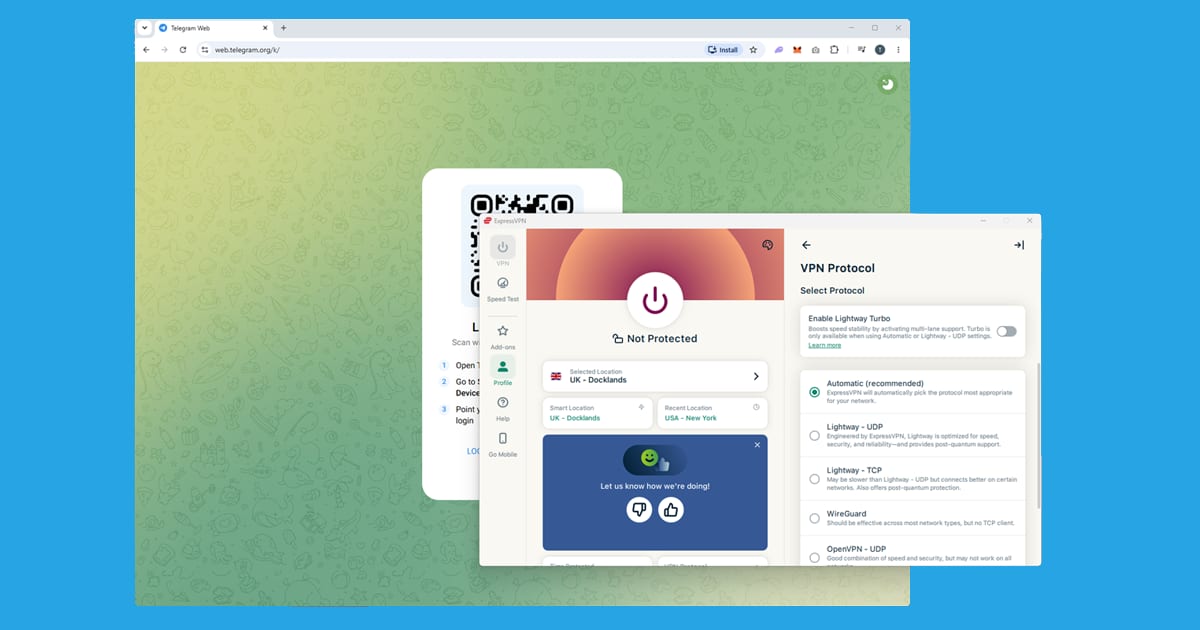
Switch your VPN protocol for country-level blocks
In Iran, China, and some other countries, Telegram is restricted and standard VPN connections are also disrupted on the same networks. ExpressVPN's Lightway protocol and NordVPN with OpenVPN TCP on port 443 tend to be more reliable in these conditions than standard protocol settings. Switch to one of these before connecting.
If you are travelling to one of these countries, install your VPN and connect at least once before you arrive. VPN apps themselves can be blocked in some regions, so having the app installed and authenticated in advance matters.
Use Telegram's built-in MTProto proxy
Telegram has a proxy system built directly into the app that can work even without a VPN. The MTProto proxy is Telegram's own protocol, designed to bypass blocking of Telegram traffic specifically. The steps differ slightly depending on your device:
- Mobile (iOS and Android): Go to Settings Data and Storage Proxy Settings and enable Use proxy.
- Desktop (Windows and Mac): Go to Settings Advanced Connection type and select Use custom proxy.
Add a SOCKS5 or MTProto proxy server in either case. MTProto proxy servers are maintained by the Telegram community and shared in public Telegram channels and groups: searching Telegram for proxy lists typically surfaces working options, though availability of specific servers changes regularly.
MTProto proxy routes only Telegram traffic: not your other apps or browser. If you need a full VPN for other services, you will still need that separately. But for getting Telegram to connect specifically, try it before setting up a full VPN.
Switch to a different VPN server
Outside of fully blocked regions, the most common Telegram connection issue is a specific VPN IP address being rejected. Telegram's servers may refuse connections from IP ranges associated with known VPN data centres. Switch to a different server in the same country and try again: most IP ranges work fine, and it is specific addresses that get flagged.
Try two or three different servers before assuming the problem is something more complicated. IP blocks are patchy and change regularly as VPN providers cycle their IP pools.
Enable the Kill Switch for intermittent drops
If Telegram connects but drops regularly, the cause is usually the VPN reconnecting. Each time the VPN re-establishes its connection, your IP address changes briefly. Telegram may treat that mid-session connection change as suspicious and reset the connection.
Enable your VPN's Kill Switch, which blocks all traffic during reconnection rather than falling back to your unprotected connection. This keeps your Telegram session stable through brief VPN drops. The Kill Switch is usually in the VPN app's main settings or connection preferences.
Switch your VPN protocol
If Telegram shows "connecting" but never completes, or connects slowly and unreliably, the VPN protocol may be the issue. Switch to WireGuard if your VPN supports it: it reconnects faster than OpenVPN or IKEv2 and handles unstable connections better. On hotel or workplace wi-fi where some ports are blocked, try TCP mode on port 443, which almost no network filters.
See our guide on changing your VPN protocol for step-by-step instructions for each major VPN client.
Check your split tunnelling settings
Some VPN apps let you choose which apps go through the VPN and which don't. If you've set this up and Telegram is on the bypass list, it won't go through the VPN at all. Check your VPN settings and make sure Telegram is set to go through the VPN, then reconnect before opening the app.
If your VPN won't connect at all
If the VPN itself isn't connecting, try switching to Lightway in ExpressVPN or OpenVPN TCP on port 443 in NordVPN: on restricted networks, protocol choice is often the most important factor. If the VPN app itself won't open, try switching to mobile data rather than wi-fi, as some networks block VPN apps at the DNS level. Our protocol guide covers the full range of fallback options.
If no VPN solution works, Telegram's built-in MTProto proxy is the most reliable fallback for getting Telegram specifically to connect. For anything broader than Telegram, our free VPN troubleshooter covers connection issues step by step.
What can I use Telegram for with a VPN?
For users travelling to or living in countries where Telegram is restricted, a VPN may help restore access depending on local network conditions. For users outside restricted regions, a VPN is useful on public wi-fi to keep traffic private from the network operator.
Telegram uses server-client encryption for standard messages and end-to-end encryption for Secret Chats. A VPN adds network-level encryption but doesn't change Telegram's own encryption model. Your messages are no less secure with or without a VPN running.
Signing up for Telegram somewhere it's already blocked
Registering a new Telegram account needs an SMS verification code, and that code arrives over the ordinary mobile network rather than the internet, so a block on Telegram's own servers doesn't usually stop it arriving. What you'll need a VPN or MTProto proxy for is everything that happens after you enter the code: downloading the app in the first place if app stores are also restricted, and the actual connection Telegram makes once your account exists. If you know you're heading somewhere Telegram is blocked, it's much easier to register and get everything set up before you travel rather than trying to do it for the first time on an unfamiliar, restricted network.
Telegram Web and Telegram Desktop
Telegram Web at web.telegram.org is subject to the same IP-level and protocol-level blocking as the app: if a country's firewall is filtering Telegram's traffic, the website is caught too. Telegram Desktop for Windows and Mac routes through whatever VPN is running at system level, the same as the phone app, and has its own proxy settings under Settings > Advanced > Connection type if you'd rather point it at a specific MTProto or SOCKS5 proxy than run a full VPN. In some heavily restricted countries, Telegram's own website and official download links are blocked alongside the app itself, which is another reason to get everything installed and signed in before you travel if you can.
Free VPNs and Telegram
In countries where Telegram is genuinely blocked at the government level, a free VPN is a risky choice. Their smaller, well-known server pools tend to get identified and blocked by national censorship systems faster than a paid provider's larger network, and if you're relying on a VPN specifically to route around state censorship, the trustworthiness of the company running it matters more than usual. Free VPNs often log and sell usage data to stay profitable, which is the opposite of what you want in that situation. For basic use outside restricted countries, a free VPN is more workable, though Telegram's own IP flagging (covered above) still applies.
Telegram's Russia block in 2026
Russia has gone from slowing Telegram down to blocking it. Users there reported problems from January 2026, and in February the regulator, Roskomnadzor, confirmed it was throttling the service, which made voice notes, photos and videos painfully slow to load. In mid-March 2026, a couple of weeks earlier than expected, the block became close to total for anyone without a workaround.
At the same time, Russia has stepped up its efforts against VPNs, so the advice in this guide matters more there than almost anywhere else. Standard VPN connections are the easiest to spot. Your best chances are an obfuscation mode, which makes VPN traffic look like ordinary web traffic, and Telegram's own MTProto proxy, covered earlier. If one stops working, try the other rather than giving up on both.
The practical tip is to get everything ready before you're behind the block. Install your VPN, sign in to Telegram and save a proxy or two while you're still on an open connection, as downloading apps and finding settings gets much harder afterwards. WhatsApp was blocked in Russia in 2026 as well, and our WhatsApp VPN guide covers that. More fixes are in our apps and games hub.