FixYourVPN

WhatsApp and VPNs usually work fine together, but there are a few situations where things go wrong: WhatsApp refuses to connect because it doesn't like your VPN's IP address, calls drop or won't start, or WhatsApp is blocked in the country you're in. The fix depends on which of these you're dealing with, and our guide goes through each one. Most fixes here are VPN-level changes that apply whether you're using the WhatsApp mobile app or WhatsApp Web: where a fix is specific to one or the other, we say so.
Switch to a different VPN server
If WhatsApp won't connect or messages are failing to send, WhatsApp has almost certainly flagged the IP address your VPN is using. WhatsApp keeps a list of IP addresses it has seen coming from VPN servers, and when yours is on that list, it refuses the connection. This isn't a problem with your VPN itself: it's WhatsApp being cautious about where the connection is coming from.
Open your VPN app and switch to a different server in the same country. Each server has its own IP address, and most will work fine with WhatsApp. Try two or three before moving on to the other fixes below. If you are connecting from outside a restricted country and just want WhatsApp to work normally, pick a server close to you geographically: a nearby server means lower latency, which makes a noticeable difference to call quality. If your VPN app shows server load, pick one that is less than 50% busy.
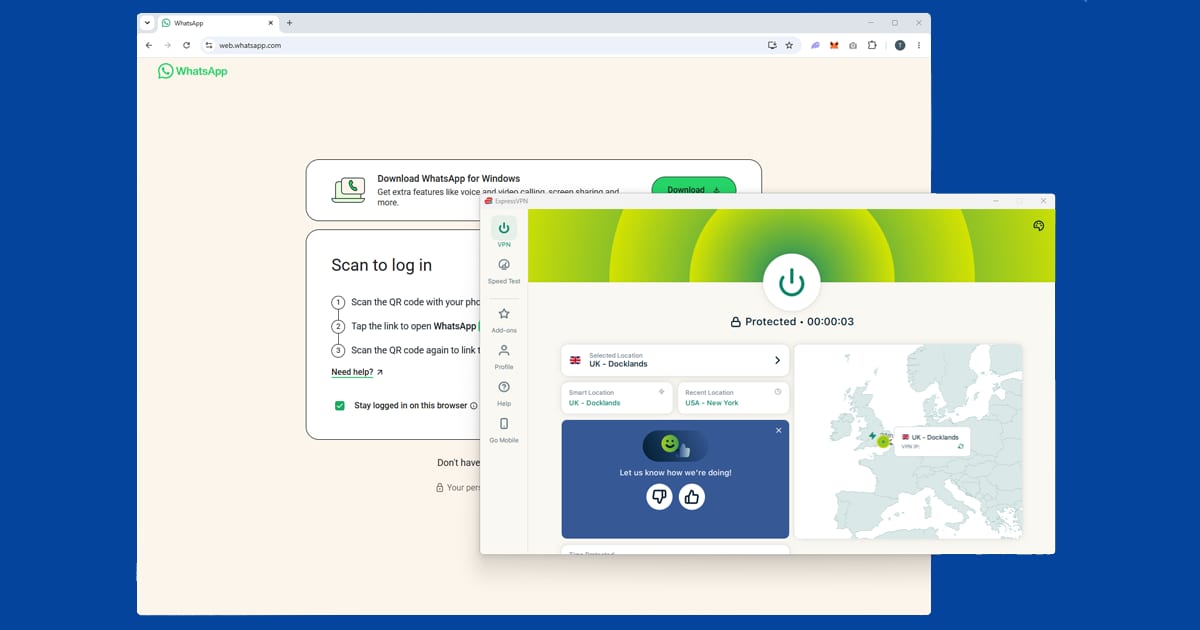
Open WhatsApp after your VPN is connected
If WhatsApp was already open when you turned on your VPN, it may have already connected using your regular internet before the VPN had a chance to take over.
- Mobile app: Close WhatsApp completely: on iOS, swipe it away in the app switcher; on Android, use the recent apps view. Then connect your VPN and reopen WhatsApp.
- WhatsApp Web: Connect your VPN first, then open web.whatsapp.com in a fresh tab. An existing tab that was open before the VPN connected may have already established a session on your regular internet.
Switch to WireGuard for call failures
If messages are working but voice or video calls are dropping or won't connect, the issue is usually how your VPN is set up rather than the server. WhatsApp calls need a fast, low-delay connection, and some VPN settings handle that kind of real-time traffic poorly.
The fix is to switch your VPN connection method to WireGuard. WireGuard is the fastest modern option and handles calls much better than the older alternatives. Open your VPN app's settings and look for a section called Protocol or Connection. Select WireGuard from the list. On NordVPN it's called NordLynx, and on ExpressVPN it's called Lightway: both are the same thing under a different name. Our guide on changing your VPN protocol covers all the major apps.
Enable the Kill Switch
If WhatsApp keeps dropping while you're using it, the cause is usually the VPN briefly disconnecting and reconnecting. Every time that happens, your IP address changes, and WhatsApp treats that as a security signal and cuts the connection.
The fix is to turn on your VPN's kill switch. When the kill switch is on and the VPN drops, your internet pauses completely until it reconnects, rather than falling back to your regular connection. That means your IP address never changes mid-session, and WhatsApp stays stable. On ExpressVPN for desktop, it's typically under your profile icon as Internet Kill Switch, though exact wording and placement can shift between app versions, so search your settings for "kill switch" if you can't find it in that spot.
Check your split tunnelling settings
Some VPN apps have a feature called split tunnelling, which lets you choose which apps go through the VPN and which connect to the internet normally. If you have this turned on, check that WhatsApp is in the VPN list rather than the bypass list.
This is a common cause of WhatsApp working on mobile data but not through the VPN: split tunnelling is configured for other apps but WhatsApp ends up on the bypass list. If you use WhatsApp Web, check that your browser isn't set to bypass the VPN rather than looking for WhatsApp in the app list.
If your VPN won't connect at all
If the VPN itself isn't connecting, the problem is earlier in the chain. Check that the VPN app is up to date, try switching to WireGuard or OpenVPN in the protocol settings, and if you are on hotel or workplace wi-fi, try TCP mode on port 443. See our guide on changing your VPN protocol for a full walkthrough.
If nothing here works, the most reliable option is a VPN that actively maintains servers for restricted regions. NordVPN and ExpressVPN both update their servers regularly to stay ahead of blocks. Still no luck? Our free VPN troubleshooter will help you work out what to try next.
What can I use WhatsApp for with a VPN?
The main uses are accessing WhatsApp in countries where calls are blocked (the UAE is the most common example for visitors) and accessing WhatsApp itself in countries where the app is blocked outright (China). Outside of those situations, a VPN isn't required to use WhatsApp: it's useful for travel to restricted countries, or for keeping your traffic private on public wi-fi.
WhatsApp Web works the same way. With a VPN running in your browser, you can access web.whatsapp.com from countries where WhatsApp is blocked. WhatsApp now operates as a fully linked device, meaning WhatsApp Web works independently and doesn't need your phone to be on the same network or connected at the same time. In countries that use basic IP blocking, a browser extension covering that tab is enough. In countries where WhatsApp is blocked more aggressively (China, and at times Iran, where access has been switched on and off more than once in recent years), a full VPN app is more reliable than a browser extension alone.
WhatsApp uses end-to-end encryption regardless of whether a VPN is running. A VPN doesn't affect the security of your messages: what it does is hide the fact that you're using WhatsApp from the network you're on, which matters on restricted networks and in censored countries.
Verification code never arrives when setting up WhatsApp
Setting up a new phone or registering a new number is a different situation from just reconnecting an existing one, and it's where a VPN causes the most trouble. WhatsApp sends your verification code by SMS or an automated call to the phone number you're registering, and that step doesn't go through the VPN at all: it comes from your mobile network. If the code isn't arriving, your VPN is very unlikely to be the actual cause, but it can still make things worse. Some carriers and networks flag verification attempts as suspicious when they detect a VPN running on the same device, so it's worth turning the VPN off completely for this one step. Get verified first, then turn your VPN back on afterwards. If you're specifically trying to register a number from a country where WhatsApp is blocked, you'll need a VPN connected before you even reach the verification screen, since the initial connection to WhatsApp's servers is what's being blocked in that case.
Photos, voice notes, or files stuck on sending
Text messages are small and get through even on a shaky connection, but photos, voice notes, and files need a stronger, more stable link, so they're usually the first thing to visibly struggle when something's off with your VPN. If media is stuck with a spinning icon or repeatedly failing:
- Switch to WireGuard if you haven't already. It handles larger data transfers noticeably better than older protocols.
- Try a server closer to your actual location. The extra distance to a far-away server adds up quickly when you're sending a video rather than a short text.
- Check you're not on a congested server. If your VPN app shows a load percentage next to each location, pick one that's under 50%.
If switching servers and protocol doesn't help, disconnect the VPN entirely and test whether the media sends normally. If it does, the VPN connection itself is the bottleneck rather than anything on WhatsApp's end.
Backing up and restoring your chat history
WhatsApp backs up your chats to Google Drive on Android or iCloud on iPhone, and both of those services can behave oddly when a VPN changes your apparent location mid-backup. If a backup or restore stalls or fails, it's often because Google Drive or iCloud started the process under one apparent location and your VPN then switched servers or reconnected partway through. Keep your VPN on a single, stable server for the whole backup or restore, or turn it off entirely for that one task if you don't specifically need it running. Once the backup or restore finishes, there's no issue turning your VPN back on for everyday use.
Free VPNs and WhatsApp
WhatsApp's own IP-based blocking isn't especially aggressive, so a free VPN will sometimes work for basic messaging, at least for a while. Where free VPNs consistently struggle is calls and media. Their servers are shared across a large number of users with limited bandwidth, which shows up immediately as dropped calls and stalled photo or video sends, exactly the kind of real-time traffic that needs a stable connection the most. There's also the broader concern that many free VPNs make money by logging and selling browsing data rather than charging for the app, covered fully in Are Free VPNs Safe?. If WhatsApp is genuinely important to you, especially for calls, a paid VPN is worth it.
WhatsApp in Russia in 2026
The biggest WhatsApp change this year is in Russia. In February 2026, the Kremlin confirmed it had blocked WhatsApp, which says around 100 million people there were affected, and said Russians should use Max instead, a state-backed app made by VK. Max bundles chats, calls, payments and access to public services, but unlike WhatsApp it doesn't use end-to-end encryption, so your messages aren't private in the same way.
If you're travelling to Russia, or you've got family there, sort WhatsApp out before you go. Install and set up a VPN while you're still at home, since VPN websites and app store listings can be hard to reach once you're behind the block. Russia has also been cracking down on VPNs themselves, so pick one with an obfuscation mode, which disguises VPN traffic as ordinary web traffic, and test a few servers before you leave. It's also wise to check the local rules on VPN use before you travel.
Don't count on switching apps either. Signal has been blocked in Russia too, though our Signal VPN guide explains how it copes with blocks. More fixes are in our apps and games hub.