FixYourVPN

Outlook and VPNs clash in a few genuinely different ways, and which fix you need depends entirely on which one you've actually got.
A personal Outlook.com account might throw up a security challenge simply because it doesn't recognise your VPN's IP address. A work or school account might be deliberately locked out by your organisation's own security policy, and no amount of VPN tinkering is going to change that, nor should it. Or the desktop app itself might just sit there stuck on "connecting" because something in your VPN's own settings is getting in its way. All three look roughly the same from where you're sitting (a stalled inbox, a login screen that won't budge) but they need three completely different fixes.
Work out which one you're dealing with
Before you touch any settings, it's worth thirty seconds working out which situation applies to you:
- Personal Outlook.com or Hotmail account: a security challenge, a CAPTCHA (the "I am not a robot" puzzle websites use to weed out automated traffic), or a "we've noticed unusual activity" message means Microsoft's fraud detection is reacting to your VPN's IP address, not a genuine block. Head to Fix 1.
- Work or school Microsoft 365 account: if sign-in is refused outright with a message about your organisation's security policies, or you're told to contact your admin, that's very likely intentional. Go to Fix 2.
- Outlook desktop app stuck loading or "Trying to connect": this is usually a technical conflict between your VPN and Outlook's connection process, not an account-level block. Go to Fix 3.
- Mobile Outlook app not syncing new mail: a different issue again, usually down to background app behaviour or Exchange settings rather than the VPN blocking anything outright. Go to Fix 4.
Fix 1: Security challenges on a personal Outlook.com account
Microsoft's fraud detection systems flag sign-ins from IP addresses that a lot of different accounts have used, and that's just what most VPN servers look like from the outside, shared by hundreds of other people. So if you connect through a VPN and Outlook.com throws a CAPTCHA at you, or asks for a phone or email verification, or warns about unusual activity, that's the system doing its job rather than anything actually wrong with your account.
Microsoft's own page on what happens after an unusual sign-in is worth a skim if you want to see exactly what triggers this and what Microsoft does with it. Complete the verification when it's asked for, and it typically stops appearing so often once you've settled on one server rather than switching locations repeatedly.
If you're getting locked out entirely rather than just challenged, try signing in without the VPN first to confirm the account itself is fine, then reconnect the VPN and try again. Sticking to a single VPN server for your email sessions, rather than hopping between countries, cuts down on how often this happens, since rapid location changes are exactly the pattern fraud detection is built to catch.
Fix 2: Work or school accounts blocked by conditional access
This is the fix people are least likely to want to hear, but it matters: if your organisation's Microsoft 365 account refuses to sign in over a VPN and tells you to contact your administrator, that's very likely a deliberate security policy called conditional access, not a technical fault. IT departments often set Microsoft 365 up to only accept sign-ins from a company-approved VPN, from specific countries, or from managed devices, exactly to keep out unrecognised connections (which includes most personal VPNs).
A personal VPN doesn't get around this, and trying to force it usually just repeats the same block from a different IP. If you need remote access to a work account, the correct route is your organisation's own VPN or remote access tool, set up by your IT department, not a consumer VPN app. If you're travelling and need access from a restricted country, contact IT before you leave. They may be able to add a temporary exception or point you to the approved method for your situation.
One related snag worth knowing about: running a personal VPN and a work VPN client on the same device at the same time often causes routing conflicts, where neither connects properly. If you only need the personal VPN for other apps, check whether your work VPN supports split tunnelling, which lets work traffic go through the company VPN while everything else uses your personal one without the two fighting each other.
Fix 3: Outlook desktop app stuck on "Trying to connect"
If the Outlook app for Windows or Mac hangs on a connecting or loading message specifically when your VPN is active, the most common cause is a conflict between the VPN and Outlook's own connection handling, rather than a block on either end.
A lot of VPN apps now bundle a built-in ad blocker, malware filter, or local traffic-inspection feature on top of the core VPN tunnel, and Outlook's connection to Microsoft's servers doesn't always cope well with that kind of interception.
Check your VPN app's settings for any built-in ad blocking or traffic-filtering feature, and temporarily switch it off to test. In NordVPN, this is Threat Protection Pro, usually reachable from the shield icon in the sidebar or through Settings. In ExpressVPN, it's called Threat Manager, found under Options on desktop (Options > Settings > Threat Manager on mobile). Exact menu wording shifts between app versions, so search your VPN's settings for "threat" or "protection" if you can't find it in the spot above.
If Outlook connects cleanly with the feature off, you've found the cause, and from there you can either leave it off while you're using Outlook or check whether your VPN lets you exclude Outlook specifically rather than turning the whole feature off.
If that's not it, try switching your VPN's protocol. Some networks and VPN server configurations don't handle Outlook's connection method smoothly, and switching to WireGuard (NordLynx in NordVPN) or Lightway in ExpressVPN clears this in a lot of cases. Our protocol switching guide has the full steps.
Fix 4: Mobile Outlook app not syncing
If new emails aren't arriving on your phone specifically when the VPN is connected, this is usually about how your phone handles background activity while a VPN is running, rather than the VPN blocking the connection outright.
Android: check that both the Outlook app and your VPN app are excluded from your phone's battery optimisation settings. Aggressive battery management, particularly on Samsung and Xiaomi devices, can suspend background apps including VPN clients, which interrupts syncing without any obvious error message.
iOS: Apple restricts background activity more tightly by design, so Outlook may only sync fully when it's open in the foreground while a VPN is active. Check that Background App Refresh is turned on for Outlook under Settings > General > Background App Refresh, and make sure it's also enabled specifically for your VPN app.
If you're on a work account, this is also a good point to check with IT about Exchange ActiveSync policies, since some organisations configure sync intervals or restrict which networks can pull mail, independent of anything happening on your phone itself.
Outlook access from a restricted country
China is the one that catches most people out here, and it's more nuanced than a straight block. Outlook.com itself isn't officially banned the way Gmail or Facebook are, but the routing between Chinese ISPs and Microsoft's global servers is unreliable enough that it often looks blocked even when it technically isn't. In practice, plenty of people find they can send and receive plain emails but can't upload attachments, and OneDrive (which Outlook leans on for larger files) tends to be the part that fails outright without a VPN running.
If Outlook has gone from working fine to barely loading since you landed somewhere with heavy internet filtering, treat it as a country-level issue rather than an account problem. A VPN connected to a server outside the restricted country, using an obfuscated or TCP-based protocol if standard connections are also getting filtered, is the usual fix. Our protocol switching guide covers how to turn on obfuscation in the major apps.
Situations like this shift over time as filtering rules change on one side and Microsoft's routing changes on the other, so it's worth checking your VPN provider's current guidance for the specific country shortly before you travel rather than relying on what worked last year.
Slow sync and large attachments
If Outlook is connecting and working, just slowly, particularly with large attachments or a big mailbox syncing for the first time, that's a speed issue rather than a block. A distant VPN server adds noticeable delay to every request Outlook makes to Microsoft's servers. Try a server that's geographically closer to you, and switch to WireGuard or Lightway if you're on an older protocol like OpenVPN, since both add a lot less overhead.
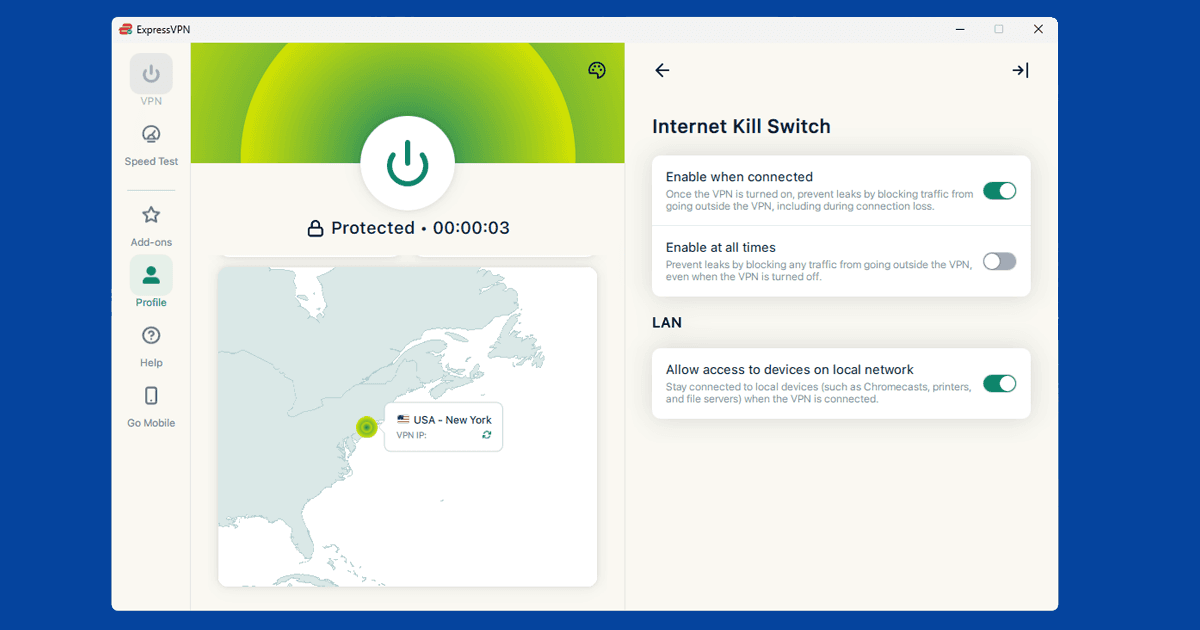
If your VPN's kill switch is enabled and the connection reconnects mid-sync, that can interrupt a large attachment transfer partway through too. Our kill switch guide explains what's actually happening during that reconnect window. Test with the kill switch briefly disabled to see whether that's the factor, and if it is, look for a server that connects faster rather than leaving the kill switch off for good.
If your VPN seems to drop and reconnect constantly regardless of the server, that's a separate problem worth chasing down on its own; our guide on a VPN that keeps disconnecting covers the common causes.
Which VPN works best for Outlook
NordVPN and ExpressVPN are both solid choices for personal Outlook.com use, mainly because their large, well-maintained server networks mean fewer flagged IPs triggering security challenges, and their WireGuard-based protocols (NordLynx and Lightway) keep sync fast.
Neither will help with a work or school account blocked by conditional access, since that's a policy decision made by your organisation's IT team rather than a technical restriction a VPN can route around.