FixYourVPN

Tubi is one of the only big streaming services that costs nothing at all, which makes it easy to assume the location checking would be fairly relaxed. It isn't. Tubi runs on advertising, and advertisers pay to reach viewers in specific countries, so it has a genuine reason to care where you are. If your VPN isn't getting you in, you're almost certainly dealing with a single blocked server rather than a problem with the VPN itself. Switching to a different one tends to sort it on the first or second try.
What you'll see when it's blocked
The most common message is something like "This video is not available in your location" or "Sorry, this content isn't available in your region." Sometimes Tubi loads the homepage without any problem but won't play anything when you press the button. You may also see a "Proxy Detected" message, which means Tubi has specifically identified the VPN server IP you're on as a known proxy address. Either way, the fix is the same: the server you're using is flagged, so switching to a different US city is the place to start.
Before anything else, check whether Tubi is available in your country at all. It runs in the US, UK, Canada, Australia, Mexico, and a handful of other countries. If you're somewhere outside those, you'll need a VPN server in one of them to get access. The US library is the biggest by a wide margin, so a US server is the natural starting point for most people. UK viewers can access Tubi without a VPN, though many connect through a US server to get the wider US catalogue.
Fix 1: Switch to a different server
Start here before anything else. Tubi's block list targets specific server IP addresses, so swapping to a different one often clears the problem without any other changes. If the current server isn't working, try a different city in the same country rather than just picking another server in the same location.
In NordVPN, open the app and search for United States, then try different cities: New York, Los Angeles, Chicago, and Dallas are all worth a go. NordVPN has a feature called SmartPlay that's built for streaming; check it's enabled in your settings under General or Connection.
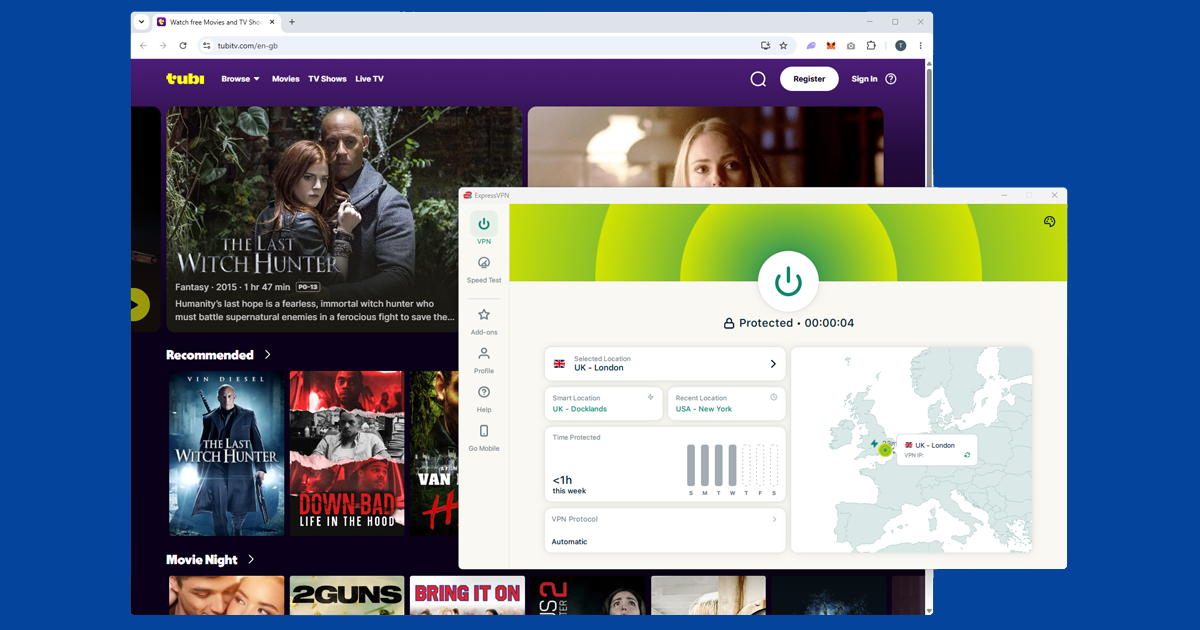
In ExpressVPN, choose United States from the server list and cycle through a few different cities if the first one doesn't work. New York, Chicago, and Los Angeles are good starting points. ExpressVPN automatically picks the fastest server in whichever city you select, so switching cities is the quickest way to get a fresh IP address when one stops working.
For step-by-step instructions across all the major VPN apps, see our guide on how to switch VPN servers.
Fix 2: Clear your cookies and use a private window
If you've visited Tubi before without a VPN active, your browser may have stored location data from that session. Even with a US IP now showing correctly, an old location cookie can reveal your actual whereabouts to Tubi. Clearing cookies removes that stored data. Using a private window is quicker and does the same job: it starts with no cookies or cached data, so Tubi only sees your current VPN connection.
Connect your VPN to a US server first, then clear cookies, then open Tubi in a fresh private window. The order matters.
- Chrome: three-dot menu Settings Privacy and security Clear browsing data. Tick Cookies and cached images, and set the time range to All time.
- Firefox: hamburger menu Settings Privacy & Security Clear Data.
- Safari (Mac): Safari Settings Privacy Manage Website Data Remove All.
- Safari (iPhone): open the Settings app Apps Safari Clear History and Website Data.
- Edge: three-dot menu Settings Privacy, search, and services Clear browsing data. Tick Cookies and Cached images, set range to All time.
Fix 3: Use the Tubi app instead of a browser
Browsers have a built-in feature called WebRTC that's mainly there for things like video calls in a tab. It can also, somewhat inconveniently, tell websites your real IP address even when a VPN is running. The Tubi app doesn't use it in the same way, making it a useful fallback when the browser keeps getting blocked.
The Tubi app is available on iOS, Android, Fire TV, Roku, Apple TV, PlayStation, and Xbox, among others. Make sure your VPN is running as a full app on your device rather than just as a browser extension: extensions only cover browser traffic, so the Tubi app won't go through one.
Fix 4: Check what Tubi actually sees
If you've switched servers and still can't get in, make sure your VPN is actually doing what it's supposed to.
Visit our IP address checker with the VPN connected. It shows you the location Tubi would see when you open the page. If it reports a US location, your VPN is working fine and the issue is a blocked server: try a different city and check again. If it shows your real location, the VPN connection isn't routing properly on that server: switch to a different city, reconnect, and recheck before going further.
Fix 5: Change how your VPN connects
VPN apps can connect in a few different ways, known as protocols. Most of the time the default is fine, but switching can help when servers keep getting flagged. WireGuard is the fastest modern option and a good one to try first.
In your VPN app's settings, look for a section called Protocol or Connection. In NordVPN, the WireGuard option is listed as NordLynx. In ExpressVPN, try Lightway. After switching, reconnect and try Tubi again. Our VPN protocol guide covers the steps for all the main apps.
Tubi on TVs and streaming sticks
Tubi has apps on most of the popular streaming platforms. Getting a VPN running alongside it is slightly different depending on what you're watching on.
- Fire TV and Fire TV Stick: the easiest option. NordVPN and ExpressVPN both have dedicated Fire TV apps. Install your VPN, connect to a US server, then open Tubi.
- Roku: Roku doesn't let you install VPN apps directly. The most practical route is setting up the VPN on your router, so every device on your home network picks up the US IP automatically. You can also share a laptop's VPN connection as a wi-fi hotspot and connect your Roku to that instead.
- Apple TV: NordVPN and ExpressVPN both have native Apple TV apps. Install one, connect to a US server, and open Tubi.
- Samsung, LG, and Sony TVs: the built-in operating systems on these TVs don't support VPN apps. Setting up the VPN on your router covers everything on the network, including the TV, without any extra steps on the TV itself.
- PlayStation and Xbox: same situation; consoles don't run VPN apps. The router method works, or you can cast Tubi from a phone or laptop that's already running the VPN.
- Android TV and Google TV: NordVPN and ExpressVPN both have Android TV versions in the Play Store.
For any device where a VPN app isn't an option, setting up the VPN on your router is the most dependable fix. Every device on the network gets the US IP automatically after that. Most VPN providers have a router setup guide in their help centre.
What Tubi actually is
Tubi is a free streaming service owned by Fox Corporation. There's no subscription and no credit card required. You'll need a free account to watch, which only takes a minute to set up. Once you're in, creating a watchlist and picking up where you left off are both included.
The library runs to tens of thousands of titles, though the character is quite different from Netflix or Disney+. Tubi leans heavily toward movies rather than TV series, and skews toward older films, cult classics, horror, action, and international cinema rather than new releases from the last year or two. If you're after something that came out recently, you probably won't find it here. Where it does well is 80s and 90s action, B-movie horror, classic westerns, foreign-language cinema, and cult titles that have fallen through the gaps on bigger platforms. It's also stronger on full TV box sets than most people expect. The trade-off is ad breaks during playback, the same way a commercial TV channel works.
The US library is the most complete. The UK version is available without a VPN and has a solid catalogue, but the US version carries more titles, so a US server is worth using if you want the widest choice.