FixYourVPN

If you're an Indian expat or just a Bollywood fan living outside India, Zee5 is probably the streaming service you're most frustrated about. It has a huge library spanning Hindi, Tamil, Telugu, Bengali, Marathi, Malayalam, and several other Indian languages, plus dozens of live channels. The problem is that most of that content is locked to Indian IP addresses. As soon as Zee5 sees you're connecting from abroad, it either blocks you or strips the library down to almost nothing.
The fix is connecting through an India VPN server before you open the site. That gives Zee5 an Indian IP to read, and you're in. Here's how to do it.
What you need first
Two things: a Zee5 account and a VPN that has India servers.
Zee5 has a free tier with ads and a paid subscription. You can sign up with just an email address, no payment needed for the free plan. If the sign-up page won't let you through from your country, connect your VPN to India first and then try registering. Subscription pricing varies depending on where you are, so check zee5.com for current plans.
For the VPN, NordVPN and ExpressVPN both have India servers and work well with Zee5 in our testing. Free VPNs are generally not worth trying here: Zee5 is pretty good at spotting and blocking them, and they tend to be too slow for video even when they do get through. Before you open Zee5, use our IP address checker with the VPN on to make sure you're actually showing an India location.
Getting connected
The order matters: connect to India first, then open Zee5. The site checks your location the moment the page loads, so if the VPN isn't running yet, you'll get blocked straight away.
In NordVPN, search for India in the server list and choose Mumbai as your city. In ExpressVPN, select India and pick a city when prompted. Mumbai or Chennai are both good starting points. Once you're connected, open zee5.com in a private or incognito window rather than a normal tab. If you've been on Zee5 before without a VPN, your browser will have a location cookie sitting there that Zee5 can read, even with the VPN on. A private window clears all of that.
Sign in and the content should load normally. If you're still getting a location error or seeing "Oops, something went wrong," the server you're on has probably been flagged. Try a different India server first before anything else. Our guide on switching VPN servers shows you exactly how in each app.
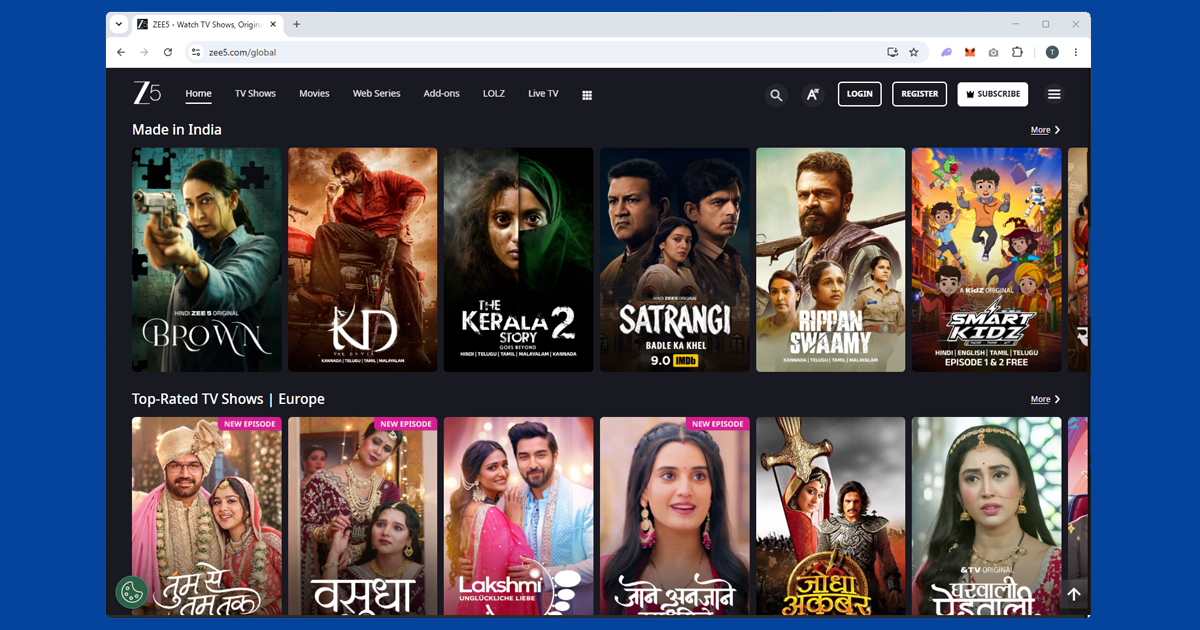
What Zee5 actually has on it
Zee5 is broader than most people outside India realise. The Hindi section is the biggest, with decades of Bollywood films, long-running soaps like Kundali Bhagya, and a set of Zee Originals you won't find anywhere else. But it's not just Hindi: there are proper regional sections for Tamil, Telugu, Malayalam, Bengali, Marathi, Kannada, Gujarati, and Punjabi, each with their own films, shows, and local content.
Live TV is also included. Zee5 carries a range of ZEE-branded channels (ZEE TV, ZEE Cinema, ZEE News and others), which is genuinely useful if you want to watch something live rather than on catch-up. For Indian viewers abroad, having live channels alongside the on-demand library in one place is one of the main reasons to use it over other options.
The Originals catalogue is worth a look too, especially if you're into Hindi and Bengali drama. Some of the web series produced for Zee5 have been popular enough that people specifically subscribe just for them.
When it's still not working
If you're getting the right India location on our IP checker but Zee5 still won't play ball, the most likely cause is that the specific server IP has been flagged. This happens: Zee5 does actively try to block VPN traffic, and individual server IPs get added to blocklists from time to time.
The quickest thing to try is a different India server in the same city. If that doesn't work, try a different city (switch between Mumbai and Chennai). If you're still stuck, try changing your VPN protocol: in NordVPN, go to Settings and switch to NordLynx. In ExpressVPN, try Lightway. Reconnect after switching. Our protocol guide walks through this for each app if you need it.
Also worth doing: clear your browser cookies between attempts. A cached location from a previous visit can cause Zee5 to block you even when your VPN is showing the right country.
Most of the time when someone tells me their VPN is on but Zee5 is still blocking them, it's cookies. Your browser visited Zee5 at some point without a VPN and left a location cookie behind – Zee5 trusts that over your IP. Open a private window before you load the site and that's it, sorted.

Watching on a TV
Zee5 has apps for Android TV and many smart TVs, but you can't install a VPN directly on most televisions. The most reliable solution is to set up the VPN on your router instead. Once it's done, every device on your network gets the India IP automatically, including the TV, and you don't have to think about it again.
If the router method feels like too much setup, casting from a phone or laptop works fine. Get the VPN running on your phone, connect to India, open Zee5, and cast to the TV from there. Chromecast handles this well.
Watching on phones, tablets, and streaming sticks
On a phone or tablet, connect your VPN app to an India server and then open Zee5. One thing to watch out for: make sure you're using the full VPN app, not a browser extension. Extensions only protect traffic in the browser itself, so the Zee5 app won't be covered. If the Zee5 app isn't coming up in your local App Store or Google Play, try zee5.com directly in a mobile browser instead.
Fire TV Stick is the easiest route: NordVPN and ExpressVPN both have dedicated Fire TV apps. Install the VPN, connect to India, open Zee5. Apple TV works the same way with the native apps from either provider.
Common error messages
Beyond "Oops, something went wrong," a few other messages show up from time to time:
- "Content not available in your region": a clearer version of the same geo-block. Confirm your IP with our IP checker, then try a different India server.
- Sign-up or login page stuck loading: usually means the VPN wasn't connected before the page loaded. Close the tab, confirm your VPN is on an India server, and reload from scratch.
- Video buffers endlessly without ever starting: can be either a slow, congested server or a location re-check that's failing quietly. Try a different India server and, if that doesn't help, switch your VPN protocol.
Buffering and picture quality
Zee5 is on-demand content rather than live broadcast for most of its library, so it's generally a bit more forgiving on connection speed than sports platforms that check your location in real time throughout a live match, the way ESPN+ or DAZN do. Still, if playback is stuttering or capped at a low resolution, switch to WireGuard (NordLynx on NordVPN, Lightway on ExpressVPN) if you haven't already, since it handles sustained video streams noticeably better than older protocols.
A Mumbai or Chennai server that isn't heavily loaded also helps; if your VPN app shows server capacity, pick one under 50%. And it's always worth testing your regular broadband speed with the VPN off, just to rule out your own connection being the actual bottleneck rather than the VPN.
Free VPNs and Zee5
Free VPNs are a rough fit for Zee5. Their server pools are small and shared across a lot of users, so they get flagged by Zee5's detection fairly quickly, and even when a free server isn't blocked outright, it's often too slow for smooth streaming, particularly for live TV.
There's also a broader concern worth knowing: many free VPNs cover their running costs by logging and selling browsing data rather than charging for the app, which we cover fully in Are Free VPNs Safe?. If Zee5 is something you rely on regularly, a paid VPN with reliable India servers, like NordVPN or ExpressVPN, is worth the cost.
Terms of service note: Zee5's terms of service restrict access to users in its supported regions. Using a VPN from outside those regions technically falls outside those terms. In practice, enforcement means a blocked stream rather than a banned account, but the policy is worth knowing before you start.