FixYourVPN
Crave is one of the more demanding streaming services to get working from abroad. Unlike most services that only check your IP address, Crave also checks your DNS requests separately, which is why a VPN without DNS leak protection will often fail even when your IP looks Canadian. You'll also need an active Canadian Crave subscription. If you have both sorted, the fixes below will get you back in quickly.
What's on Crave
Crave is where Canadians watch HBO. Game of Thrones, The Last of Us, House of the Dragon, Succession: all of it lives on Crave because the HBO app doesn't exist separately in Canada. Crave also carries Showtime content and a growing library of Crave Originals, which gives it one of the deeper catalogues of any streaming service in Canada.
Since May 2026, Crave also carries all CTV content on a free ad-supported tier. That means CBS and NBC shows licensed for Canada, Canadian originals like Transplant and Coroner, CTV News, and live CTV broadcasts are all now on Crave. No subscription needed: just a free Bell Media account. If you had a CTV account before the migration, your login details carry over.
The paid subscription tier is restricted to Canadian IP addresses. The free tier is too. Either way, a VPN connected to a Canadian server is all you need to get in from abroad. Many UK viewers use Crave specifically for the full HBO library, which is more complete there than what Sky or NOW carry.
Make sure your VPN is showing a Canadian location
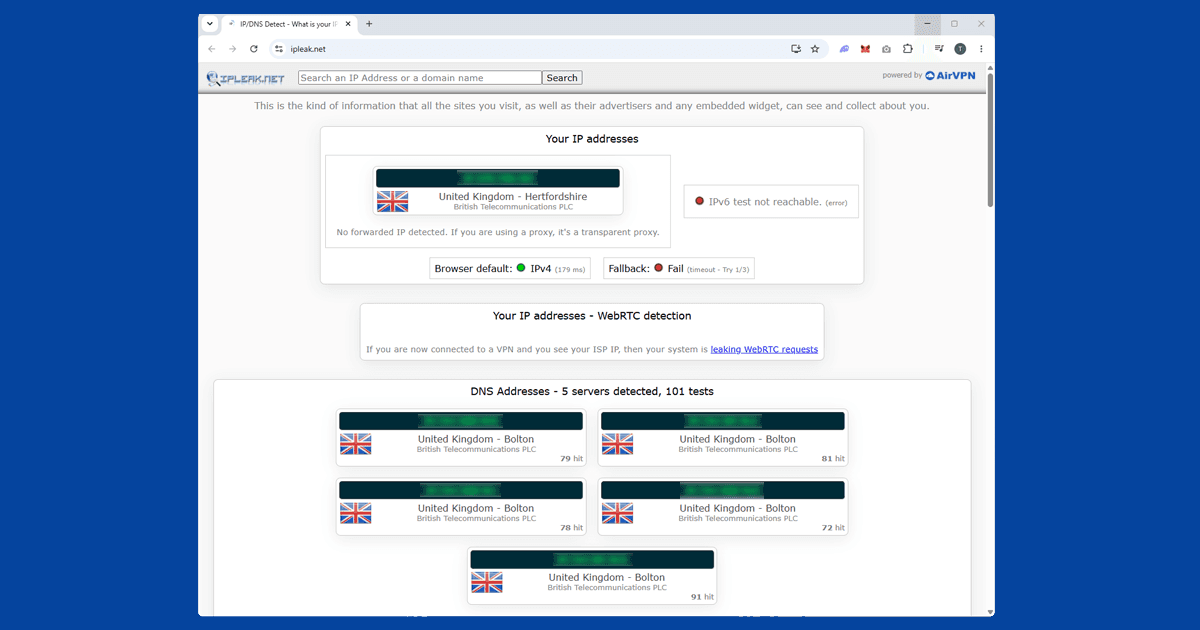
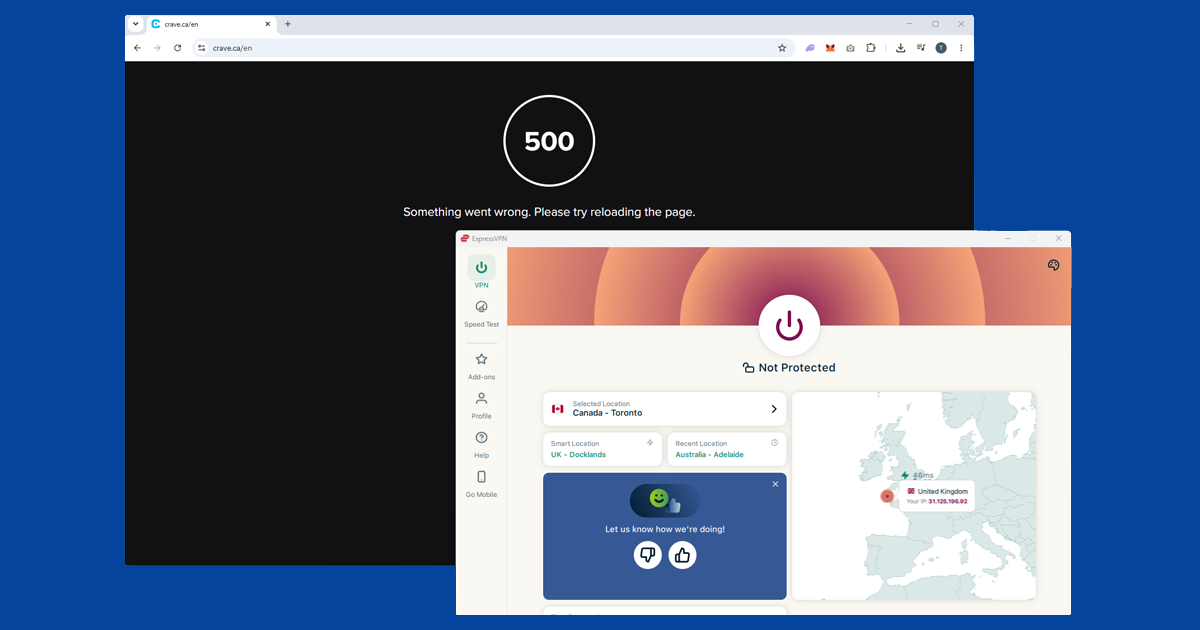
Before anything else, check that your VPN is actually showing a Canadian location. Use our IP address checker with your VPN on: if it shows Canada, your connection is working and any remaining block has a different cause. If it shows your real location, switch to a different Canadian server. Toronto, Vancouver, and Montreal servers tend to work best. If multiple servers all fail the location check, you probably need a VPN with stronger Canadian coverage. Our VPN recommendations covers the reliable options.
Connect to a Toronto, Vancouver, or Montreal server
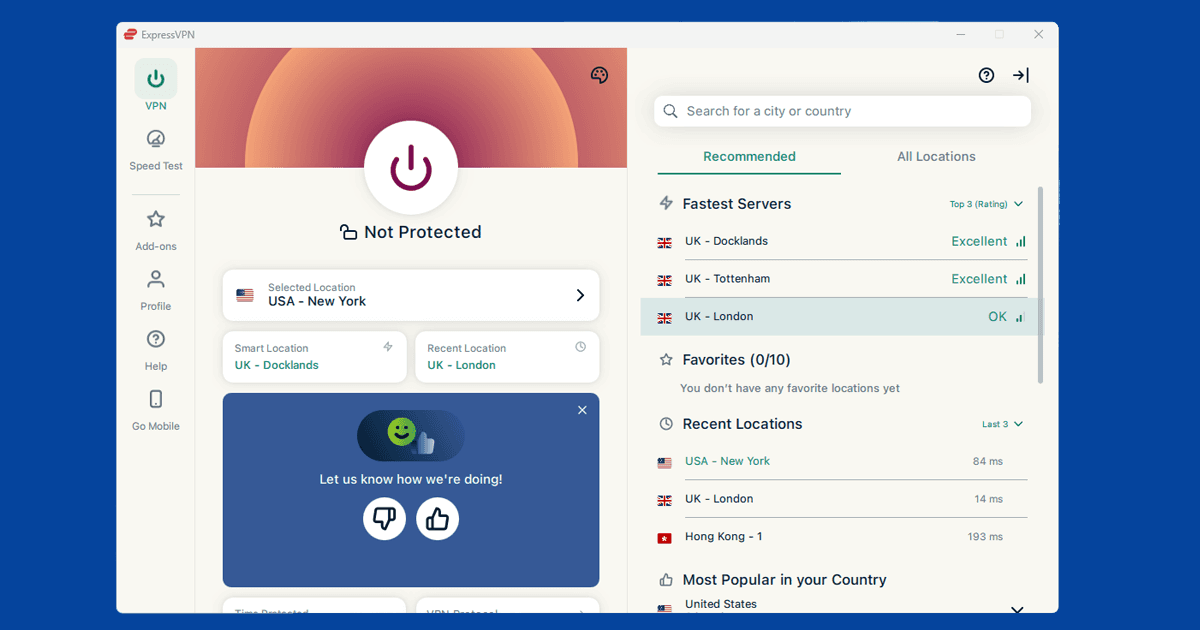
Not all Canadian servers work equally well with Crave. Toronto and Vancouver tend to give the most consistent results, and Montreal is a reliable third option. If one city isn't working, try a different one rather than just retrying the same server.
In most VPN apps, you can search for a specific city rather than just picking "Canada" from a list. That way, if one city stops working, you can switch to another without having to scroll through a country list to find alternatives.
If your VPN has servers labelled streaming or optimised, try those first. They're maintained specifically to keep up with streaming service blocks. Our guide to switching VPN servers covers how to do this in all the major apps.
Open Crave in a private or incognito window
If you've visited Crave before without a VPN, your browser has stored cookies that can include your real location. Crave reads those old cookies even if your IP now looks Canadian, which is why people sometimes find they're still blocked after connecting.
Connect your VPN to a Canadian server first, then open a private window (Chrome and Edge call it Incognito; Firefox and Safari call it Private Browsing) and go to crave.ca. A private window starts with no stored data, so Crave can only see your current connection. The order matters: VPN on, then private window, then Crave.
Clear your browser cache and cookies
If a private window still doesn't work, clear your full browser cache and cookies before trying again. On some browsers, old location data can persist even between private sessions, and clearing it properly gets rid of it.
- Chrome / Edge: Settings > Privacy and security > Clear browsing data. Select Cookies and Cached images, set the time range to All time, then click Clear data.
- Safari: Settings > Privacy > Manage Website Data, then remove Crave's entries.
- Firefox: Settings > Privacy and Security > Clear Data.
Our full guide on clearing cache and cookies to fix VPN issues has step-by-step screenshots for each browser if you need them.
Try the Crave app instead of a browser
If the browser isn't working, try the Crave app instead. The website and the app handle connections slightly differently, and the app is often more reliable. It's available on iOS, Android, Apple TV, and some smart TVs.
One thing to check: if you're using a browser VPN extension rather than the full VPN app, it won't cover the Crave app at all. Extensions only protect traffic inside your browser. You need the full VPN app running on your device for the Crave app to route through it. If you only have an extension, install the full app from your VPN provider's website.
Our guide on using the streaming app instead of a browser explains the difference and when it matters.
If none of the above works
If you've tried multiple Canadian servers, confirmed DNS leak protection is on, and Crave is still blocking you, the issue is almost certainly that your VPN provider's Canadian IP addresses have all been flagged. Not every VPN keeps its Canadian servers fresh enough to stay ahead of Crave's detection.
ExpressVPN is our top recommendation for Crave: their Canadian server coverage is broad and they refresh their IPs regularly. NordVPN is a strong alternative. Either provider's support team can point you to Canadian servers that have been working recently if you're still stuck.
Free VPNs won't work with Crave. Their server pools are too small and too well-known. If you're on a free VPN, switching to a paid one is the fix. Canadians travelling in the US run into the same kind of layered detection with services like Peacock; the troubleshooting steps overlap almost completely with what's covered here.
Signing up for Crave from outside Canada
If you don't already have a Crave account, creating one from abroad is possible but takes an extra step for the paid subscription tier. The free Bell Media tier, the one covering CTV content, just needs an email address, with no Canadian payment details required, so it's the easier of the two to set up while you're outside Canada.
The paid Crave subscription, which unlocks HBO, Showtime, and Crave Originals, asks for a Canadian billing address and a payment method that reads as Canadian. A Canadian-issued prepaid card is one option if you don't have a Canadian bank card; having a relative or friend in Canada set it up on your behalf is another common route. Either way, keep your VPN connected to a Canadian server for the whole sign-up process, not just when you get to the payment screen.
Crave on smart TVs and games consoles
Crave has apps for Apple TV and some Samsung and LG smart TVs, alongside iOS, Android, and Chromecast support. The built-in smart TV apps generally don't let you install a VPN directly, which is where a router-level VPN earns its keep: configure it once, and every device on your home network, TV included, connects through Canada without any further setup.
PlayStation and Xbox don't have a native Crave app at all, so casting from a phone or laptop that's already running the VPN is the simplest way to get Crave onto a console-connected TV.
If Crave keeps buffering
A VPN adds a small amount of overhead to your connection, and how noticeable that is depends mostly on distance and protocol. If you're a long way from Canada and picture quality keeps dropping or the stream keeps pausing to buffer, try a physically closer Canadian city first: Toronto and Montreal tend to have more server capacity than smaller regional cities, which helps during peak evening hours. Switching to WireGuard if you're not already on it usually helps too; it's a leaner protocol than OpenVPN and handles the back-and-forth of video streaming more efficiently.
If your VPN disconnects and reconnects mid-stream, Crave can flag that as suspicious and interrupt playback: our guide on why VPNs keep cutting out covers the common fixes, and turning on a kill switch stops your real location from showing through during any brief reconnect.