FixYourVPN
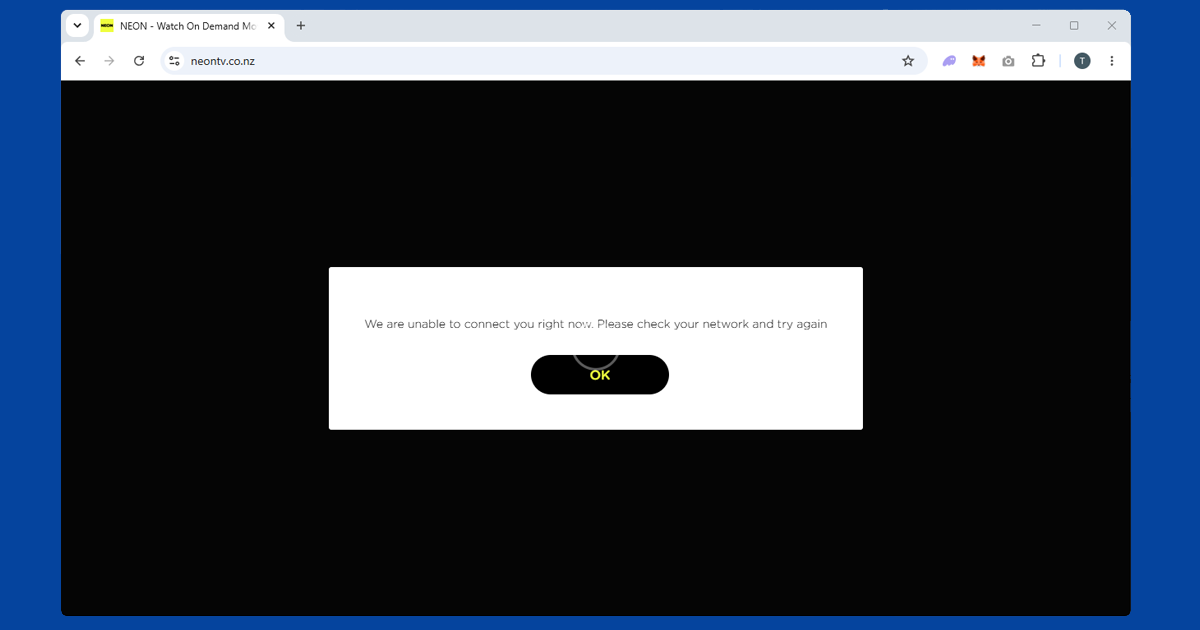
Neon is New Zealand's streaming home for HBO content, and if you're a Kiwi living or travelling abroad it's usually the first service you miss. The moment you leave NZ, the site throws up a location error. A VPN connected to a New Zealand server clears that, and the whole thing takes about two minutes to set up.
Why Neon blocks you outside New Zealand
Neon's content rights, HBO's included, are licensed specifically for the New Zealand market, the same way Max holds the US rights and other services hold the rights elsewhere. Neon enforces that by checking the IP address your device connects from: if it doesn't look like a New Zealand address, the site blocks playback and shows a location error rather than letting you browse the catalogue at all.
Compared with some of the more heavily-defended services covered on this site, like BBC iPlayer, Neon's detection is relatively light. It's mostly IP-based rather than running a stack of overlapping checks, which is why a straightforward VPN connection to a NZ server sorts it out for most people without much extra troubleshooting.
What's on Neon and why it's worth the effort
Neon holds the HBO rights for New Zealand, which is why you'll find The White Lotus, The Last of Us, Succession, House of the Dragon, and the broader HBO catalogue all in one place. That's the main reason it's so popular with Kiwis who've moved overseas or are travelling long-term. On top of the HBO content there are Neon originals, recent international series, and a film library that covers both new releases and older titles.
The catalogue does shift as licensing deals change, so neon.co.nz is the best place to check what's currently available. Subscription pricing and the exact plan tiers have changed a few times over the years too, and we won't guess at current figures here since they're the kind of detail that goes stale fast; check the pricing page directly before you sign up.
How to connect from outside New Zealand
Connect your VPN to a New Zealand server before you open Neon. The site checks your location when the page loads, so the VPN needs to be running first. If Neon is already open in your browser, close it completely, get the VPN connected, then reopen it fresh.
In NordVPN, search for New Zealand in the server list and go for Auckland. Once you're connected, open neon.co.nz in a private or incognito window. It's worth doing this even if you don't usually bother with private browsing: if you've visited Neon without a VPN at any point, your browser is holding location cookies that Neon reads before it checks your IP. A fresh private window means the site only sees where you are right now, not where you were last time.
In ExpressVPN, pick New Zealand and choose a city. If the first server gives you an error, try a different one in the same country. Our server switching guide walks through this for both apps.
Still getting blocked? Try these
If you're connected to a NZ server but still seeing the location error, the first thing to check is whether the VPN is actually routing your traffic. Open our IP address checker with the VPN on. If it's showing your real country rather than New Zealand, reconnect and check again before trying anything else.
If the IP looks right but Neon is still blocking you, a DNS leak is the most likely culprit. Your IP can show up as New Zealand while your DNS requests quietly go through your real internet provider, which is enough to give away your actual location. Our DNS leak guide covers how to spot and fix it.
Still no luck? Close the browser entirely, open a brand new private window, and load neon.co.nz from scratch. If Auckland servers are giving you grief, Wellington is worth a try since VPN server IPs do occasionally get flagged, and a different NZ city usually gets through.
Watching on your phone, tablet, or TV
Neon has iOS and Android apps, and the same approach works on both: connect the VPN to a New Zealand server before you open the app. You need a full VPN app for this, not a browser extension. Extensions only cover traffic inside the browser and won't do anything for a standalone app.
One thing that catches people out on mobile: if you've opened the Neon app before without a VPN, it may have cached your real location. On Android, go to Settings, find the Neon app under Apps, tap Storage, and clear the cache before reconnecting. On iOS there's no direct cache-clearing option, so if you're still hitting a block after connecting to a NZ server, deleting and reinstalling the app usually does it. Either way, connect the VPN first, then open Neon fresh.
If the Neon app isn't available in your local app store, neon.co.nz in a mobile browser works just as well.
For TV, Neon has apps on Apple TV and Android TV, which covers most Chromecast with Google TV devices. Connect your VPN app to a New Zealand server before opening Neon, and you're good to go. Both platforms have VPN apps available in their app stores, so you can run everything on the TV itself.
If your TV doesn't have a VPN app option, running the VPN on your router is the tidiest workaround. Once it's set up there, everything on your home network goes through it automatically, including the TV, with no extra steps needed.
Try a different VPN protocol if servers keep failing
If you've worked through a couple of New Zealand servers and Neon is still throwing up a location error, switching your VPN's connection protocol is worth trying before you assume the whole approach isn't working. WireGuard is the fastest modern option and a good default: it runs under the name NordLynx in NordVPN and Lightway in ExpressVPN. Open your VPN app's settings, find the Protocol or Connection section, switch it, then reconnect to a NZ server and try again. Our guide to changing VPN protocol covers the exact steps app by app.
Do I need a New Zealand payment method to sign up?
If you don't already have a Neon account, signing up from abroad can be trickier than getting an existing account working, since payment processors sometimes flag a card issued in a different country to the one your VPN is showing. In our experience this is more of a hurdle at sign-up than it is once you're already subscribed: if you already have a Neon account from when you lived in or visited New Zealand, connecting to a NZ VPN server should be all you need to get back into it.
If you're setting up a brand new account from overseas, a NZ-issued card or a NZ-registered app store account tends to make the process smoother, though we can't promise Neon's exact sign-up checks haven't changed since we last looked.
Do free VPNs work for Neon?
Sometimes, briefly, but not reliably. Free VPNs share a small pool of server addresses across a large number of users, and once one of those addresses gets flagged, everyone using it loses access at the same time, Neon included. Free VPNs also tend to be considerably slower, which matters for HBO-quality video content.
If Neon is a service you plan to use regularly rather than as a one-off, a paid VPN with a proper New Zealand server selection is worth it; our Are Free VPNs Safe? guide covers the wider risks of relying on free providers day to day.