FixYourVPN

If your VPN is getting blocked on Discovery+, you're usually just one server switch away from getting in. Discovery+ is one of the easier UK streaming services to unblock: its detection is less aggressive than BBC iPlayer or Netflix, so finding a clean UK server is normally all it takes. If that doesn't sort it straight away, the steps below cover everything else that might be getting in the way.
Why Discovery+ blocks VPNs
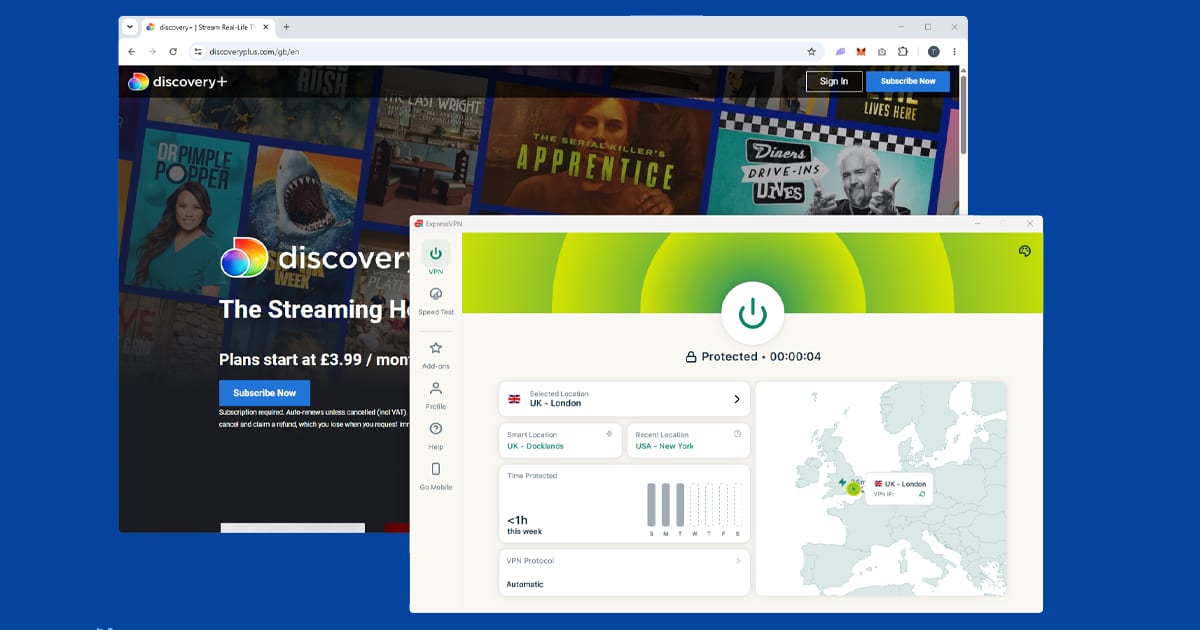
Discovery+ is the streaming home of Discovery's factual and reality content: documentaries, nature shows, true crime, food, lifestyle, and home renovation from brands including Discovery Channel, Animal Planet, HGTV, TLC, and the Food Network. The UK version also carries Eurosport on the paid tier. Discovery+ is available in many countries, but the content in each territory is licensed separately, which is why it restricts access by region.
Discovery+ checks your IP address to enforce those restrictions, similar to Channel 4 and ITVX. It's less aggressive than BBC iPlayer, which runs several checks at once. Because Discovery+ mainly focuses on your IP address, finding a clean UK server is usually enough. Discovery+ and Max are both Warner Bros. Discovery services, so if you subscribe to both, the same troubleshooting steps generally apply to each.
Discovery+ is less aggressive than BBC iPlayer. It mainly checks your IP address, so one clean UK server is usually all you need to get in.
What's on Discovery+
The free tier gives you Discovery's full on-demand content, including:
- Nature and wildlife: Discovery Channel and Animal Planet documentaries
- Reality and lifestyle: TLC, HGTV, and Food Network content including home renovation, food shows, and reality TV
- True crime and documentaries: a wide range of factual programming across genres
- Live simulcast: live streams of Discovery's UK channels as they broadcast
The paid tier adds Eurosport, which covers cycling (including the Tour de France and Vuelta), the French Open, selected tennis events, winter sports, and some Olympic Games coverage. Live sport needs a paid subscription: if Eurosport content specifically isn't playing, that's likely the reason rather than your VPN. Both tiers require a registered account and a UK VPN connection to access from outside the UK.
Switch to a different UK server
This sorts it for most people. If Discovery+ is showing a location error or refusing to play, connect to a different UK server in your VPN app. Discovery+ maintains a blocked list of known VPN server addresses, but it doesn't update it as aggressively as some services. Trying two or three servers usually finds one with a clean IP.
If your VPN offers streaming-optimised UK servers, try those first. NordVPN and ExpressVPN both maintain UK server pools that work consistently with Discovery+. Free VPNs tend to struggle because their limited IP pool gets flagged quickly and they can't rotate addresses fast enough. If you're on a free VPN and Discovery+ keeps blocking you, the VPN itself is the bottleneck. See our VPN recommendations for paid options.
While you're in your VPN settings, enable the kill switch. If your VPN drops mid-session, a kill switch cuts your internet rather than silently reconnecting to a non-UK server, which would cause Discovery+ to flag a location change. Our kill switch guide shows how to turn it on in the main apps.
Set up your Discovery+ account
Discovery+ requires a registered account to watch anything. If you haven't already created one, sign up at discoveryplus.com. You just need an email address and a password. Unlike some UK services, Discovery+ doesn't ask for a UK postcode during sign-up, so creating an account from abroad is easy.
If you already have an account, make sure you're signed in before pressing play. Also check which tier you're on: the free ad-supported tier gives access to most on-demand content, while Eurosport live sport is only on the paid tier. If Eurosport specifically won't play, a subscription upgrade may be the issue rather than your VPN settings.
Clear cookies and use a private window
If you've visited Discovery+ before without a VPN, your browser may have stored session data that includes your real location. Even with a VPN connected, those cached cookies can cause playback to fail. Connect your VPN to a UK server, then open Discovery+ in a private or incognito window. Private windows start fresh with no stored data, so Discovery+ sees you as a new UK visitor. This takes about thirty seconds and fixes it for most people who've used Discovery+ before.
If you'd prefer to stay in your regular browser, clearing your Discovery+ cookies specifically does the same thing without logging you out of other sites:
- Chrome: SettingsPrivacy and securityThird-party cookiesSee all site data and permissions, search for discoveryplus.com and remove.
- Firefox: hamburger menuSettingsPrivacy & SecurityManage Data, search for discoveryplus.com and remove.
- Safari: SafariSettingsPrivacyManage Website Data, search for discoveryplus.com and remove.
- Edge: three-dot menuSettingsCookies and site permissionsManage and delete cookies and site data, search for discoveryplus.com and remove.
Confirm your VPN is showing the right location
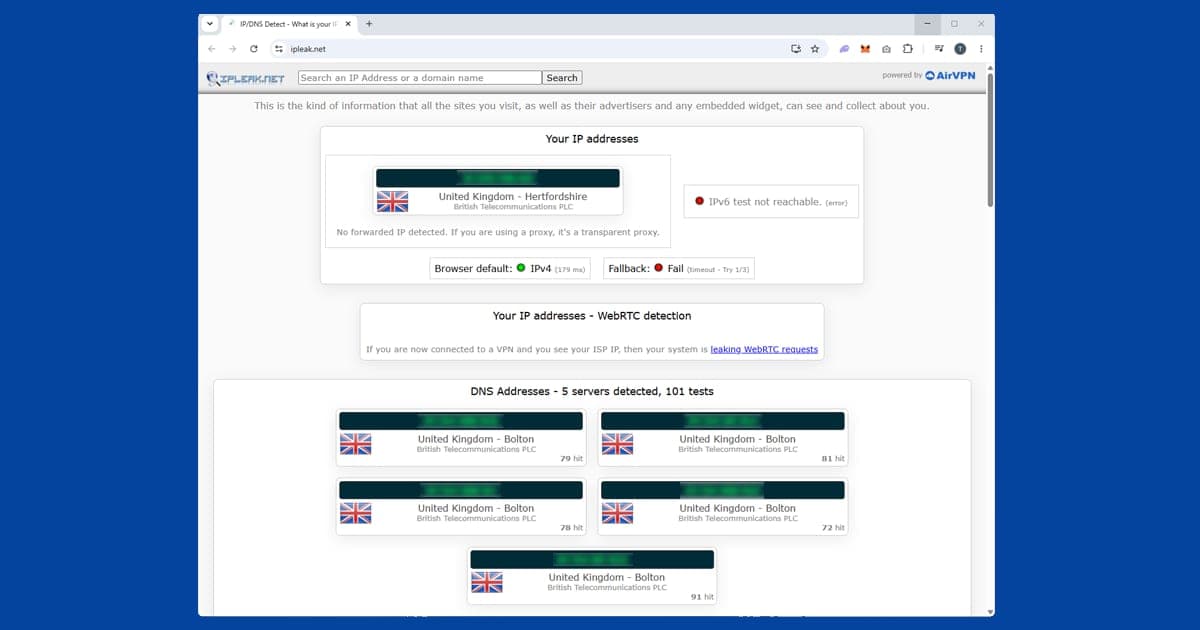
Discovery+ is one of the easier UK services to unblock, so if it keeps blocking you after a server switch, quickly confirm your VPN is actually routing correctly. Use our IP address checker with your VPN on: if it shows a UK location, the VPN is working fine and the block has a different cause. If it shows your real location, try a different UK server. Discovery+ usually comes good after one or two fresh attempts.
Check for a DNS leak
Even when your VPN is connected and showing a UK IP, your device can sometimes still send DNS requests outside the VPN tunnel. Those requests can reveal your real location to Discovery+ even when your IP looks correct. This is called a DNS leak, and it's a common cause of persistent blocks that server-switching doesn't fix.
Our IP checker also shows DNS information: if it shows your internet provider's DNS instead of your VPN's, you have a leak. Most VPN apps have a DNS leak protection setting to resolve this. In NordVPN it's on by default. In ExpressVPN, check under Preferences for "Use only ExpressVPN DNS servers while connected." Our full guide to fixing a DNS leak has the step-by-step for each app.
Try a different VPN protocol
If you've switched servers, cleared cookies, and fixed any DNS leak and Discovery+ is still blocking you, try switching your VPN protocol to WireGuard. It's faster and more reliable than older protocols like OpenVPN, and some users find it gets through where other protocols are blocked.
Open your VPN app's settings and look for a Protocol or Connection section. In NordVPN, WireGuard is called NordLynx. In ExpressVPN, look for Lightway, which is ExpressVPN's own fast protocol. Reconnect and try Discovery+ again. Our guide to changing your VPN protocol has step-by-step instructions for all the main apps.
Try the Discovery+ app instead of the browser
If you're being blocked in the browser, try the Discovery+ app on iOS, Android, Fire TV, or your smart TV. The app can handle VPN connections differently, and a block that affects the website doesn't always affect the app. On mobile, make sure your VPN is running as a system-level app rather than a browser extension: extensions only cover browser traffic and won't protect the Discovery+ app.
Watching Discovery+ on a smart TV or streaming stick
Discovery+ is available on a wide range of devices. How you set up your VPN depends on which device you're using:
- Fire TV Stick: install a VPN app directly from the Amazon Appstore. NordVPN and ExpressVPN both have dedicated Fire TV apps. Connect to a UK server before opening Discovery+.
- Android TV or Google TV: install a VPN app from the Google Play Store. Most major VPN providers have Android TV apps. Connect before opening Discovery+.
- Apple TV: VPN apps are available from the App Store on tvOS 17 and later. Check your VPN provider's App Store listing for availability.
- Samsung, LG, or Sony smart TVs: these don't support VPN apps directly. Set up the VPN on your router instead, which routes all your home network traffic through a UK IP automatically.
- PlayStation 4/5 or Xbox: no native VPN app support. Use the router method, or share a VPN connection from a laptop as a wi-fi hotspot and connect the console to that network.
If you have a laptop and a Chromecast or AirPlay-compatible TV, a quick option is to open Discovery+ on your VPN-connected laptop and cast the tab to your TV.
If your VPN won't connect at all
The steps above assume your VPN is connected but Discovery+ is blocking it. If your VPN itself won't connect, the problem is different. Some networks (hotel wi-fi, corporate networks, and internet connections in certain countries) block VPN traffic at the firewall level before a connection can even be established.
Try switching your VPN protocol to OpenVPN TCP on port 443, or Lightway in ExpressVPN. These are harder for firewalls to block because they use the same port as regular HTTPS web traffic. Keep in mind that protocol changes affect how your traffic looks to a firewall but won't fix a Discovery+ location error on their own: you still need a UK server once you're connected. Not sure which problem you've actually got? Our free VPN troubleshooter can help narrow it down.
Where the sport went in 2026
If you open discovery+ looking for live sport and can't find it, your VPN isn't the problem. On 26 March 2026, Warner Bros. Discovery moved all the live sport that used to stream on discovery+ over to HBO Max, which launched in the UK and Ireland that day and is now the streaming home of TNT Sports. That includes the cycling that used to sit behind the paid tier. discovery+ carries on without the sport, as the place for Discovery's factual and lifestyle channels.
If you've been following the Eurosport notes above, here's what that means for you. If you paid for discovery+ directly, you can sign in to HBO Max with your existing discovery+ details. If you got it through Sky or EE, your access moves across to HBO Max.
For VPN users, it's the same idea in a different app: connect to a UK server first, then open HBO Max. Live sport often gets stricter checks than on-demand shows, so expect to switch servers a little more often. Our HBO Max VPN fixes cover that app in detail, and our US and global streaming hub has the rest.