FixYourVPN

My5 is one of the easier UK streaming services to get working with a VPN. It doesn't run the layered checks that BBC iPlayer or Sky Go do, which means if you're blocked, a quick server switch is usually all it takes to get back in.
Why My5 blocks VPNs
My5 is Channel 5's free streaming service, available in the UK only. Like other UK streaming services, it checks your IP address and blocks connections that look like they're coming from a VPN server rather than a regular home broadband connection. Compared to BBC iPlayer or Sky Go, My5 tends to be one of the easier services to unblock: it doesn't have the account-level checks that Sky Go uses, and it's generally less aggressive about blocking VPNs, which is why a quick server switch usually does the job.
Fix 1: Switch to a different UK server
This is almost always the fix. Open your VPN app, select a different UK server, and try My5 again. My5 keeps a list of blocked VPN servers, but it updates it less frequently than services like BBC iPlayer or Netflix, so you'll usually find one that works within a couple of tries.
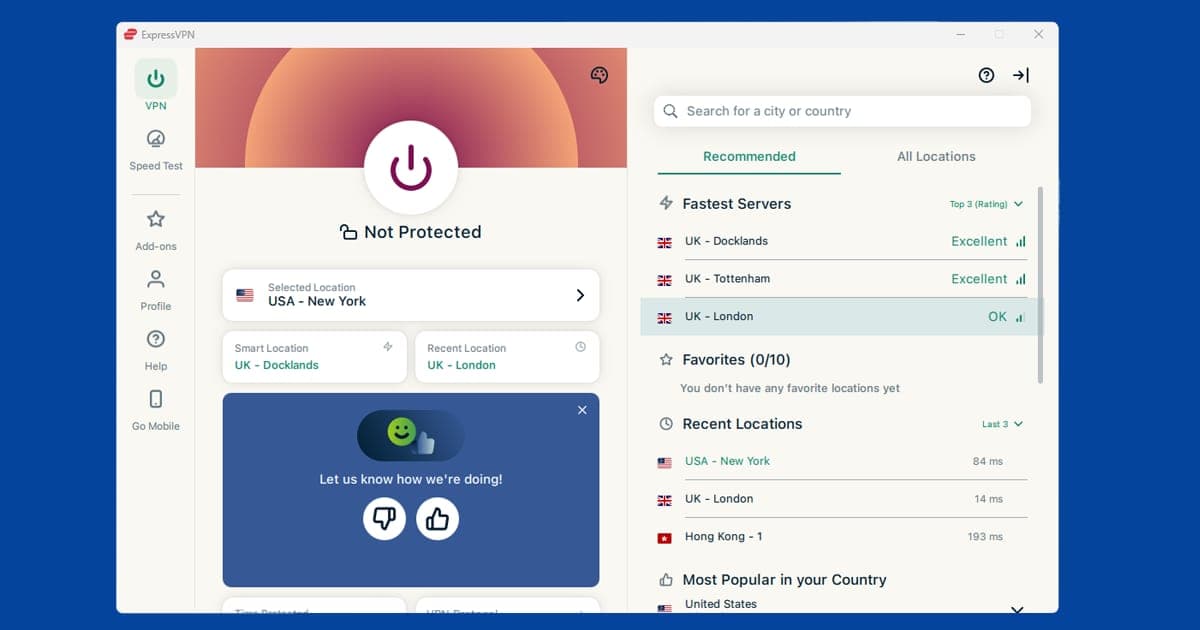
If your VPN app lets you filter by city, try London first, then Manchester or Birmingham if London is blocked. If your provider has streaming-optimised server options, those can be worth trying. Free VPN providers are much more likely to have all their UK addresses blocked, since they have fewer servers and are slower to replace flagged ones.
Your VPN's kill switch is worth enabling if you haven't already. If the VPN drops mid-session, it can quietly reconnect to a non-UK server, meaning My5 sees your real location. The kill switch pauses your internet if the connection drops, so your location stays hidden.
Fix 2: Create a My5 account if you haven't already
My5 requires a free account to watch anything. Go to channel5.com, click Sign in, then Register. You'll need an email address and a password. Unlike some other UK streaming services, My5 typically doesn't ask for a UK postcode during sign-up, which makes it one of the easier accounts to set up from outside the UK.
If you already have an account but aren't signed in, do that before hitting play. Some users get a location error when not signed in even with a working VPN, so rule that out first.
Fix 3: Clear cookies and use a private window
If you've visited My5 before without a VPN, your browser may have stored location data from that session. Even with your VPN showing a UK location, those cached cookies can cause My5 to refuse playback.
Connect your VPN to a UK server, then open My5 in a private or incognito window. Private windows start fresh with no cookies, so My5 sees you as a new UK visitor. If My5 works in private mode but not your regular browser, clear your My5 cookies specifically without wiping your other saved logins:
- Chrome: SettingsPrivacy and securityThird-party cookiesSee all site data and permissions, search for channel5.com and remove.
- Firefox: hamburger menuSettingsPrivacy & SecurityManage Data, search for channel5.com and remove.
- Safari: SafariSettingsPrivacyManage Website Data, search for channel5.com and remove.
- Edge: three-dot menuSettingsCookies and site permissionsManage and delete cookies and site data, search for channel5.com and remove.
Fix 4: Confirm your VPN is connected and showing a UK location
My5 loads quickly enough that it's easy to miss a brief VPN disconnection. Before going further, open your VPN app and check it's showing an active UK connection. Some VPN apps quietly reconnect to a different server after a drop, which might not be UK, meaning My5 sees your real location instead.
Use our IP address checker with your VPN switched on to confirm. If it shows a UK location, your connection is fine and something else is causing the block. If it shows your real location, switch to a different UK server and check again.
If the IP checker shows UK but My5 is still blocking you, run a DNS leak test. A DNS leak happens when your device's lookup requests slip outside the VPN tunnel and reveal your real location, even though your IP address looks correct. If your home internet provider shows up in the results, enable DNS leak protection in your VPN app's settings, reconnect, and try My5 again.
Fix 5: Try the My5 app instead of a browser
My5 has apps for iPhone, Android, and many smart TVs. If the browser version isn't working with your VPN, try the app, and vice versa. On mobile, if the app is blocked but the browser works fine, the likely cause is split tunnelling. This is a VPN setting that routes browser traffic through the VPN but leaves other apps on your regular connection. Go into your VPN app's settings and either turn split tunnelling off, or make sure the My5 app is included in the protected list.
On smart TVs, My5 is available on most major platforms. If your TV doesn't support a VPN app directly (most don't), your best bets are installing the VPN on your router or casting from a VPN-connected phone or laptop.
Watching Channel 5 live through My5
Alongside on-demand catch-up, My5 carries a live simulcast of Channel 5, 5STAR, 5USA, and 5Select, so you can watch in real time rather than waiting for a show to land in the catch-up library. The live streams use the same UK-only location check as everything else on My5, so the same VPN setup covers both: connect to a UK server, sign in, and the live tab works the same way as any on-demand title.
If a live stream keeps buffering or drops out partway through, that's usually more about server load than anything wrong with My5 itself. Live video puts more strain on a VPN server than an on-demand file does, so switching to a quieter UK server, or one that's geographically closer to you if you're outside Europe, often clears it up.
What the block actually looks like
If My5 catches your connection, you'll typically see something like "this video is not available in your area" rather than a more specific proxy or VPN warning. My5 tends to be less blunt about naming the cause than some other UK services, so if you see a generic error like that with your VPN connected, it's worth confirming your VPN is actually showing a UK location with our IP address checker before assuming the block is about something else entirely.
Do free VPNs work with My5?
Sometimes, at least for a session or two, since My5 is genuinely one of the gentler UK services to get past. That said, free VPNs typically run on a small, heavily shared pool of servers, and once enough people are routing UK traffic through the same handful of addresses, My5 tends to catch up and block them anyway. If you're watching regularly rather than just testing whether it's possible, a paid VPN with a wider spread of UK servers, like the ones in our recommendations below, is the more dependable option long term.
My5 alongside other UK catch-up services
If you're already running a VPN for Channel 4 or ITVX, My5 fits into the same routine: connect to a UK server, use a private window if cookies are causing trouble, and sign in with a free account. Of the major UK free-to-air catch-up services, My5 and UKTV Play tend to be the least aggressive about VPN detection, so if you're finding Channel 4 or BBC iPlayer more stubborn on a particular server, it's often worth testing that same server on My5 first, just to rule out a basic connection problem.
What's on My5
My5 carries Channel 5's broadcast catalogue, including live TV and catch-up. That covers shows like Neighbours, reality formats, documentaries, and the US drama imports that Channel 5 picks up. It also has a selection of older series available on demand. The library is smaller than BBC iPlayer or ITVX, but it's completely free and the catch-up window is generous.
My5 is now called 5
If you've gone looking for the My5 app and can't find it, you're not imagining things. Channel 5 renamed My5 to simply 5 in March 2025, so you'll now find the app in app stores listed as 5. It's still free, it still needs a UK connection, and every fix in this guide still applies. Only the name and the look have changed.
The service has kept changing since. The relaunch added more Paramount shows and a set of extra live channels you won't find on regular TV. Updates like that are usually good news, but they can sign you out or reset your settings.
If 5 stops working straight after an update, try this order:
- Connect your VPN to a UK server first.
- Open the app and sign in again.
- If you still see an error, clear the app's data or reinstall it.
On an older smart TV that still shows the My5 name, check for an app update or reinstall it. Other UK catch-up services run similar checks, and our explainer on why iPlayer says you're not in the UK walks through the clues they look at. There's more in our UK streaming hub.