FixYourVPN

If Sky Go won't play with your VPN switched on, Sky has usually recognised your server's IP address as a VPN, or something on your device is still giving away your real location. The fix is usually to connect to a fresh UK server before opening the app, sign out and back in, and make sure there's no DNS leak. Sky Go is also stricter than most UK apps, because it checks your Sky account as well as your connection, so a couple of the fixes below are specific to Sky and won't appear in a general VPN guide.
This guide is written for UK Sky customers who are away from home, whether that's a fortnight on the Costa del Sol, a work trip to Dubai or a longer spell overseas.
What Sky Go's error messages mean
Sky Go doesn't always say "VPN detected" in plain words. Instead you'll usually see one of a handful of messages, and knowing which one you've got tells you where to start.
- Error 1414. This is the one most travellers see. The full wording reads along the lines of "You appear to be outside of the territory which this channel or programme is available or you have not used the service in your home territory for more than 30 days." It means Sky has decided your connection isn't coming from the UK or Ireland. With a VPN on, that usually means the server's IP address has been flagged.
- "Sky Go is only available to users connecting from within the UK or Republic of Ireland." The longer version adds that Sky can't confirm you're within those territories at the moment and asks you to try later. Same cause as 1414: your location check failed.
- "Your location can't be verified." Usually a sign that Sky got mixed signals, such as a UK IP address but a DNS request (the lookup your device makes to find a website's address) that came from your real internet provider abroad.
- PFE error codes on a laptop. Codes beginning "PFE" come from the Sky Go desktop app. Some are location-related, but plenty aren't: Sky's own community forum ties certain PFE codes to things like sound drivers or a damaged install. If you see one, reinstalling the app is a sensible first move before blaming the VPN.
Notice that 1414 also mentions not using the service in your home territory for more than 30 days. That limit mainly applies to Sky Ireland customers using Sky Go in the EU, so it's an unlikely cause if you're a UK customer, but it's worth knowing about if you're on an Irish account.
Why Sky Go blocks VPNs
Sky pays for the rights to show sport, films and TV in the UK and Ireland. Those deals are territorial, which means Sky is only licensed to stream that content to people in those two places. To keep to the contract, the Sky Go app checks where you're connecting from every time it opens, and it can check again while something is playing.
That check works in three layers, and all three have to look right.
- Your IP address. This is the number that identifies your connection on the internet. A UK VPN server gives you a UK IP address, which is the whole point. The catch is that Sky keeps lists of IP addresses that belong to data centres and VPN companies. If thousands of people use the same server, its address gets noticed and added to the list.
- Your DNS and device signals. Even with a UK IP, your device can leak hints about where you really are. The classic example is a DNS leak, where your device asks your hotel's or local provider's server for website addresses instead of going through the VPN.
- Your Sky account. Sky Go only works with an active Sky TV subscription tied to a UK or Irish address. If the account has a problem, such as a lapsed package or a payment issue, no VPN can fix it.
This is why a VPN that works perfectly with Netflix can fall over with Sky Go. The detection systems are different, the blocklists are different, and Sky has the extra account check on top.
The EU travel rule has changed for UK customers
This catches out a lot of people heading to Spain, France or Portugal, because older articles (and older advice from friends) still say Sky Go works anywhere in Europe. It used to. EU portability rules let UK subscribers use their Sky Go subscription while temporarily in another EU country, but those rules stopped applying to UK services when the Brexit transition ended in January 2021.
So as things stand:
- UK Sky customers can't use Sky Go in the EU without a VPN. The app treats Spain exactly the same as Australia or the USA.
- Republic of Ireland Sky customers are in a different position, because Ireland is still in the EU. Sky Ireland customers can use Sky Go in other EU countries for temporary stays under portability rules.
If you're a UK customer and Sky Go suddenly stopped working on your annual trip to Spain, nothing is wrong with your account. It's the rule change. The Sky Go in Spain section below goes through that particular trip in more detail, including the Spanish networks and apartment wi-fi quirks people run into.
Step-by-step: how to fix Sky Go with a VPN
Work through these in order. The most common fixes come first, and each step rules out a cause so you're never guessing.
- Close Sky Go completely. On a phone, swipe it away from your recent apps. On a laptop, quit it from the menu bar or system tray rather than just closing the window. The app holds on to its last location check, so a half-closed app can keep showing an error even after you've fixed the cause.
- Connect your VPN to a UK server first. Always VPN first, Sky Go second. If the app opened before the VPN connected, it saw your real location and may have cached that result. If your VPN has a server labelled for streaming, try it first; otherwise any UK server is a fine start. Sky Go is stricter than most services, so expect to try several UK servers before one sticks. Irish servers can work too.
- Check your IP address. Open our IP and DNS checker with the VPN on. It should show a UK location. If it shows where you really are, the VPN isn't routing your traffic properly, so reconnect or try another server.
- Open Sky Go and sign out, then back in. Signing in fresh with the VPN already running makes Sky run a new location check against your new IP address. This step alone clears a lot of 1414 errors.
- Switch to a different UK server if the error comes back. Try another city: London, then Manchester, Edinburgh or Birmingham. Each city usually has its own pool of IP addresses. Our guide on switching VPN servers shows where the option lives in each app.
- Test for a DNS leak. If the IP checker shows the UK but Sky still says it can't verify your location, a DNS leak is the likely culprit. Turn on DNS leak protection in your VPN's settings, reconnect, and run the test again. Our DNS leak fix guide walks through it.
- Turn off your device's location sharing for Sky Go. On phones and tablets, the app may ask for location access. If you've granted it, the phone's real position can contradict your VPN. Deny or remove the permission in your phone's settings.
- Clear the app's stored data or reinstall it. On Android you can clear storage for Sky Go in the app settings. On iPhone, iPad, Windows and Mac, deleting and reinstalling does the same job. You'll need to sign in again afterwards, VPN first.
- Check your Sky account at sky.com. Sign in, make sure your TV package is active, your payments are up to date, and your address is still your UK home address. If anything looks wrong, sort that first, as it will block you whatever your VPN does.
- Remove an old device if you've hit the limit. Sky lets you register a set number of devices to Sky Go and limits how many can stream at once. A new phone or a borrowed laptop abroad may need a slot freeing up. The device list in your Sky account shows what's registered.
- Turn on your VPN's kill switch. If the VPN drops for a second, your device may briefly use your real connection, and Sky can catch that mid-stream. A kill switch stops all traffic until the VPN is back, so Sky never sees a non-UK address.
- Try another VPN protocol if the VPN won't connect at all. If the problem is the VPN failing to connect rather than Sky blocking you, the network you're on may be restricting VPN traffic. Our guide to changing your VPN protocol explains which setting to try.
Device-specific notes
Sky Go behaves a little differently on each type of device, and some popular streaming gadgets don't support it at all.
Windows and Mac
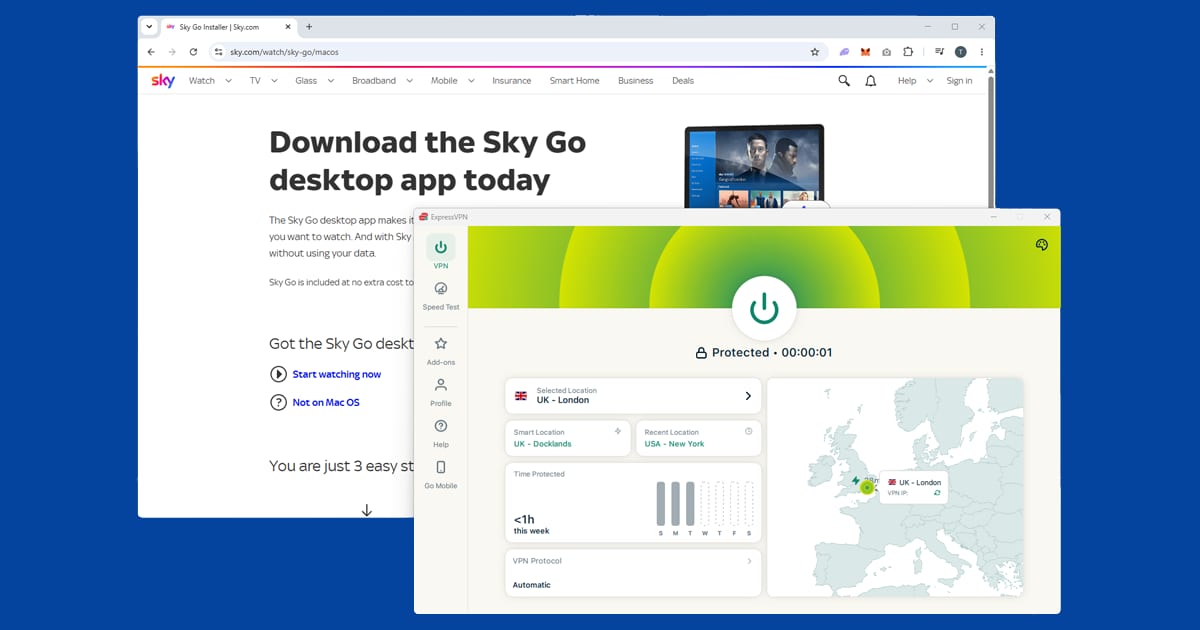
Sky Go no longer plays in a web browser. On a computer you need the Sky Go desktop app, downloaded from Sky's website. It's the Sky Go (Q/+) app, and for now it's the one to use on a laptop whether you have Sky Q, Glass or Stream. If you've been trying to log in at a browser tab and getting nowhere, that's why. Once it's installed, connect the VPN before you launch the app. If you get a PFE code, uninstall the app fully, restart the computer and reinstall it, since a lot of those codes aren't about location at all.
iPhone and iPad
Install Sky Go from the App Store, connect your VPN app, then open Sky Go. If you've given Sky Go permission to use your location, go to Settings, find Sky Go and set location access to Never. Use the VPN provider's full app, not a browser extension or a Safari add-on, as those only cover web pages.
Android phones and tablets
The same order applies: VPN on, then Sky Go. If the app keeps showing an old error, go to Settings, Apps, Sky Go, Storage and clear the cache and storage. Sky Go can also refuse to run on phones that have been rooted or modified, which has nothing to do with your VPN, so bear that in mind if you're using an unusual device.
Fire TV Stick and Android TV
Sky Go isn't available on Amazon's Fire TV Stick in the UK app store, and there's no official Android TV version. Sideloaded copies tend to be unreliable. If a Fire Stick is all you've got in your holiday rental, our Fire Stick VPN guide covers the UK apps that do run there, and a Now membership may be the easier route for sport (more on that below).
Watching on a TV
This is where Sky Go is most frustrating. Sky blocks AirPlay from the app and doesn't support Chromecast casting in the UK, and mirroring your screen usually gets you sound with a blocked picture, by design. If you need the big screen, an HDMI cable from a laptop running the desktop app is the most dependable option, although some setups block external display output too. Test it the day before a match, not five minutes before.
Sky Stream and Sky Glass
A Sky Stream puck or Sky Glass TV isn't a travel device. It's tied to your registered home address, it checks your location through your internet connection, and taking one abroad breaches Sky's terms. Sky Go is the app Sky intends you to use while you're away, so stick with it rather than packing the puck.
Sky Go, Now and live sport
Sky Go is included with a Sky TV subscription and shows whichever channels you pay for at home. If you've got Sky Sports, that means live Premier League, Formula 1, cricket, golf and more, all inside the Sky Go app. Live events are where VPN problems hurt most, because you can't pause a match to fix a server and pick up where you left off.
A few points make life easier for sport fans abroad:
- Sky Go and Now are separate. Now (formerly Now TV) is Sky's contract-free streaming service with its own app and its own membership. A Sky Go login doesn't work in the Now app and vice versa. Now has its own location checks, and our Now TV VPN guide covers those. Now does run on Fire TV Stick and Roku, which can help if your accommodation only has one of those.
- Some football isn't on Sky at all. Plenty of Champions League and Premier League matches are shown on TNT Sports, which is a separate subscription. If the game you want isn't in Sky Go, see our TNT Sports VPN guide.
- Planning a whole season abroad? Our guide to watching the Premier League abroad lays out which broadcaster has which games and how to cover them all from overseas.
- Buffering on a live stream is usually down to distance and server load, not Sky. Pick a UK server with low load, and try the WireGuard-based protocol in your VPN (NordLynx in NordVPN, Lightway in ExpressVPN). Our guide to fixing a slow VPN has more ideas.
Downloads are worth a thought too. If your plan includes downloads, saving films or box sets to your phone before you leave home means you're not relying on the VPN at all for those. Live channels can't be downloaded, though, so this won't help with the football.
If you've moved abroad for good
Everything above assumes you're travelling. Living overseas permanently is a different situation. Sky can only supply its service to a UK or Irish address, and its terms are built around UK customers watching while temporarily away, not people who've relocated.
In practice, plenty of expats keep a UK Sky subscription and watch via a VPN, and it's not illegal to use a VPN in the UK or most countries. But it sits outside what Sky's service is designed for, and you shouldn't expect help from Sky if something goes wrong. If you're in this position, it's worth looking at the services you can sign up to legitimately where you live, too. For other UK services that work the same way, our UK streaming hub collects every guide in one place.
When the network is the problem, not Sky
Sometimes Sky isn't blocking you at all. The VPN simply won't connect, or connects and then nothing loads. That's usually the network you're on: hotel wi-fi, holiday apartment routers and some countries' internet providers restrict VPN traffic. You'll know this is the issue if the VPN app itself shows an error or never says "connected".
In that case, try switching protocol to one that looks like normal web traffic, such as OpenVPN over TCP on port 443, or turn on obfuscation if your VPN offers it. Obfuscation disguises VPN traffic so the network can't easily tell what it is. Our hotel wi-fi guide covers the sign-in pages and port blocks you'll meet in hotels, and switching to your phone's mobile data is a quick way to confirm whether the wi-fi is to blame.
VPNs that work reliably with Sky Go
Sky Go is one of the harder UK services for a VPN to keep up with, so the provider you pick matters more than usual. What you're looking for is a big pool of UK servers that gets refreshed often, apps for every device you'll use, and support staff who can tell you which servers are working today.
- NordVPN is our first pick. It has a large UK server network across several cities, which gives you plenty of addresses to rotate through when one gets flagged, and its apps make switching city a two-tap job. Its NordLynx protocol is quick enough for live sport.
- ExpressVPN is a strong second. Its Lightway protocol is fast and copes well when your connection hops between networks, and its apps are some of the simplest to use, which helps when you're setting things up on a hotel bed at half past seven before a match.
- PureVPN is a good budget option with UK servers and apps for all the main devices.
Avoid free VPNs for Sky Go. Their small, crowded server pools get flagged quickly, and they rarely have the speed to hold a live stream steady. Our guide to whether free VPNs are safe explains the privacy trade-offs as well.
Watching Sky Go in Spain
Spain is probably the most common place British Sky customers discover that Sky Go has stopped working, from a fortnight on the Costa del Sol to expats who spend the winter, or the whole year, in an urbanización near Alicante. It's also one of the easier places to sort out. Spain has no restrictions on VPN use, the UK is close enough that speed is rarely a problem, and once you're set up it takes a couple of minutes before each match.
As a UK customer, you'll need a UK VPN server in Spain just as you would anywhere else outside the UK and Ireland, because the EU travel rules covered above no longer apply to UK subscriptions. If a friend at the bar swears Sky Go "just works" in Spain, their advice dates from before the Brexit transition ended.
Which UK server to pick from Spain
London is the usual starting point, since it tends to have the largest number of server addresses. If it's blocked or feels sluggish, Manchester and Edinburgh are solid alternatives. Because Spain sits so close to the UK, any of the main UK cities should give you a fast, stable connection.
One small thing for live sport: mainland Spain and the Balearics run an hour ahead of the UK, so a 3pm kick-off at home is 4pm on the Costa del Sol. The Canary Islands share UK time. Do your pre-match checks against local time, not the UK listing, or you'll be fiddling with servers as the teams walk out.
Holiday lets, hotels and community wi-fi
If you're in a holiday rental, a hotel or an urbanización with shared community wi-fi, look at the network before you blame your VPN. Older or ISP-supplied routers can sometimes interfere with VPN connections, particularly when one basic internet plan is shared across several apartments.
The giveaway is whether the VPN connects at all. If it won't, the network is the problem rather than Sky, and switching to a protocol that runs over port 443 (the same port ordinary secure websites use) usually fixes it, because a restrictive router is far less likely to filter that traffic. Our guide to changing your VPN protocol has the steps. If your phone works on mobile data but not on the villa's wi-fi, that confirms it's the router.
Spanish mobile data
Spanish mobile networks are much less fussy. The major carriers, Movistar, Vodafone España and Orange, along with the smaller providers that run on their networks, don't interfere with VPN traffic, since EU net neutrality rules generally stop providers from blocking or throttling it. A VPN on a Spanish SIM should behave much like it does on a decent UK mobile connection. Just keep an eye on your data allowance.
Buffering is rarely about the distance
Spain to a London or Manchester server is a short hop by internet standards, nothing like watching UK TV from Australia. So if Sky Go buffers once you're past the location check, the Spanish wi-fi underneath is a far more likely cause than the VPN, especially on an older or heavily shared connection. Run a speed test with the VPN off: if it's slow on its own, no server change will rescue it. Our guide to fixing a slow VPN covers what you can still try.
Spanish smart TVs
If you've bought a TV in Spain, don't be surprised if Sky Go isn't in its app store at all. App availability is region-locked separately from the programmes themselves, so a Spanish-market TV often won't list it. The device notes above explain your options for getting Sky Go onto a bigger screen; sort that out the day before a match rather than on it.
Download the right Sky Go app before you leave
In September 2026 Sky launched a redesigned Sky Go app for Sky Glass and Sky Stream customers. It lets you carry on watching programmes you started on the TV, get to your saved shows in My Library, stream in Full HD and set recordings on your Glass or Stream box remotely.
The catch is that there are now two apps. Sky Q customers carry on with the separate Sky Go (Q/+) app, while Glass and Stream customers use the new one, which is on the App Store and Google Play. On a laptop, everyone uses the Sky Go (Q/+) desktop app for now. Sky says Glass and Stream customers will soon get the new app on laptops too, but it hasn't given a date. Download the right one and sign in while you're still at home in the UK. Remote recording is especially handy if you spend long stretches in Spain, because you can line up programmes on your box back home.
Holidaying or living there?
If you've moved to Spain for good rather than visiting, the section on moving abroad above applies to you. If BBC iPlayer is also telling you you're not in the UK, our guide to why iPlayer says you're not in the UK fixes that, and our UK streaming hub covers the other British apps expats tend to rely on.